Usage Scenarios
# Usage Scenarios
# Scenario 1: Embedding Non-standard Components in Object Detail Pages
Case: As shown below, configure a Customer 360° View tab in the customer detail page where certain data requires non-standard display formats.
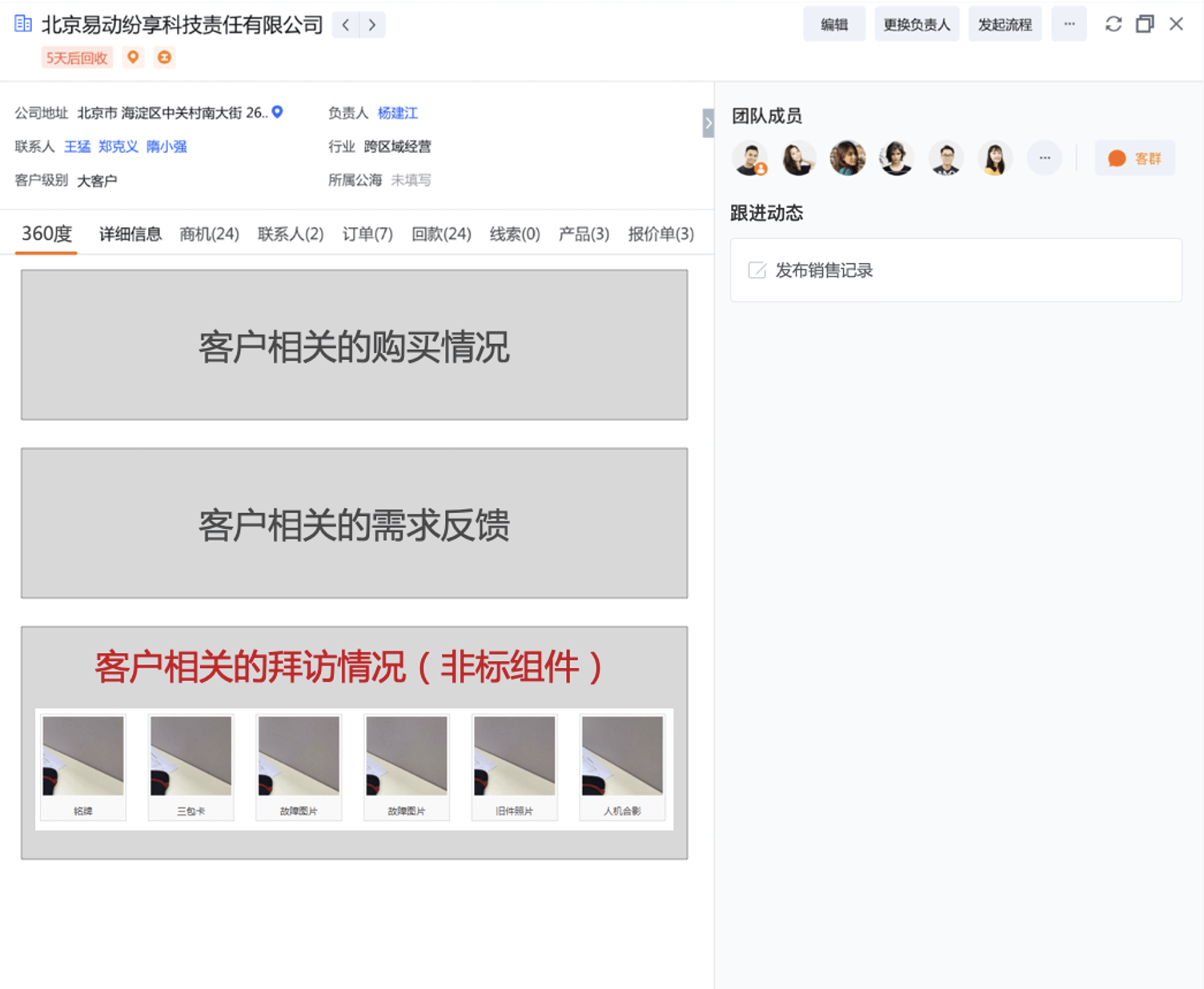
Development and Configuration Method: Refer to "Developing Your First Custom Component" to configure the developed custom component into the object detail page layout.
# Scenario 2: Adding Custom Interfaces to CRM Menus
Case: As shown below, add a custom functional interface to the CRM menu.
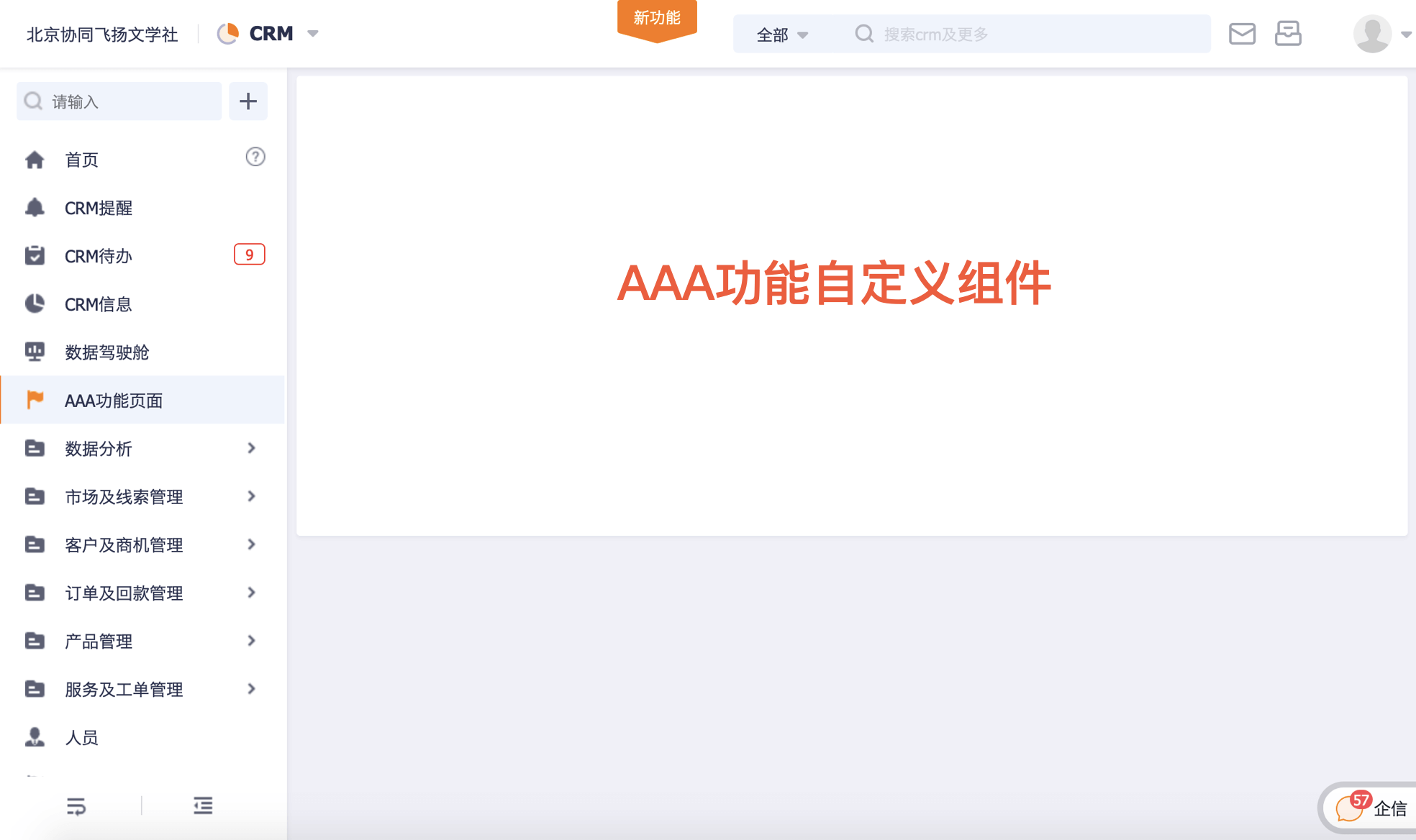
Development and Configuration Method: Develop a custom component, configure it into a custom page, and then add the custom page to the CRM menu.
Step 1: Develop the custom component (Reference: "Developing Your First Custom Component")
Step 2: Navigate to the Custom Page Management interface and click "New"
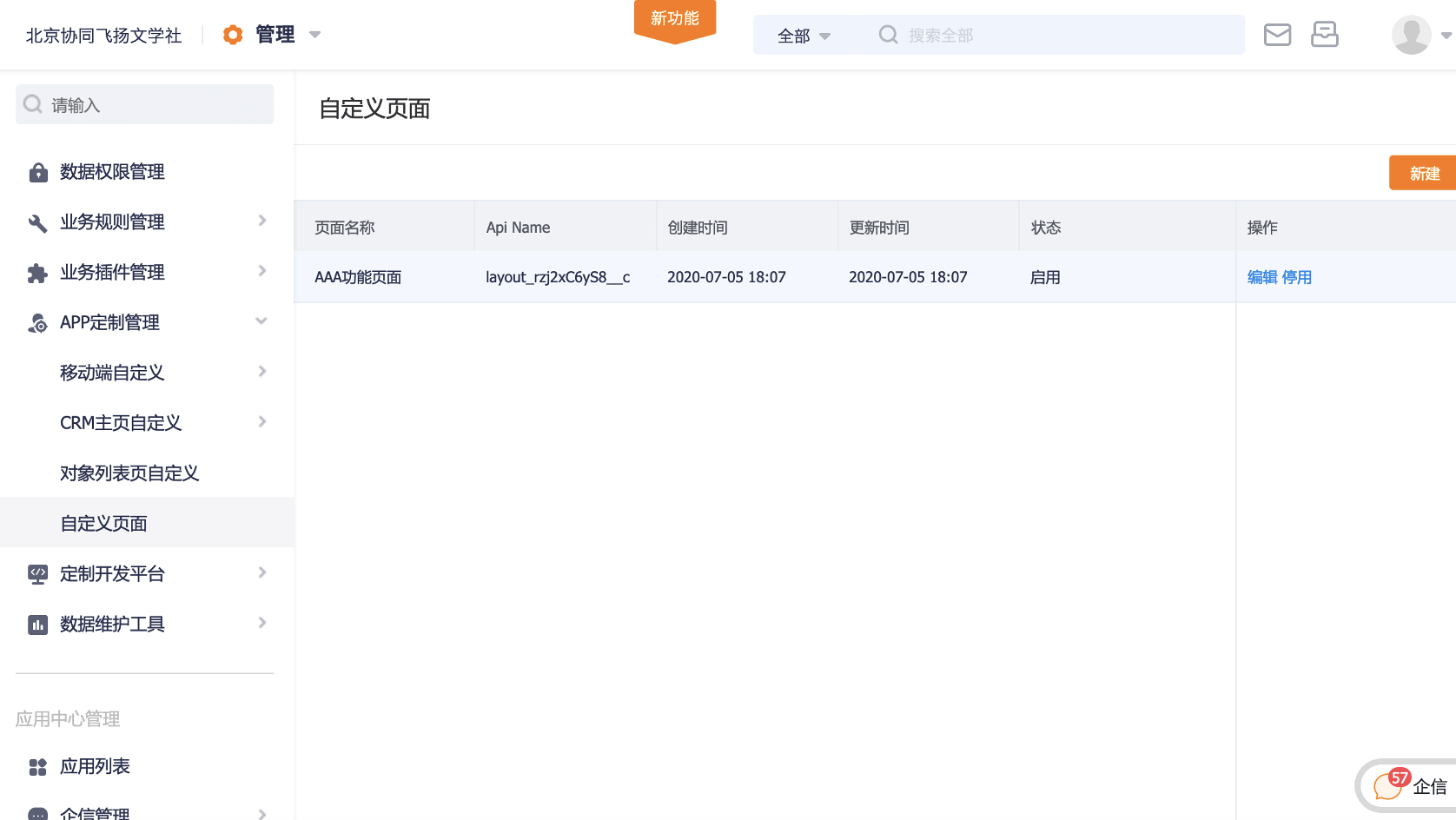
Step 3: Select the page layout type and configure the developed custom component into the page layout
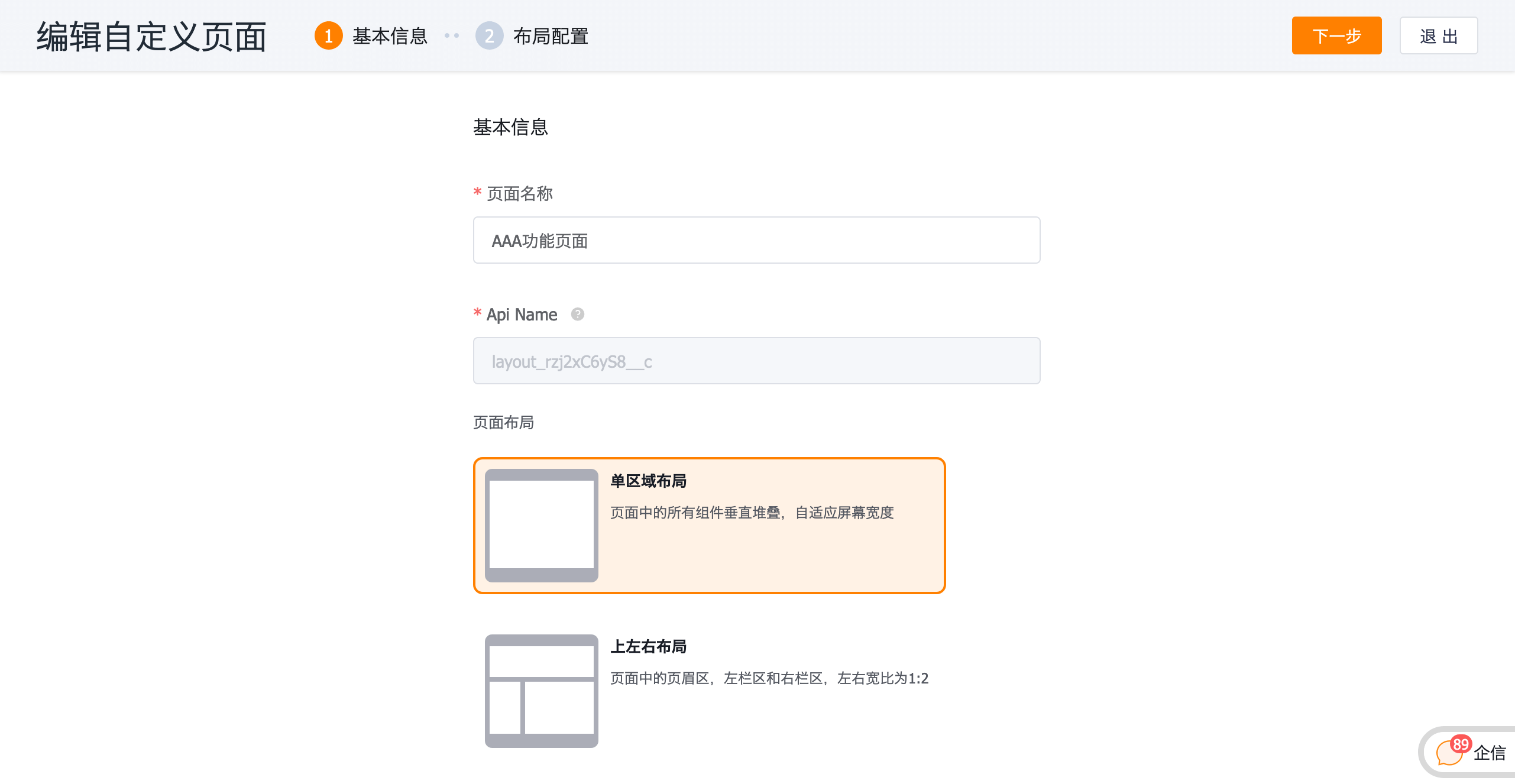
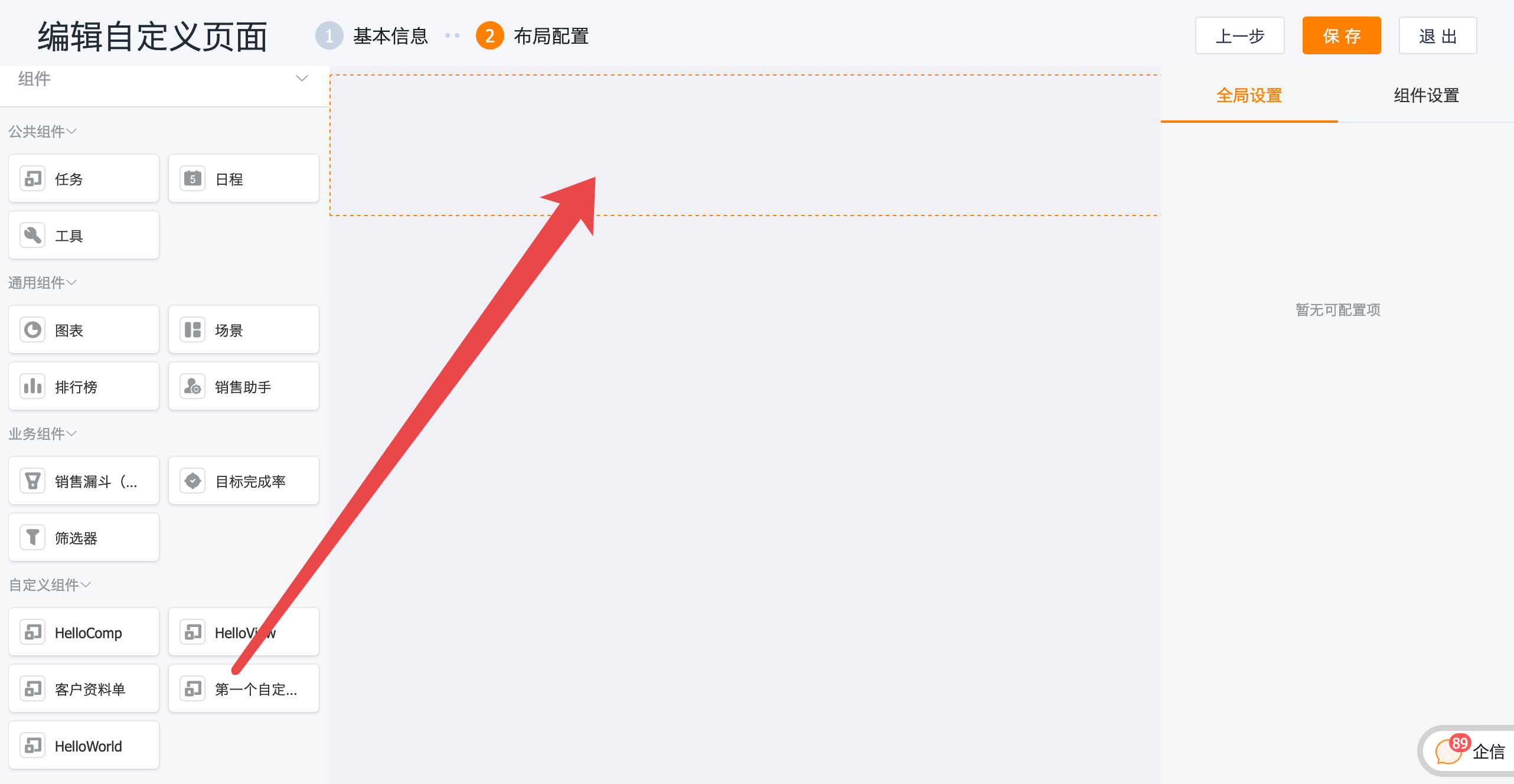
# Scenario 3: Adding Custom Buttons to Pages that Trigger Dialog-style Custom Interfaces
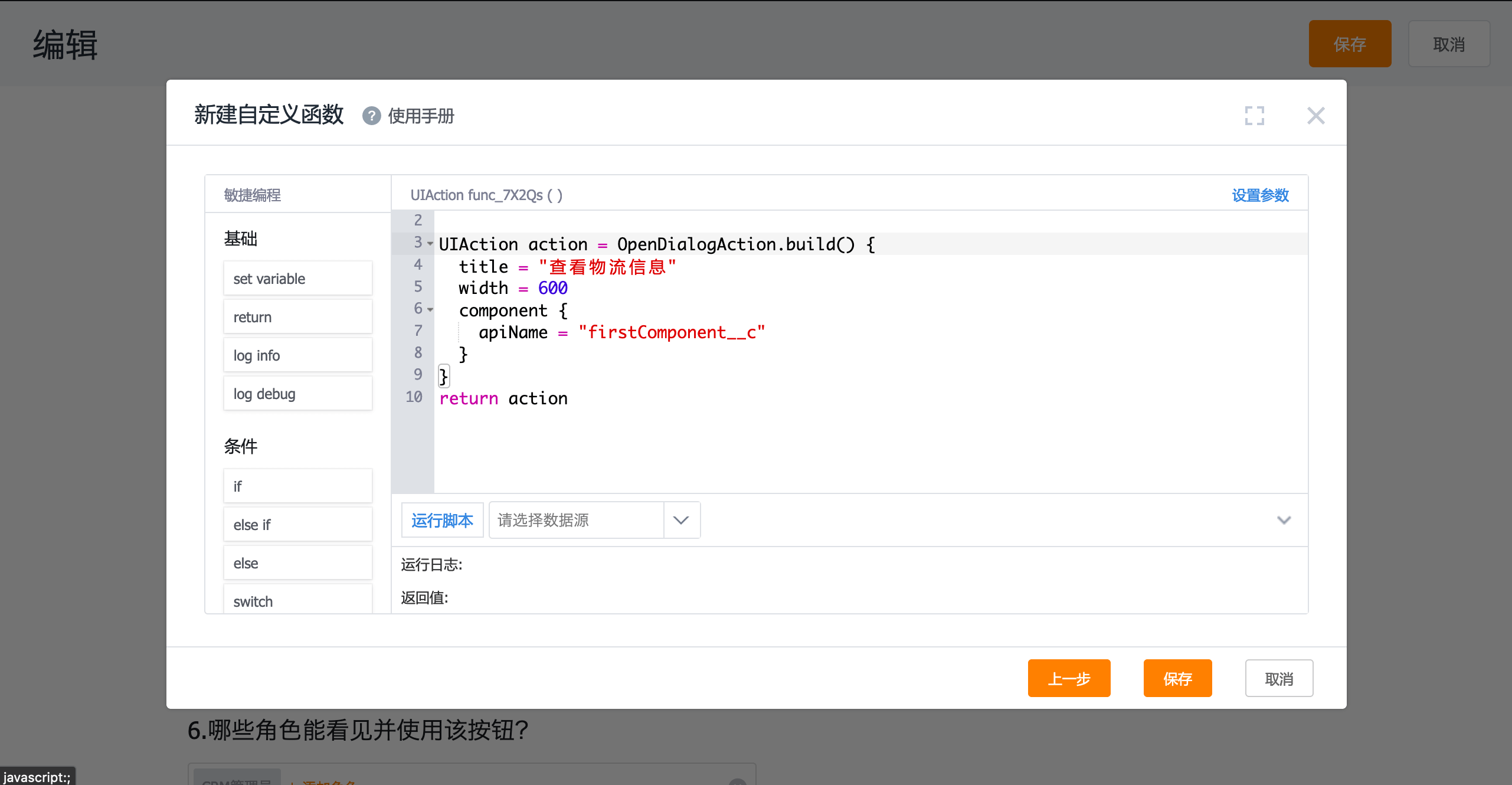
Case: Add a custom button to sales orders for viewing logistics information, where the logistics interface is developed through tenant-level customization.
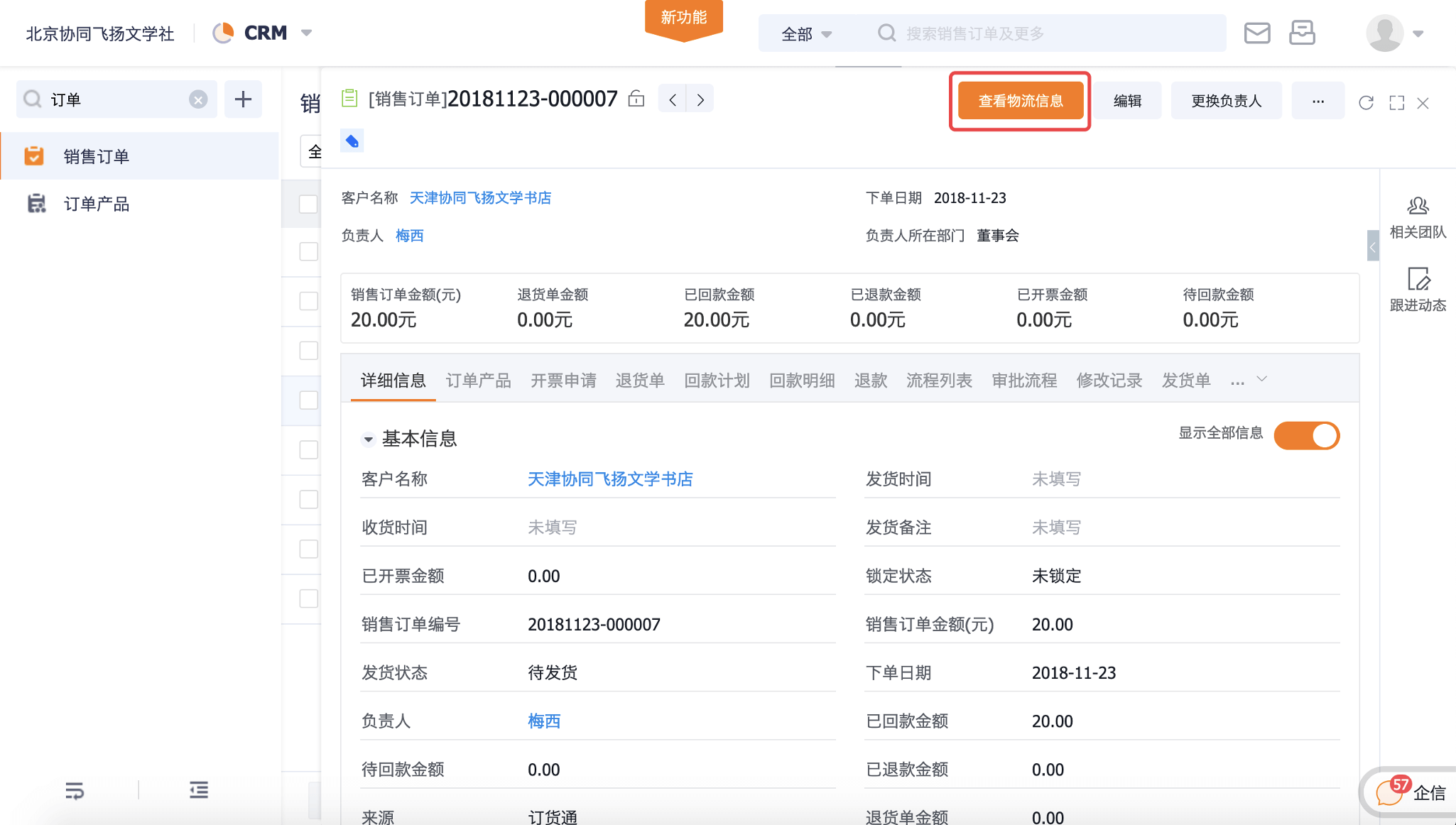
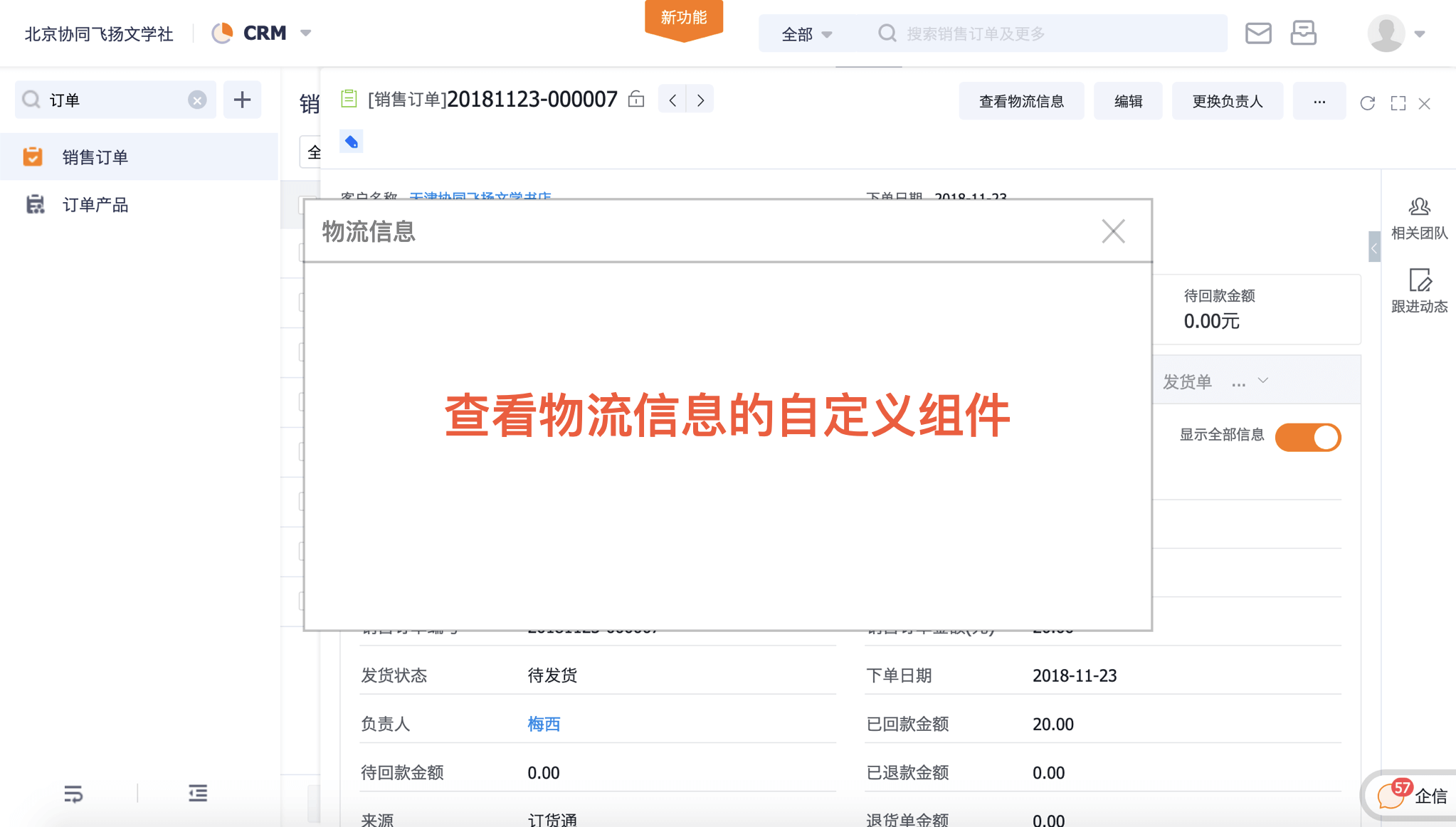
Step 1: Develop the custom component (Reference: "Developing Your First Custom Component")
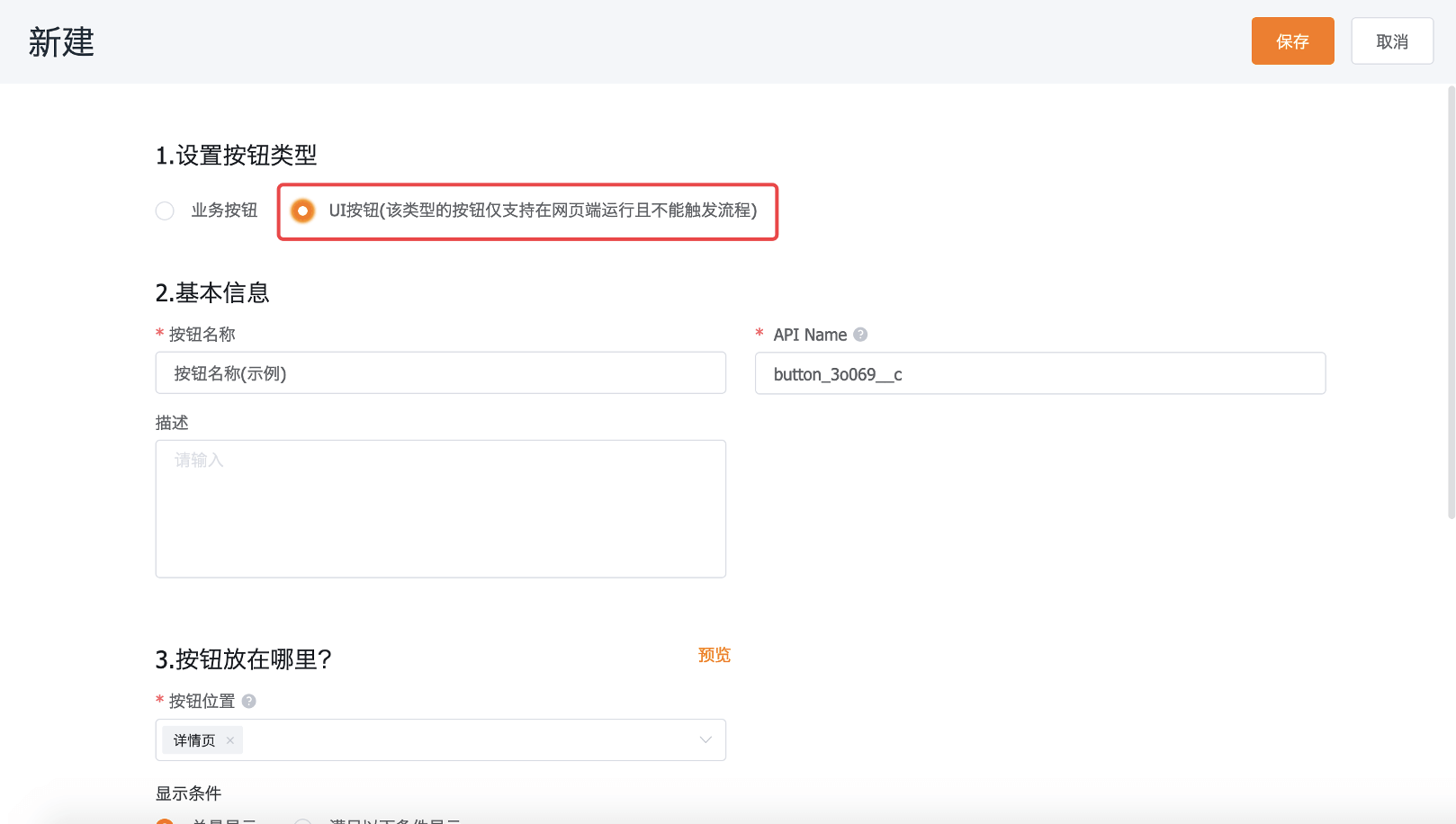
Step 2: Create a custom button and configure it on the target page. Select "UI Button" as the button type.
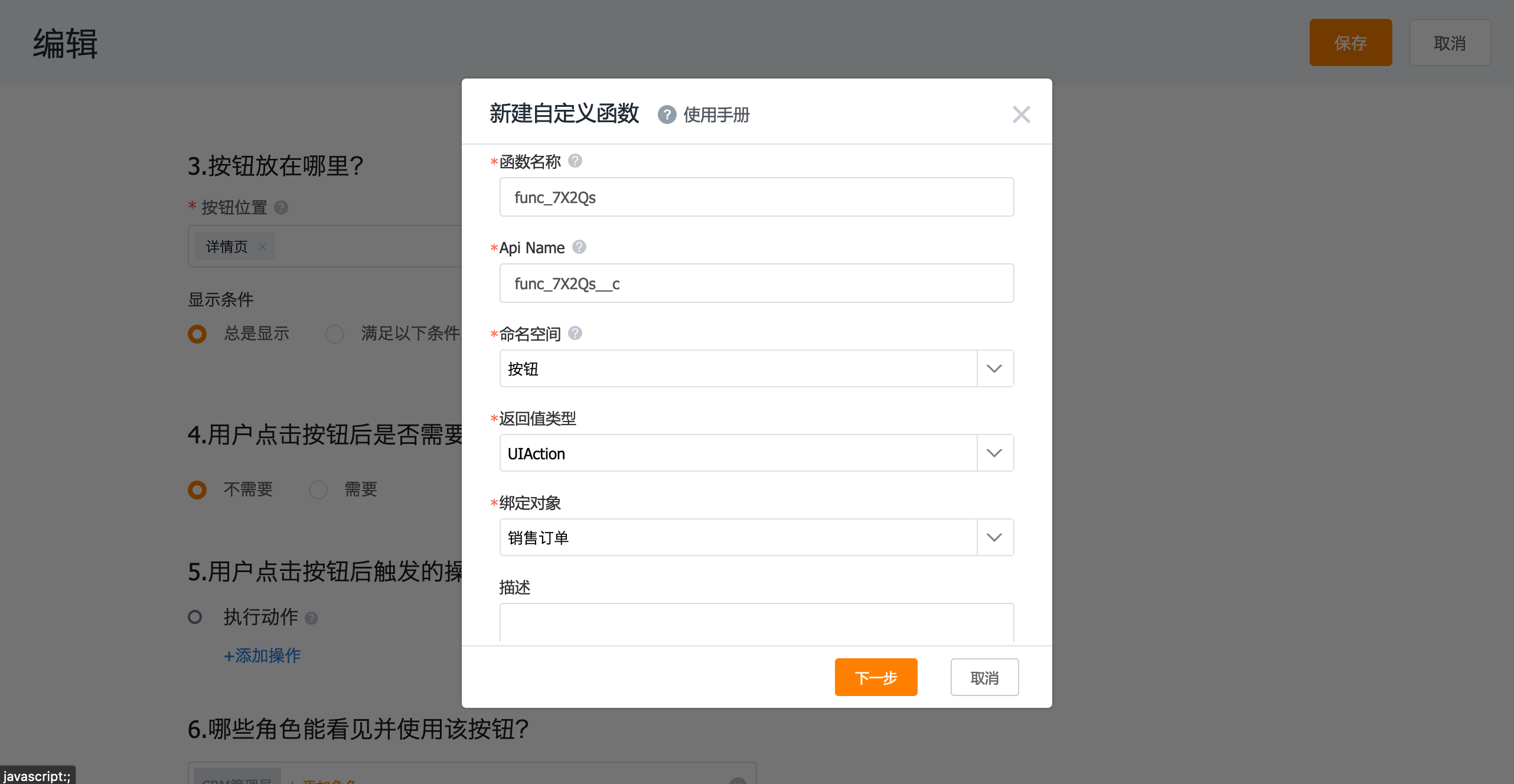
Step 3: In the execution action, create a custom function and select "UIAction" as the return type.
Step 4: Write the custom function code for displaying the dialog.