Fxiaoke Developer Manual Fxiaoke Developer Manual
  • APL Development Manual
  • PWC Development Manual
  • OpenAPI Documentation
  • Custom Components (PC)
  • Custom Components (Mini Program)
  • Custom Plugins (PC)
  • Custom Plugins (Mini Program)
  • Third-party Integration Plugins (H5)
  • API (PC)
  • API (Mini Program)
  • Fx DevTools
Update Log
  • 简体中文
  • English
  • Custom Components (PC)
  • Custom Components (Mini Program)
  • Custom Plugins (PC)
  • Custom Plugins (Mini Program)
  • Third-party Integration Plugins (H5)
  • API (PC)
  • API (Mini Program)
  • Fx DevTools
Update Log
  • 简体中文
  • English
  • Getting Started

    • What is Custom Component
    • Develop Your First Custom Component
    • Usage Scenarios
    • Multi-file Custom Components
    • Using Static Assets in Custom Components
      • Usage Method:
    • Using FxUI
  • Components

  • Examples

  • FAQ

Table of Contents

Using Static Assets in Custom Components

# Using Static Assets in Custom Components

Custom components support the following static file types:

  • png
  • jpg
  • jpeg
  • svg

# Usage Method:

In your code, you need to construct the image path using $publicPath$ + image filename. Example:

<template>
    <div style="width: 100%;">
        <div ref="wrap" style="height: 300px;">{{dImgUrl}}</div>
        <img :src="dImgUrl">
    </div>
</template>
<script>
export default {
    data() {
        return {
            dImgUrl: `${$publicPath$}demo.png`
        }
    }
}
</script>

Note: Images cannot be used in styles.

# Uploading Images in Admin Panel:
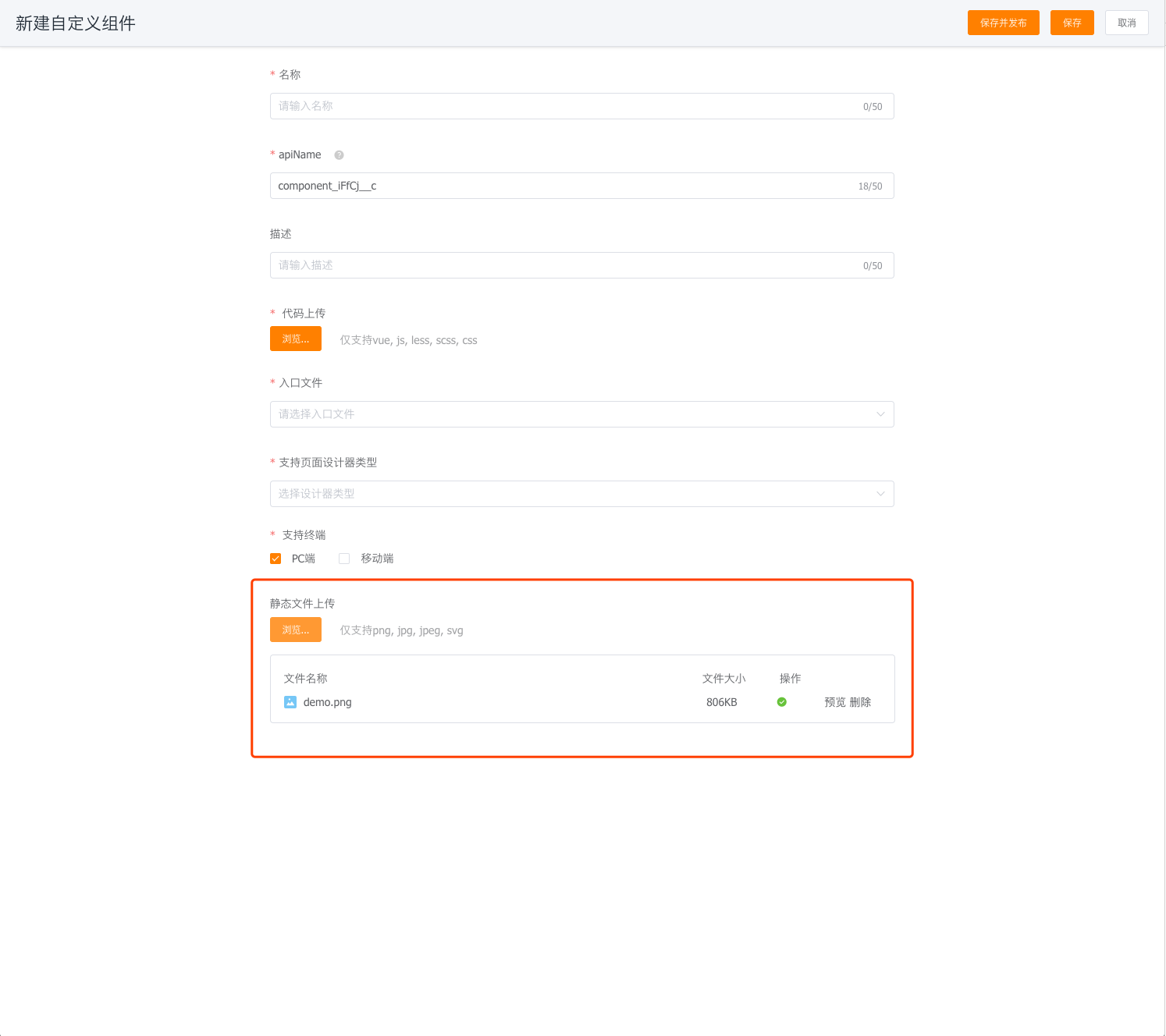
first-component-step1-1

Multi-file Custom Components
Using FxUI

← Multi-file Custom Components Using FxUI→

  • 跟随系统
  • 浅色模式
  • 深色模式
  • 阅读模式