Fxiaoke Developer Manual Fxiaoke Developer Manual
  • APL Development Manual
  • PWC Development Manual
  • OpenAPI Documentation
  • Custom Components (PC)
  • Custom Components (Mini Program)
  • Custom Plugins (PC)
  • Custom Plugins (Mini Program)
  • Third-party Integration Plugins (H5)
  • API (PC)
  • API (Mini Program)
  • Fx DevTools
Update Log
  • 简体中文
  • English
  • Custom Components (PC)
  • Custom Components (Mini Program)
  • Custom Plugins (PC)
  • Custom Plugins (Mini Program)
  • Third-party Integration Plugins (H5)
  • API (PC)
  • API (Mini Program)
  • Fx DevTools
Update Log
  • 简体中文
  • English
  • Getting Started

    • What is Custom Component
    • Develop Your First Custom Component
      • Step 1: Create a basic Vue component
      • Step 2: Upload the component
      • Step 3: Use the component in the Layout Designer
      • Step 4: View the rendered component
    • Usage Scenarios
    • Multi-file Custom Components
    • Using Static Assets in Custom Components
    • Using FxUI
  • Components

  • Examples

  • FAQ

Table of Contents

Developing Your First Custom Component

# Developing Your First Custom Component

Custom components are built using the Vue framework. If you:

  1. Have Vue development experience, you can start developing custom components directly.

  2. Are new to Vue, we recommend learning the basics of Vue (Vue Official Site (opens new window)) before proceeding with this guide.

Here’s a simple example:

# Step 1: Create a basic Vue component

File name: firstComponent.vue

<template>  
    <div class="demo">  
        Hello: {{ myName }}  
    </div>  
</template>  
<script>  
export default {  
    data() {  
        return {  
            myName: "Developer233"  
        }  
    }  
}  
</script>  
<style>  
    .demo {  
        width: 100%;  
    }  
</style>  

# Step 2: Upload the component

Navigate to the Custom Components section in the admin console, click New, and upload the file.
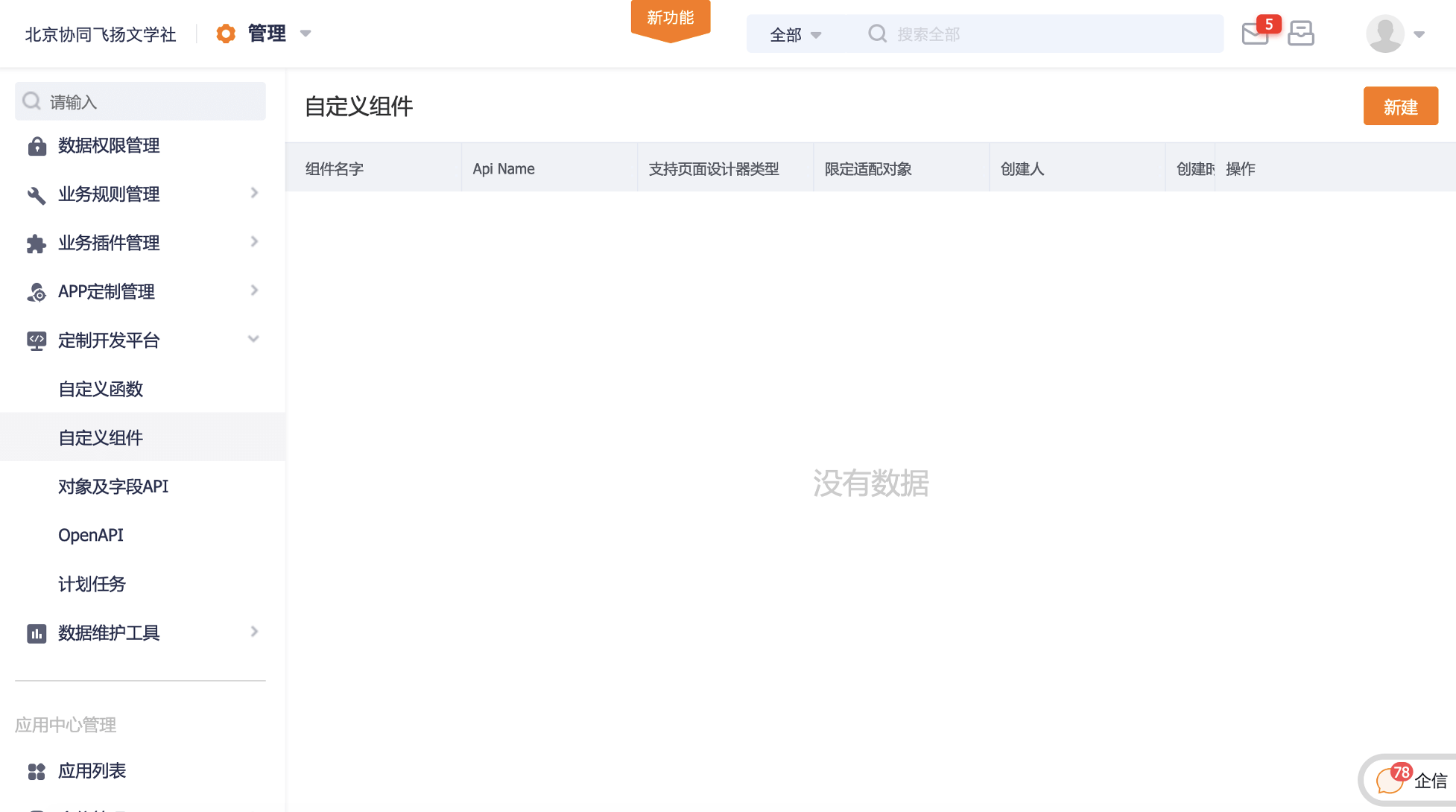
first-component-step1-1

first-component-step1-2

# Step 3: Use the component in the Layout Designer

Find the Custom Components toolbox in the Layout Designer, then drag and drop the component into your page layout.
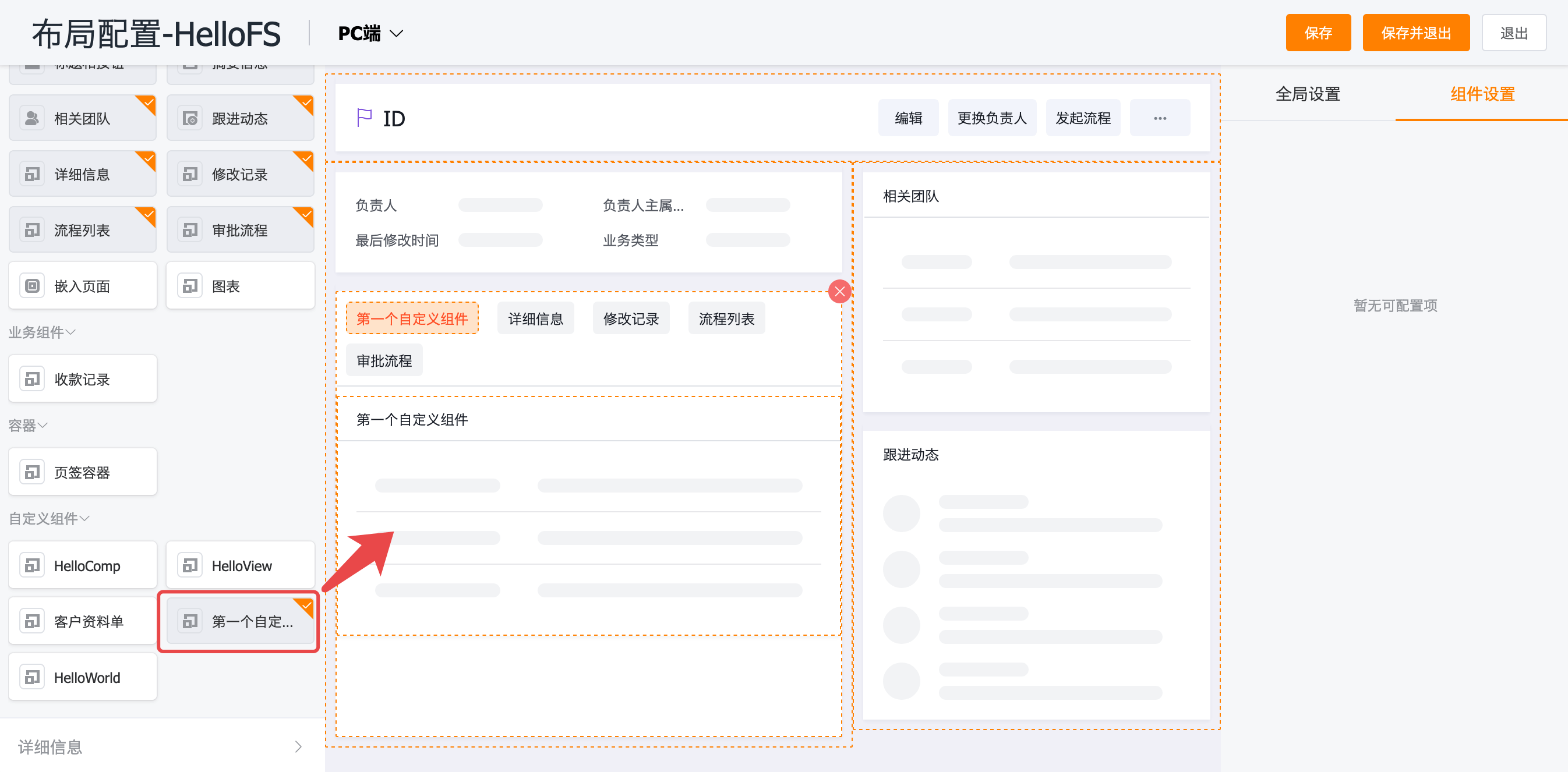
first-component-step2-1

# Step 4: View the rendered component

The component will appear in the frontend interface as shown below:
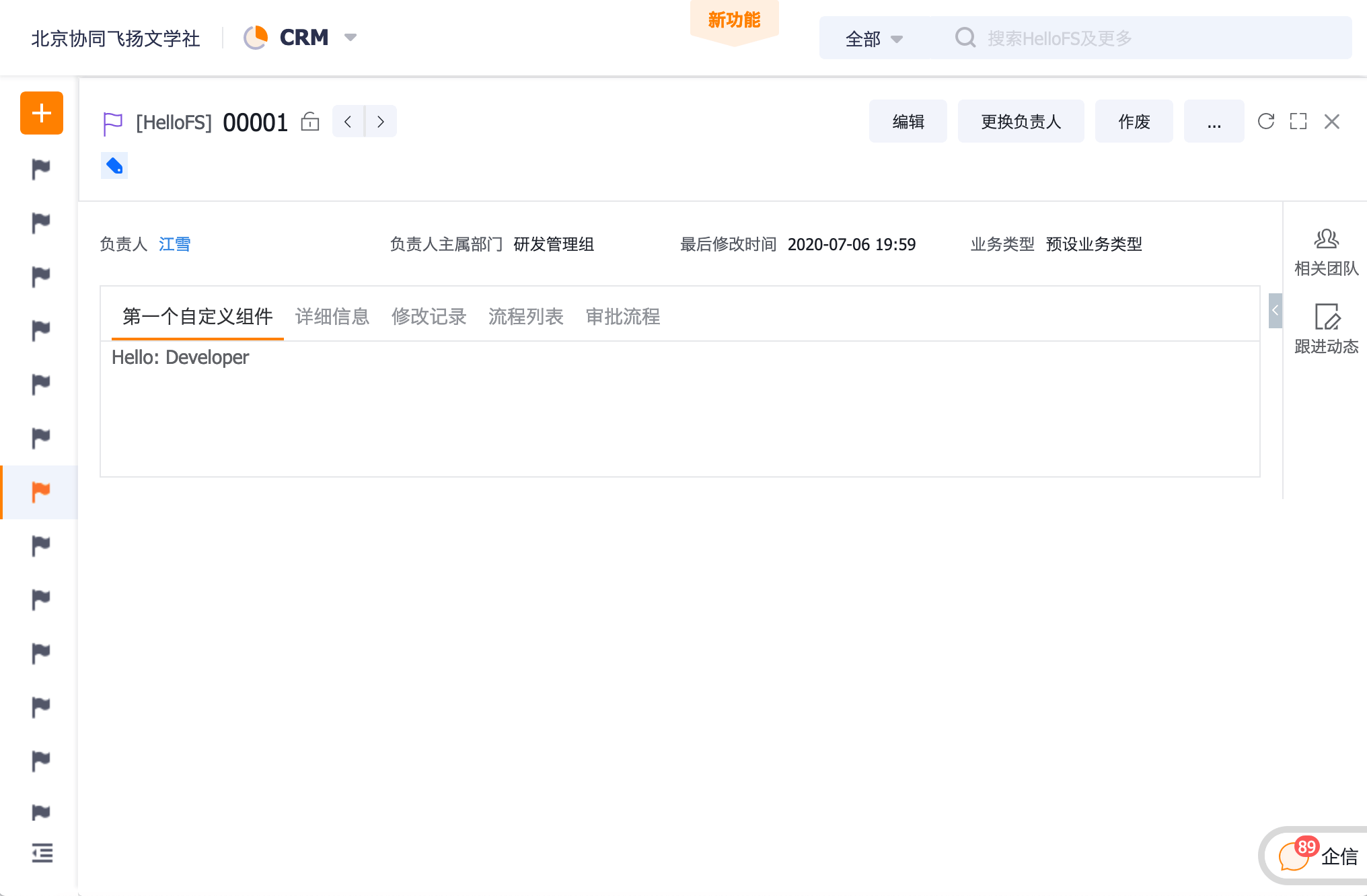
first-component-step3-1

# Examples:

  1. Custom Printing
  2. Custom Charts
  3. Embedding Third-Party Systems
  4. More Examples Here (opens new window)
What is Custom Component
Usage Scenarios

← What is Custom Component Usage Scenarios→

  • 跟随系统
  • 浅色模式
  • 深色模式
  • 阅读模式