share-dev
# share-dev
ShareDev is the latest VSCode extension that facilitates developers in uploading, creating, and debugging code.
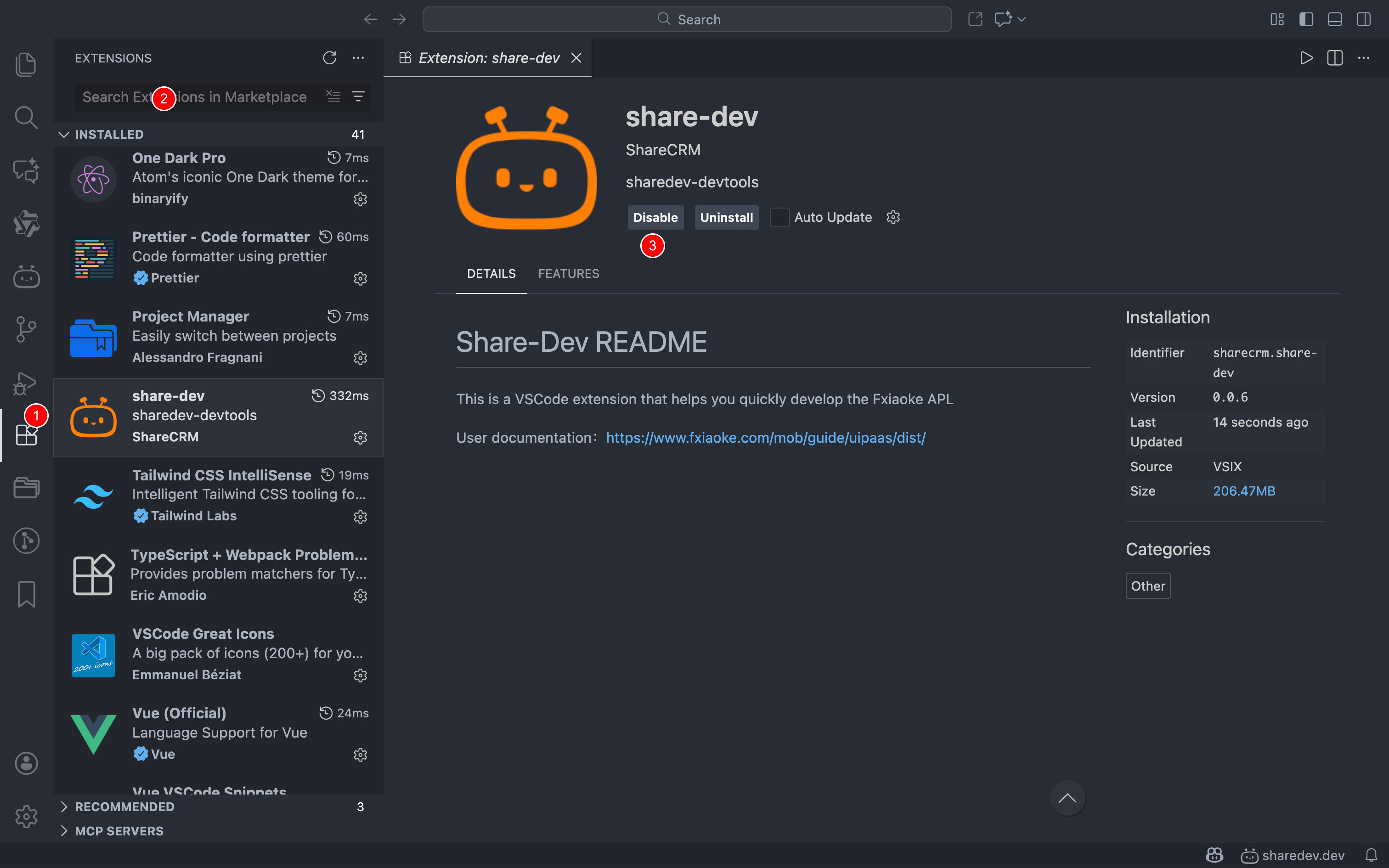
# Installation in VSCode
# Creating an Enterprise Workspace
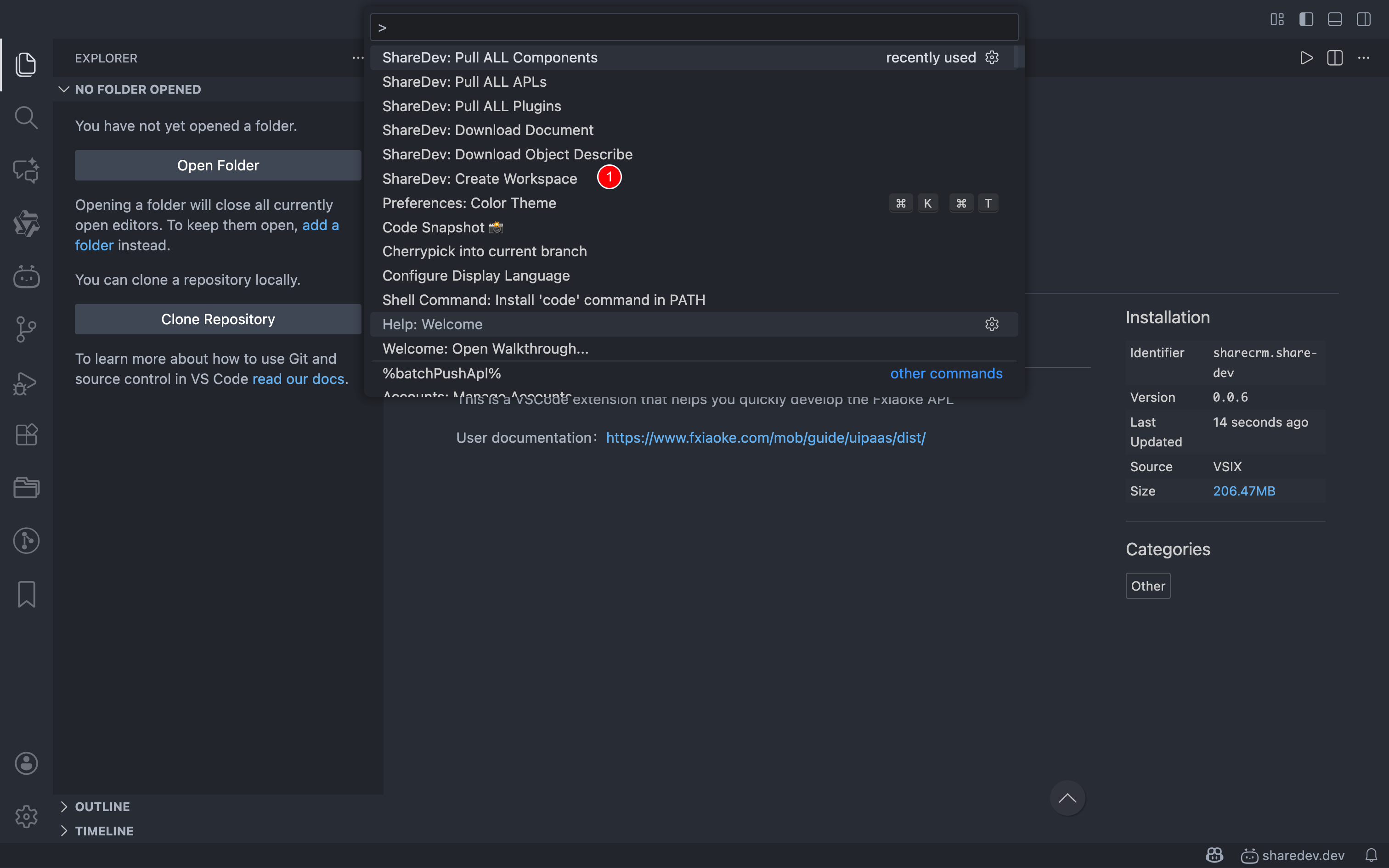
Open VSCode IDE, launch the command palette via Ctrl+Shift+P (Windows) or Cmd+Shift+P (macOS), then enter and execute the ShareDev: Create Workspace command. Follow the steps to create an enterprise workspace:
- Create a local folder named "Enterprise EA"
- Execute
ShareDev: Create Workspaceand select the folder created in the previous step
# Certificate Configuration
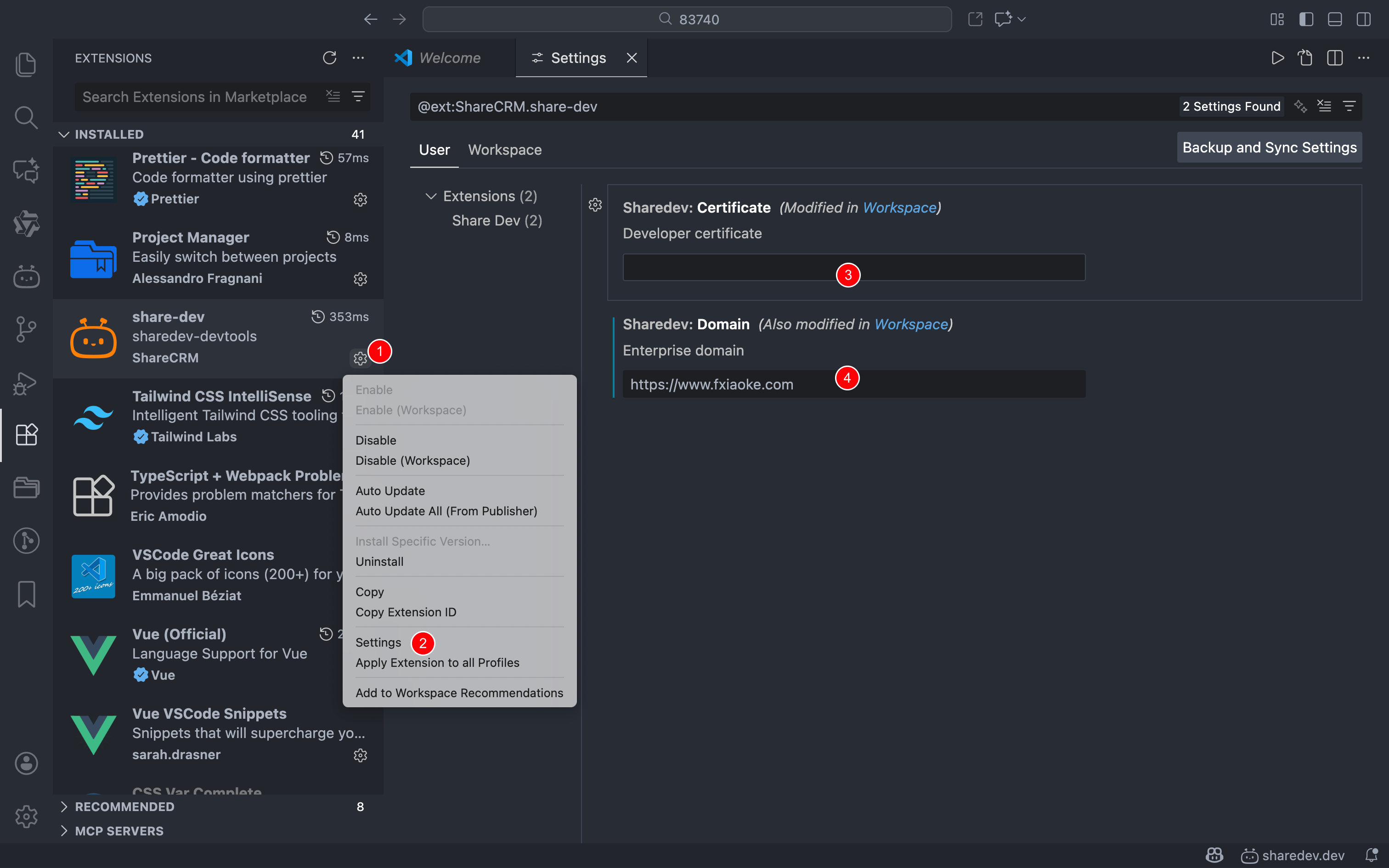
# Method 1: Add via Settings
- This method applies globally and remains consistent across multiple VSCode windows
# Method 2: Add via Workspace (Recommended)
- Only effective at the folder level
- Utilize VSCode's built-in workspace feature to set individual certificates and domains per workspace, eliminating the need to switch certificates in settings
- Create a
.vscodefolder and add asettings.jsonfile
Note
What is a workspace?
https://code.visualstudio.com/docs/editor/workspaces/workspaces
How to use settings.json?
https://code.visualstudio.com/docs/editor/settings
Add the following content to settings.json:
{
  // Configure certificate
  "sharedev.certificate": "Enterprise domain",
  // Configure domain
  "sharedev.domain": "Developer certificate"
}
# PWC Usage
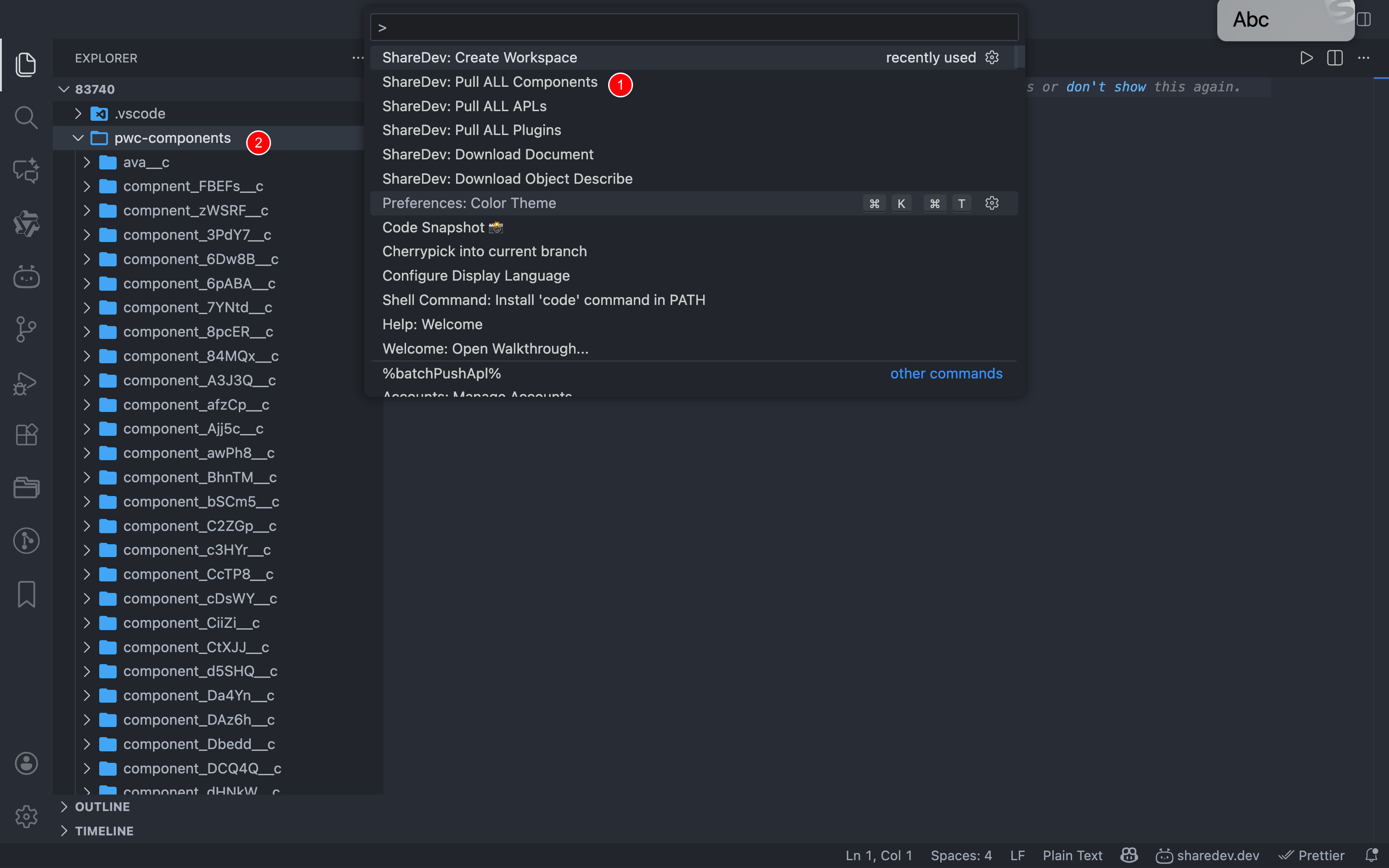
# Pull PWC
- Open command tool with Command + Shift + P
- Search for
Pull ALL ComponentsorPull ALL Plugins
# Push PWC
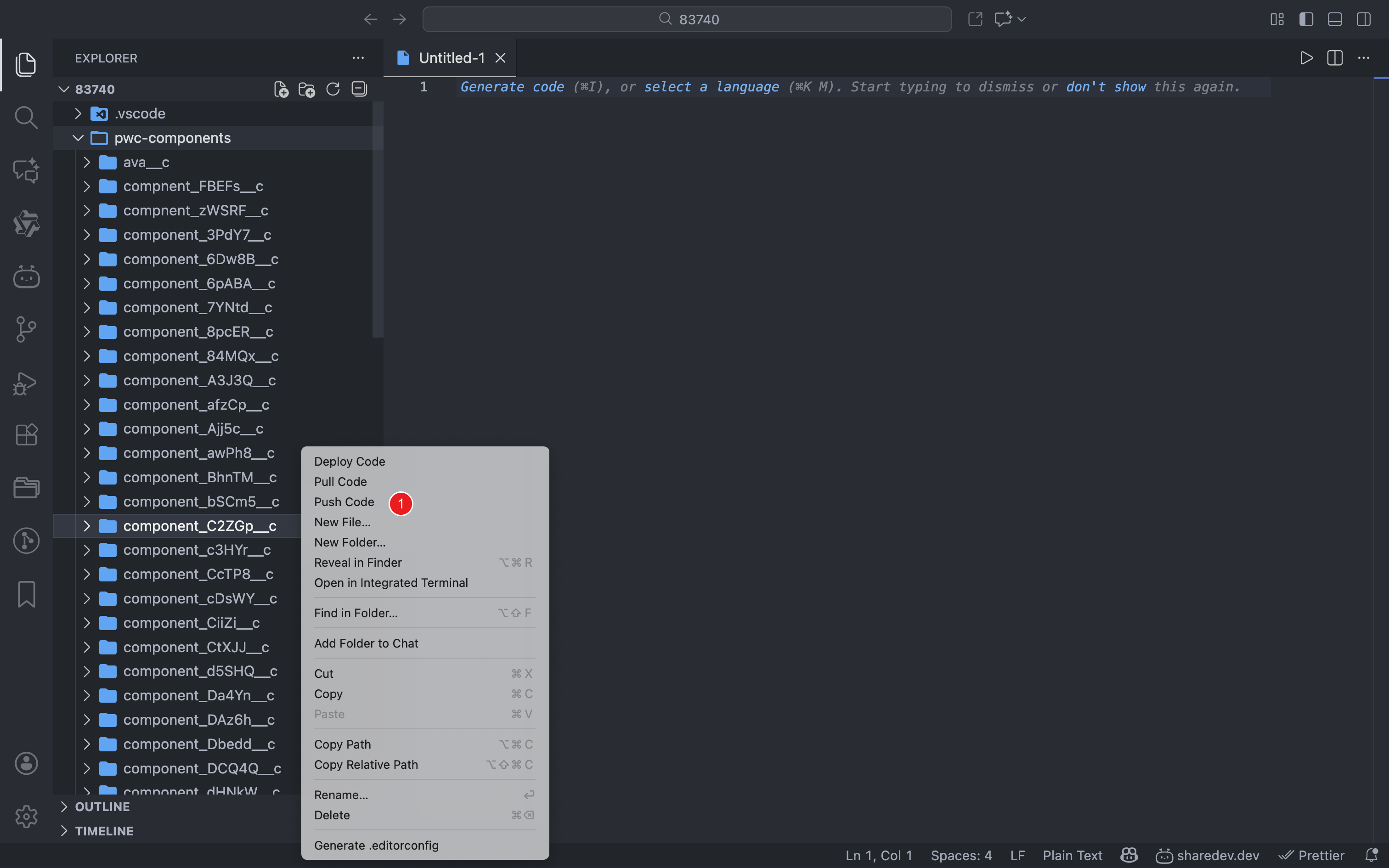
- Right-click on a folder
- Select
Push Codefrom the context menu
# Debug PWC
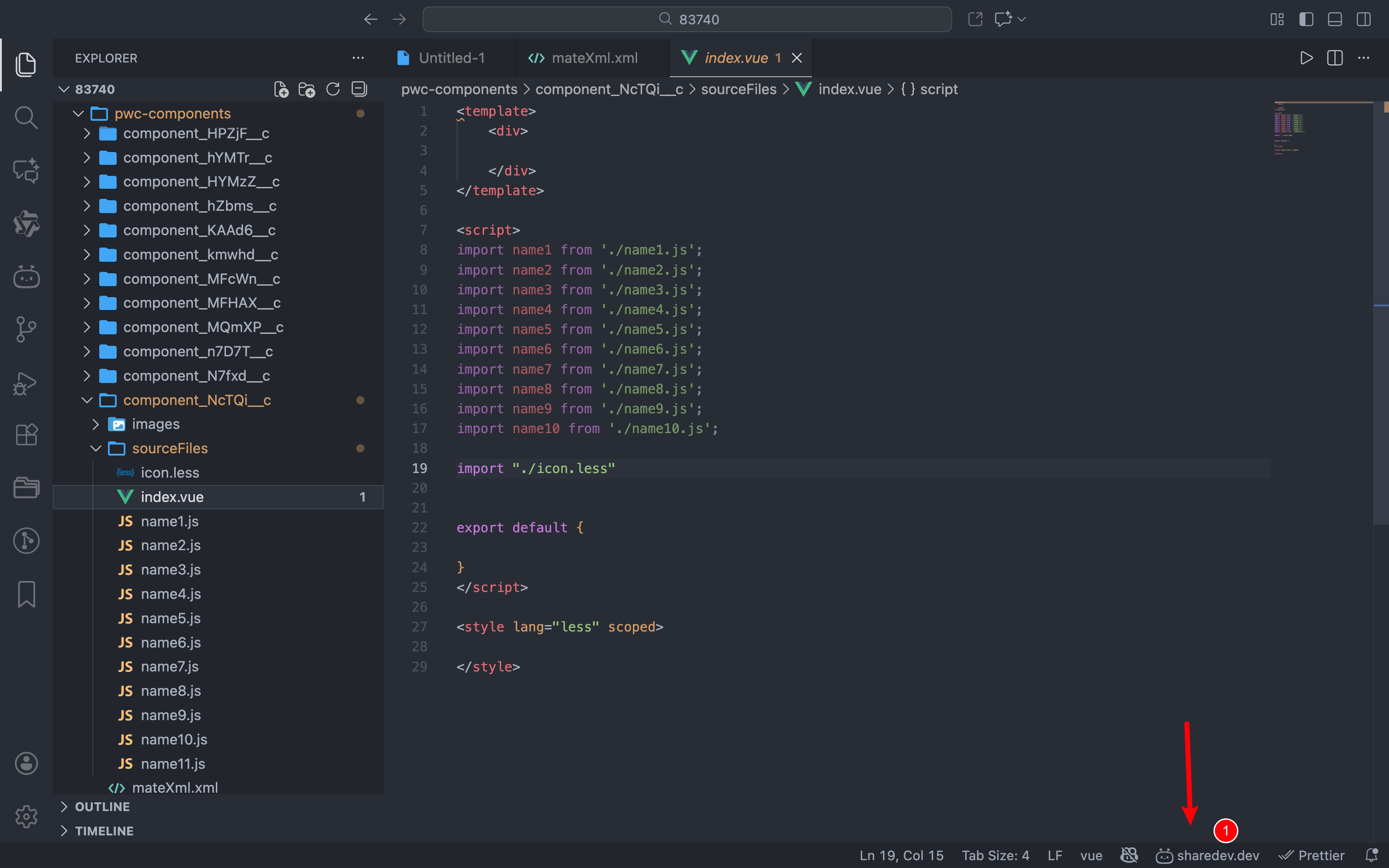
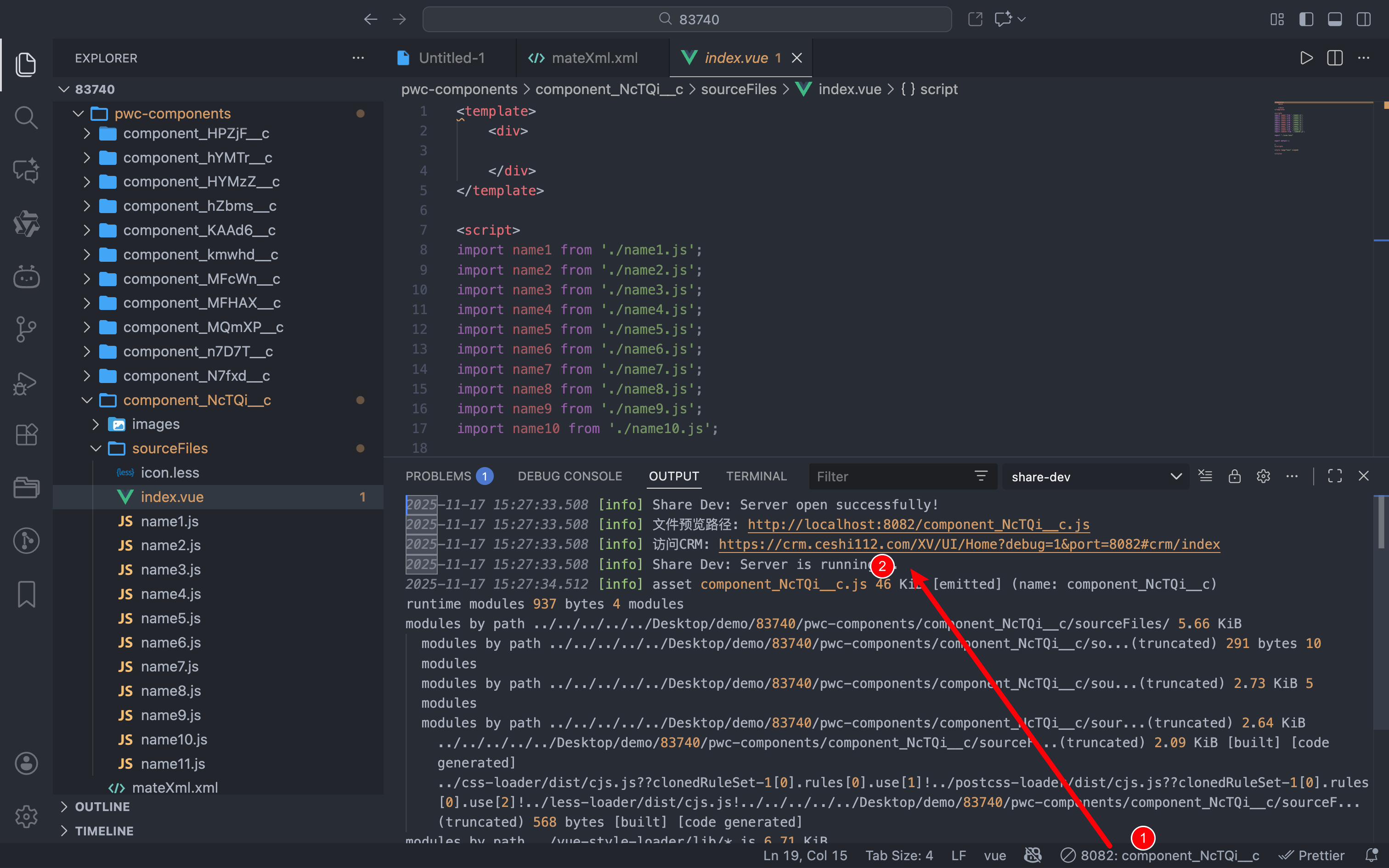
- Open any PWC file
- Locate
sharedev.devat the bottom-right corner - Click the icon to enable debugging
- Click again to disable debugging
# APL Usage
# Pull Code
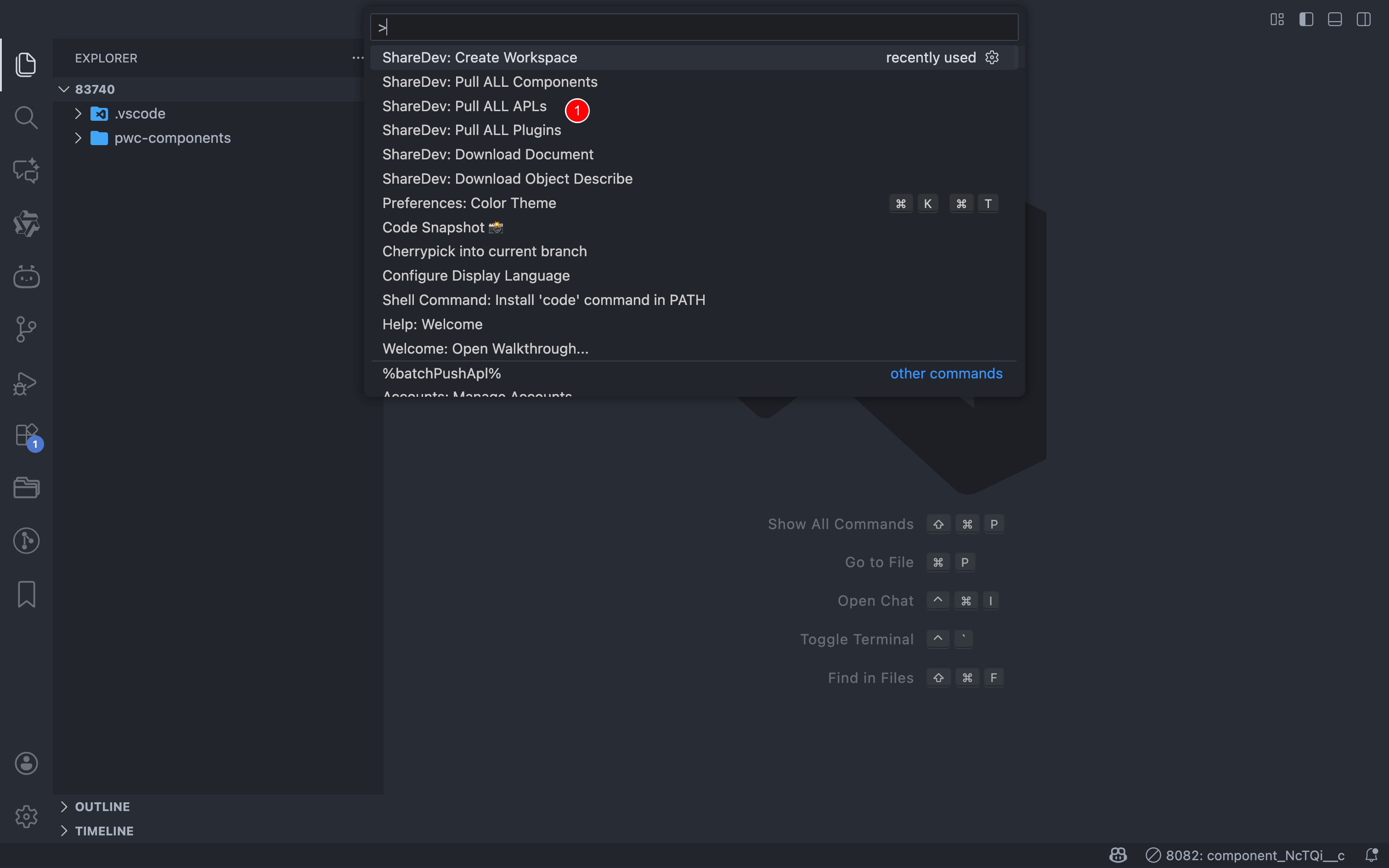
Pull all APLs:
- Press
command + shift + Pto open VSCode command window - Search for
Pull ALL APLsand execute
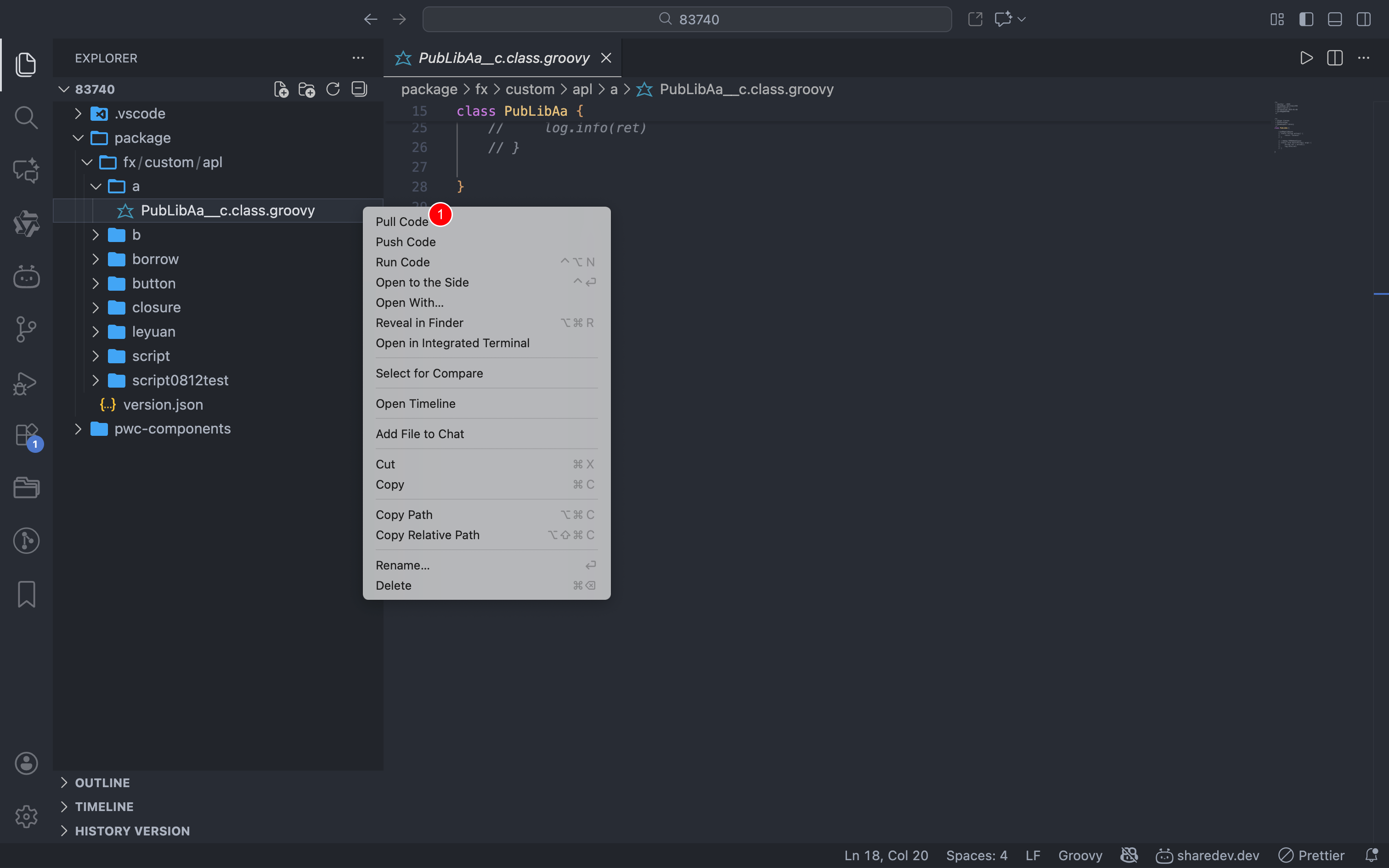
Pull single APL code:
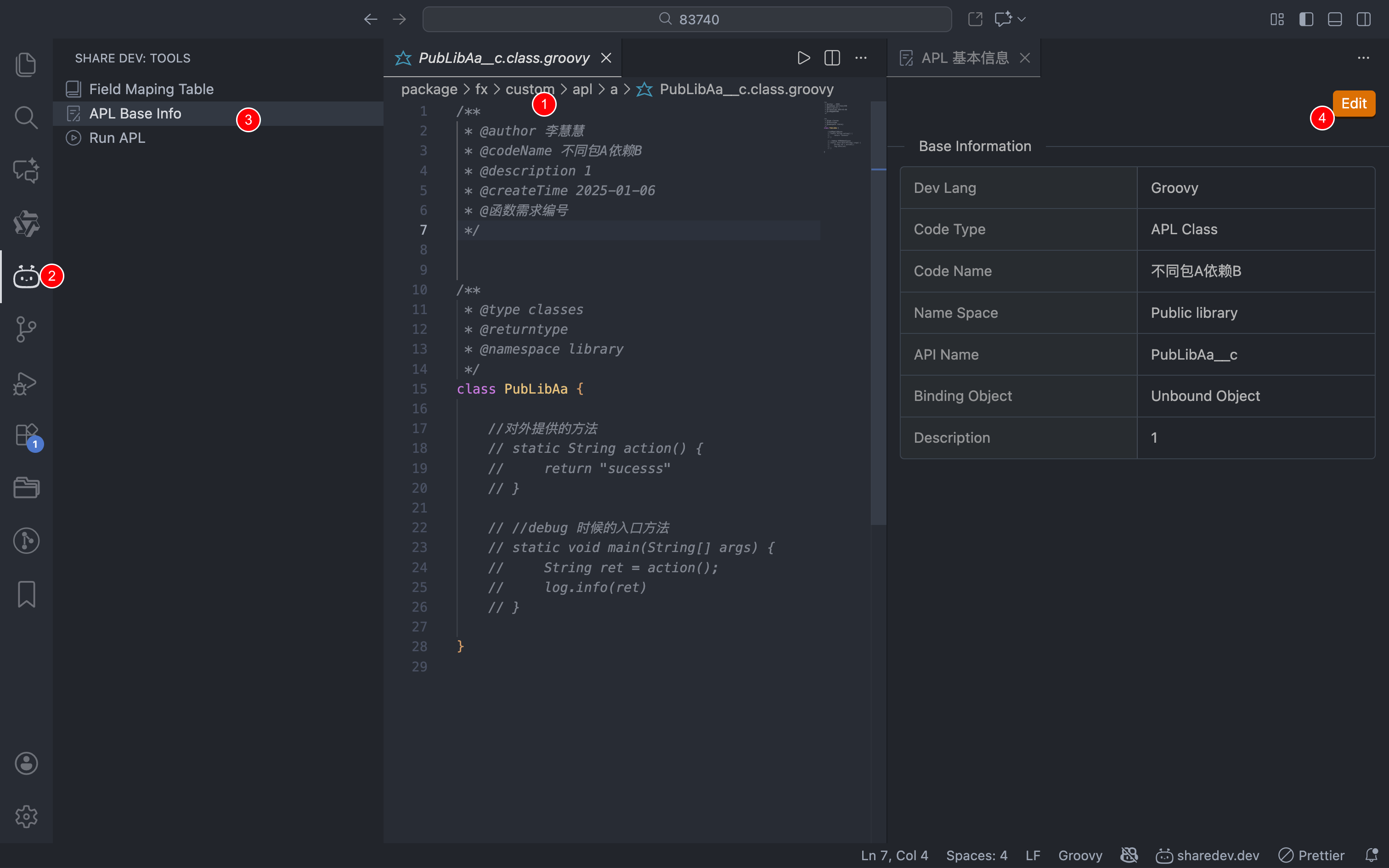
# Basic Information
- Click the FenXiang icon in the left main navigation
- Locate and click
APL Base Infoin the panel - Open any APL code to display its basic information in the panel
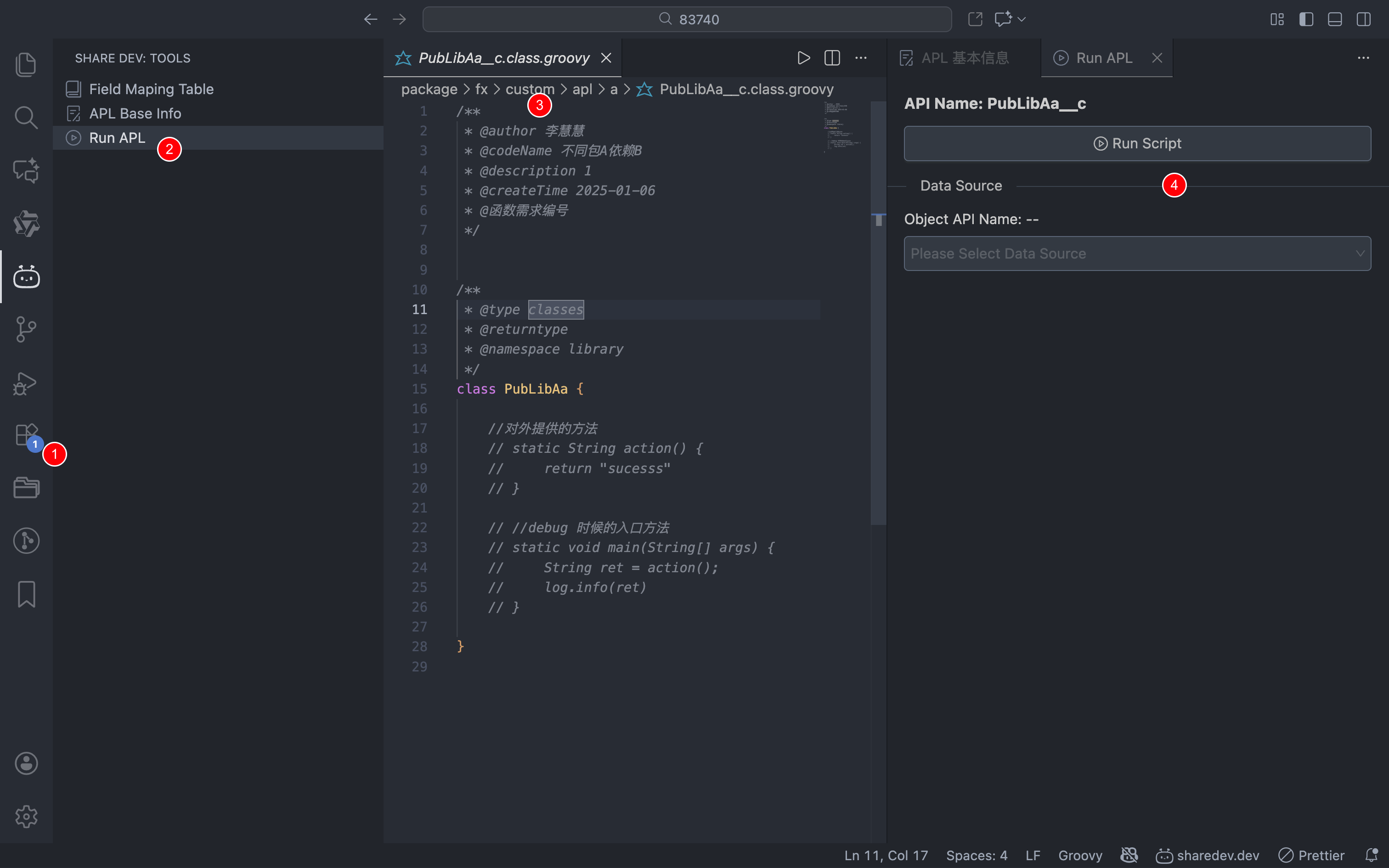
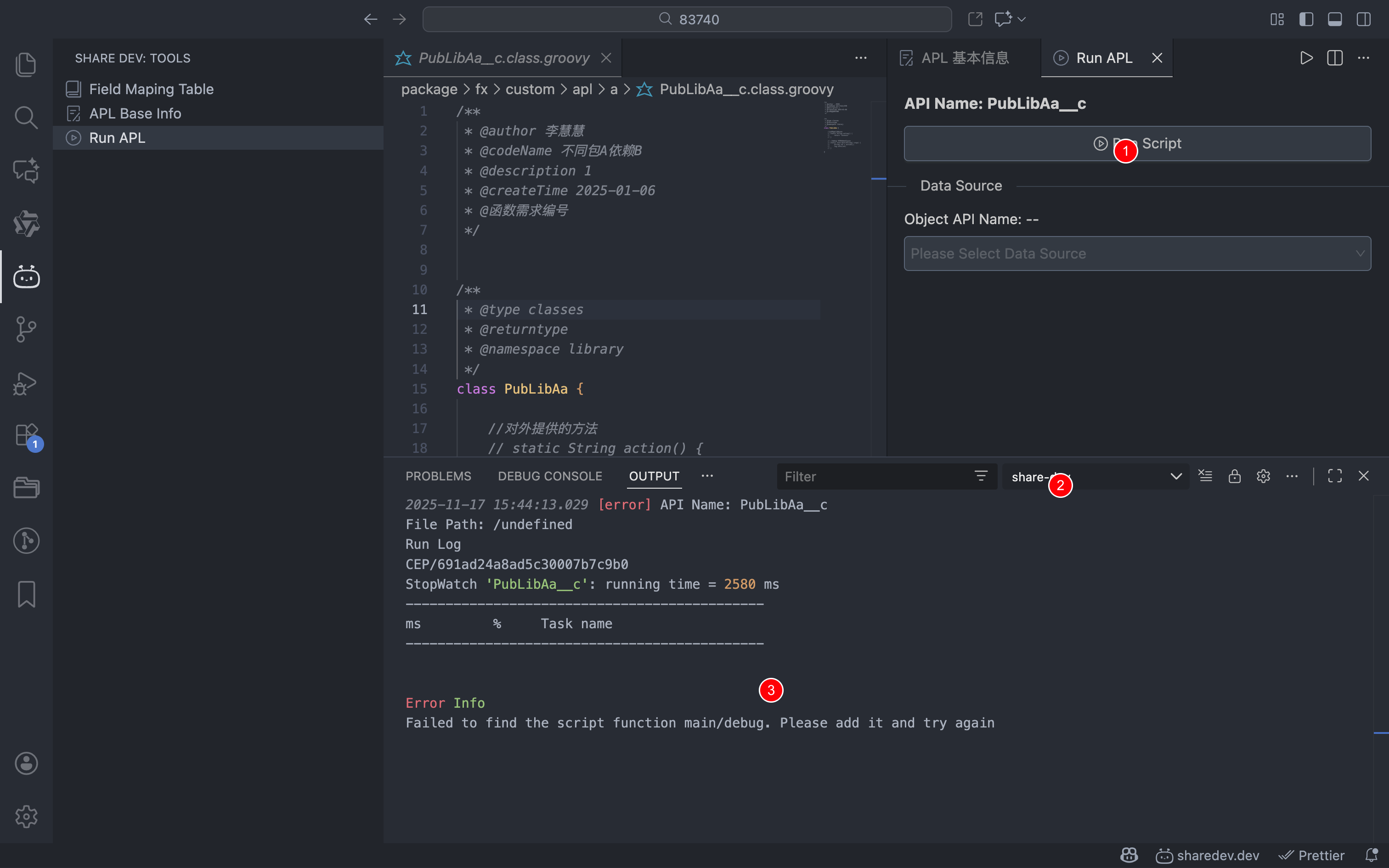
# Debug Code
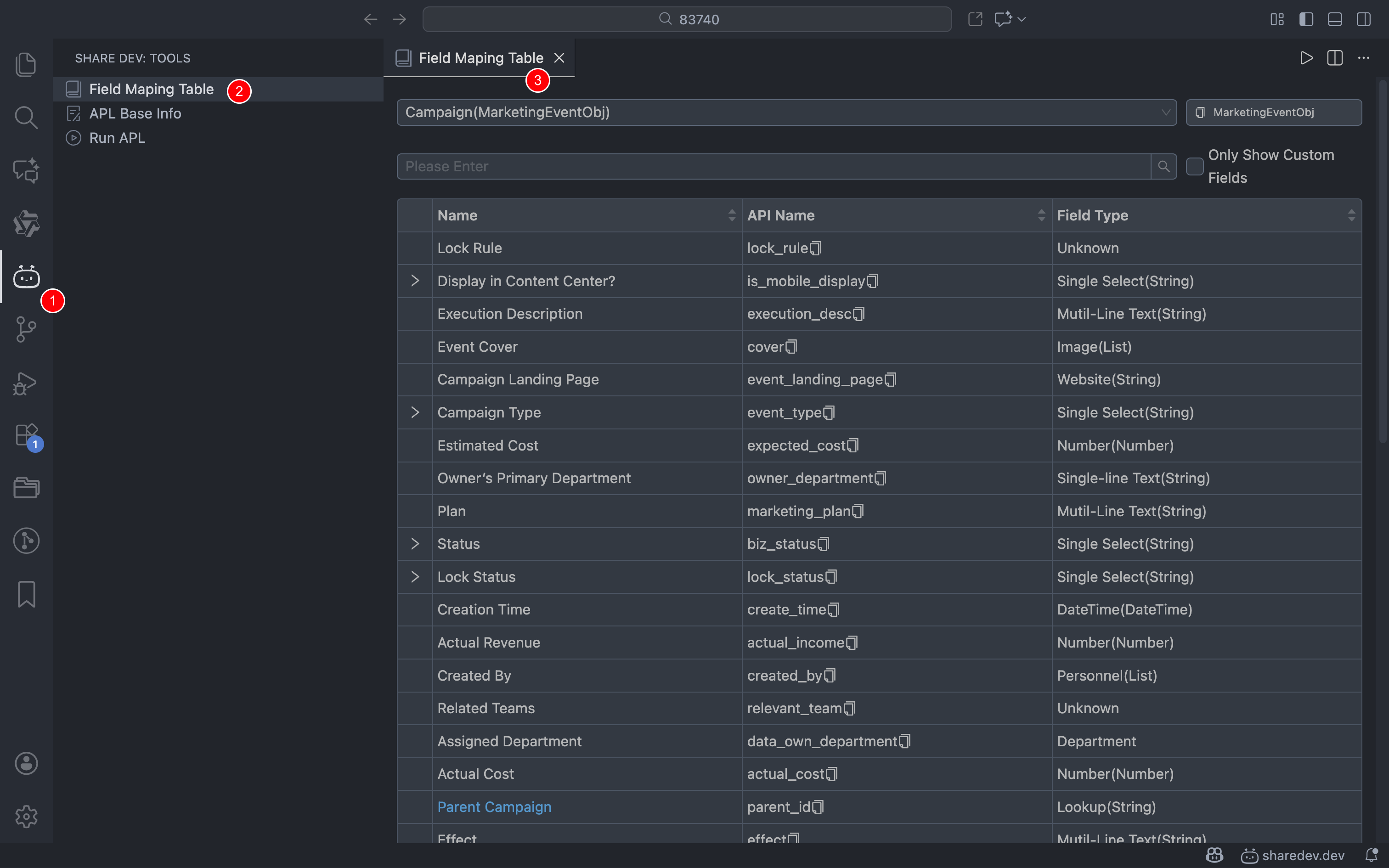
# Field Mapping Table
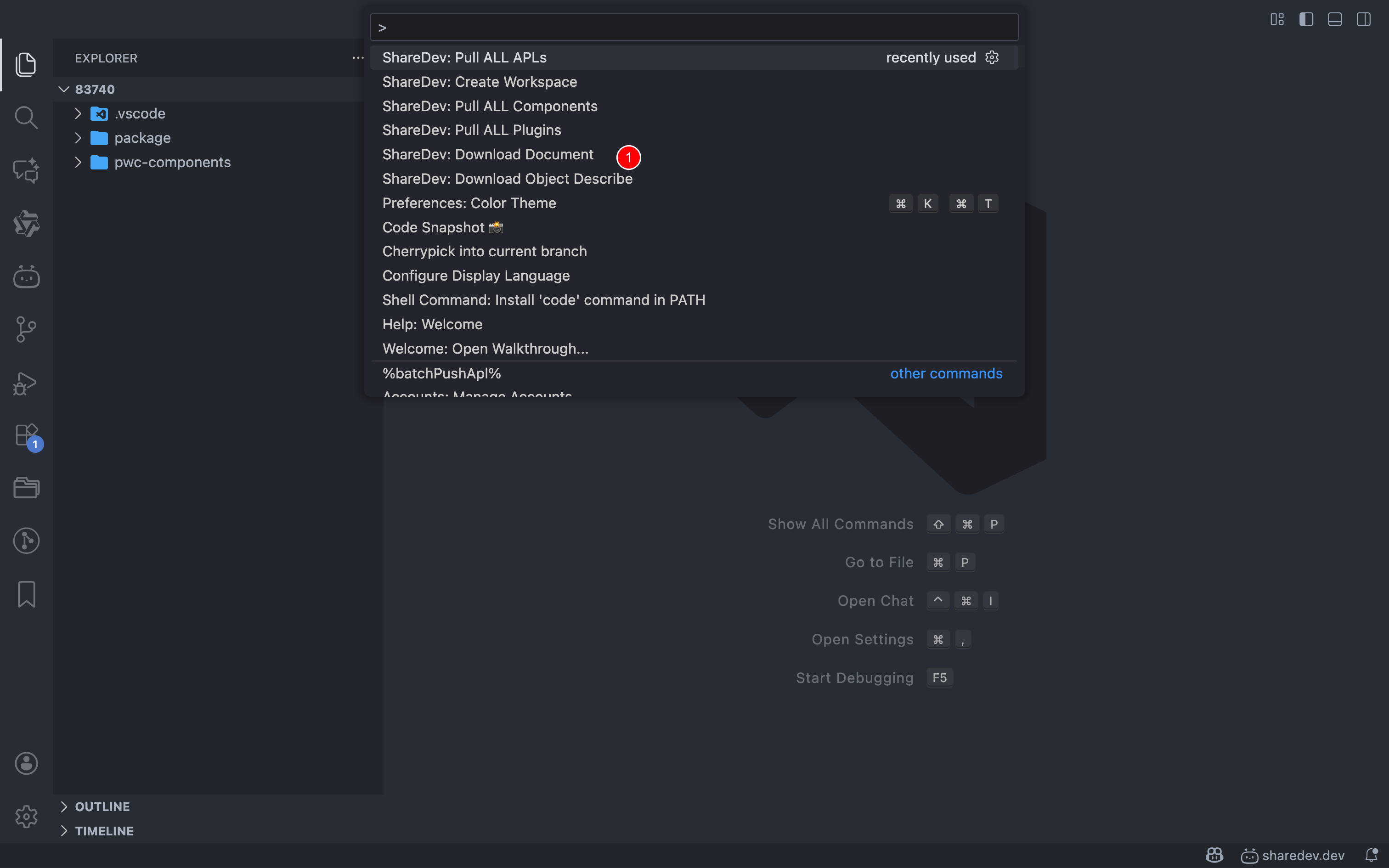
# Download Object Description or Documentation
- Open command tool with
Command + Shift + P - Search for
ShareDev: Download Object DescribeorDownload Document
# FAQ
# How to troubleshoot when developer certificate expires or identity becomes invalid?
- User information modified:
- Changes to user information (e.g., phone number, email, password) may invalidate the certificate
- Incorrect domain:
- Ensure proper configuration of
sharedev.domain - Example: Certificates applied via Alibaba Cloud Enterprise cannot use www.fxiaoke.com
- Ensure proper configuration of
- Certificate expired:
- Check expiration status in the admin console under
Developer Certificate
- Check expiration status in the admin console under
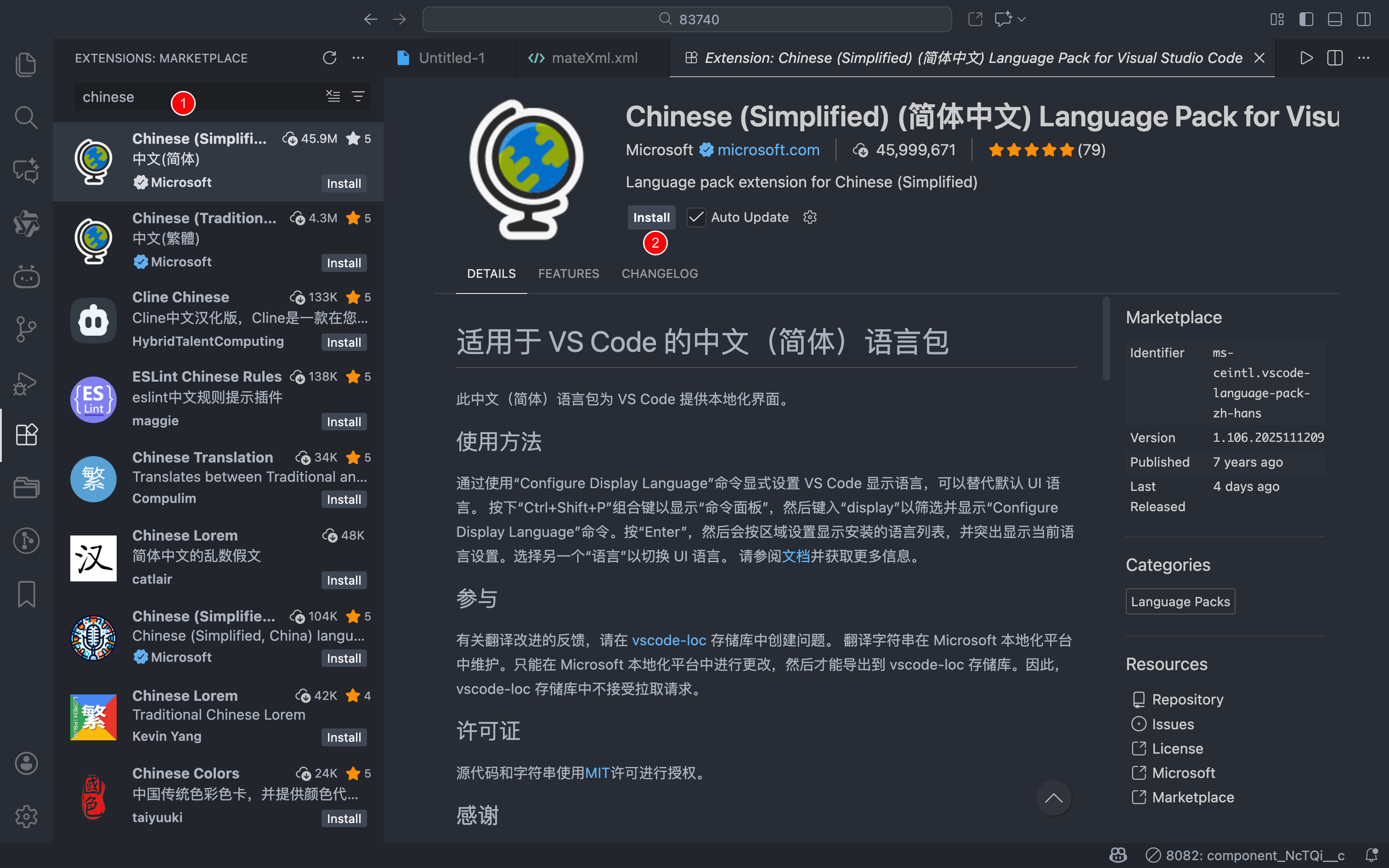
# How to display Chinese interface?
- Install Chinese language pack from the extension marketplace and restart the editor
# How to pull APL code created in the main site?
- Create a file in the folder with naming convention: {function apiName}.{function or class}.groovy, then right-click to pull
- Example: Btn_TrQB3__c.function.groovy
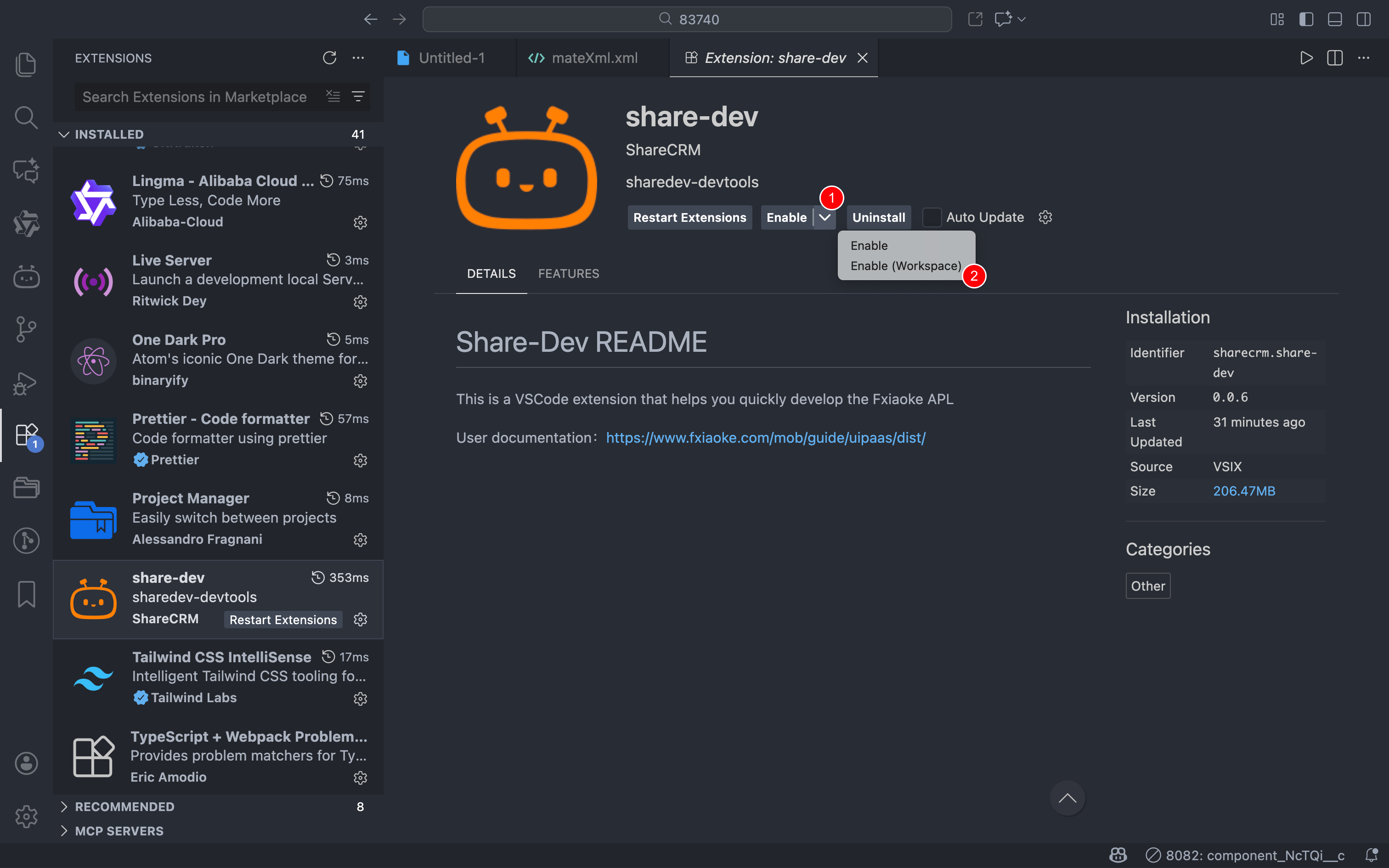
# How to restrict the extension to workspace-only operation?
- Disable the extension globally, then click "Enable (Workspace)" to activate it only for the current folder
- Recommended approach
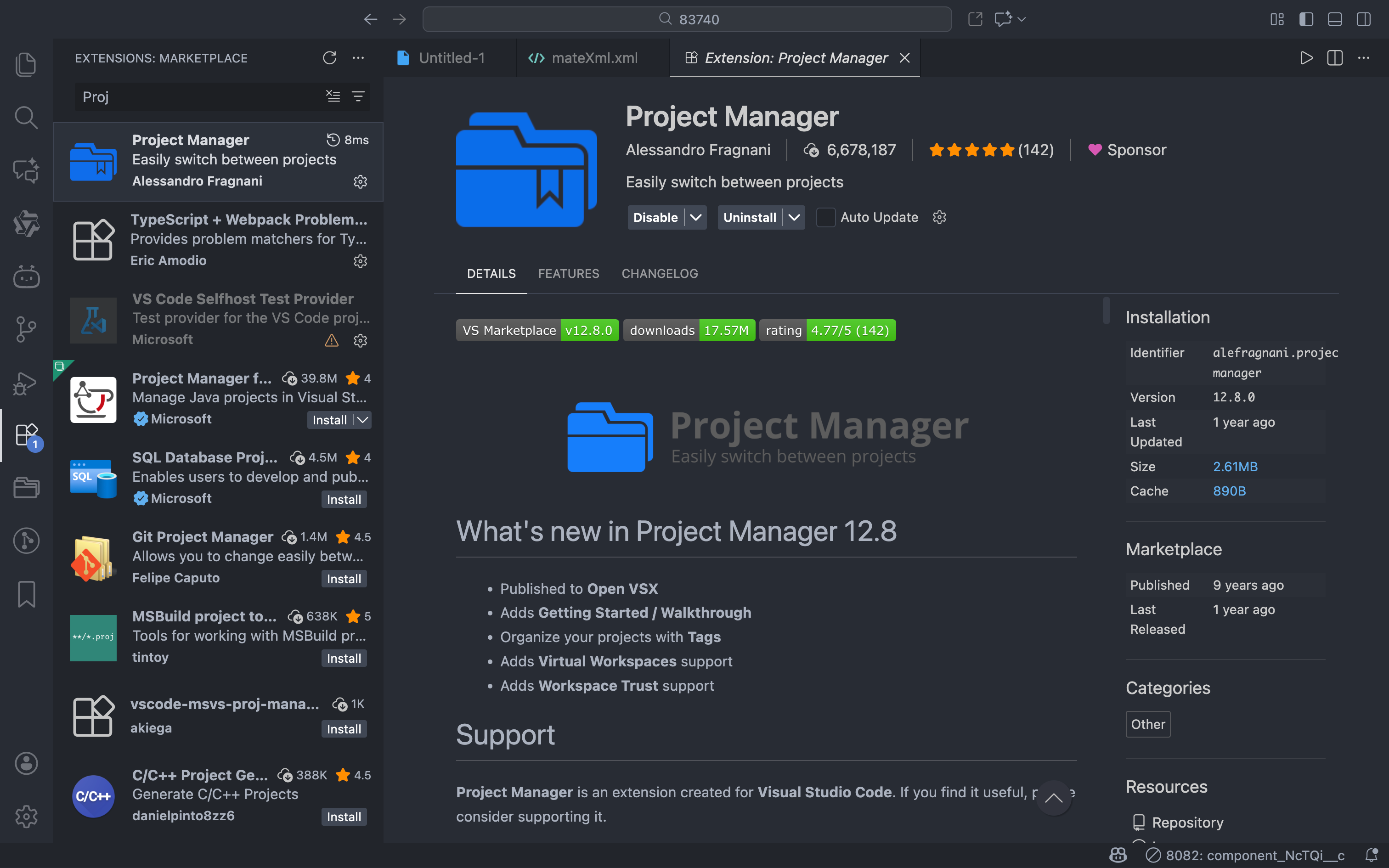
# Recommended Extension: Project Manager
- Helps manage workspaces
- Quick access to workspaces