
Third-party App Integration
# Functional Description
This type of plugin is designed for integrating third-party apps with Fxiaoke H5 applications.
Currently, some capabilities of Fxiaoke H5 applications rely on native app support. Therefore, we provide a new type of custom plugin - Third-party App Integration Plugin - to help developers implement third-party app integration.
Different apps provide JS APIs with varying usage methods. Please carefully read the documentation of the relevant app before development. Remove any methods that are not required.
# Configuration Instructions
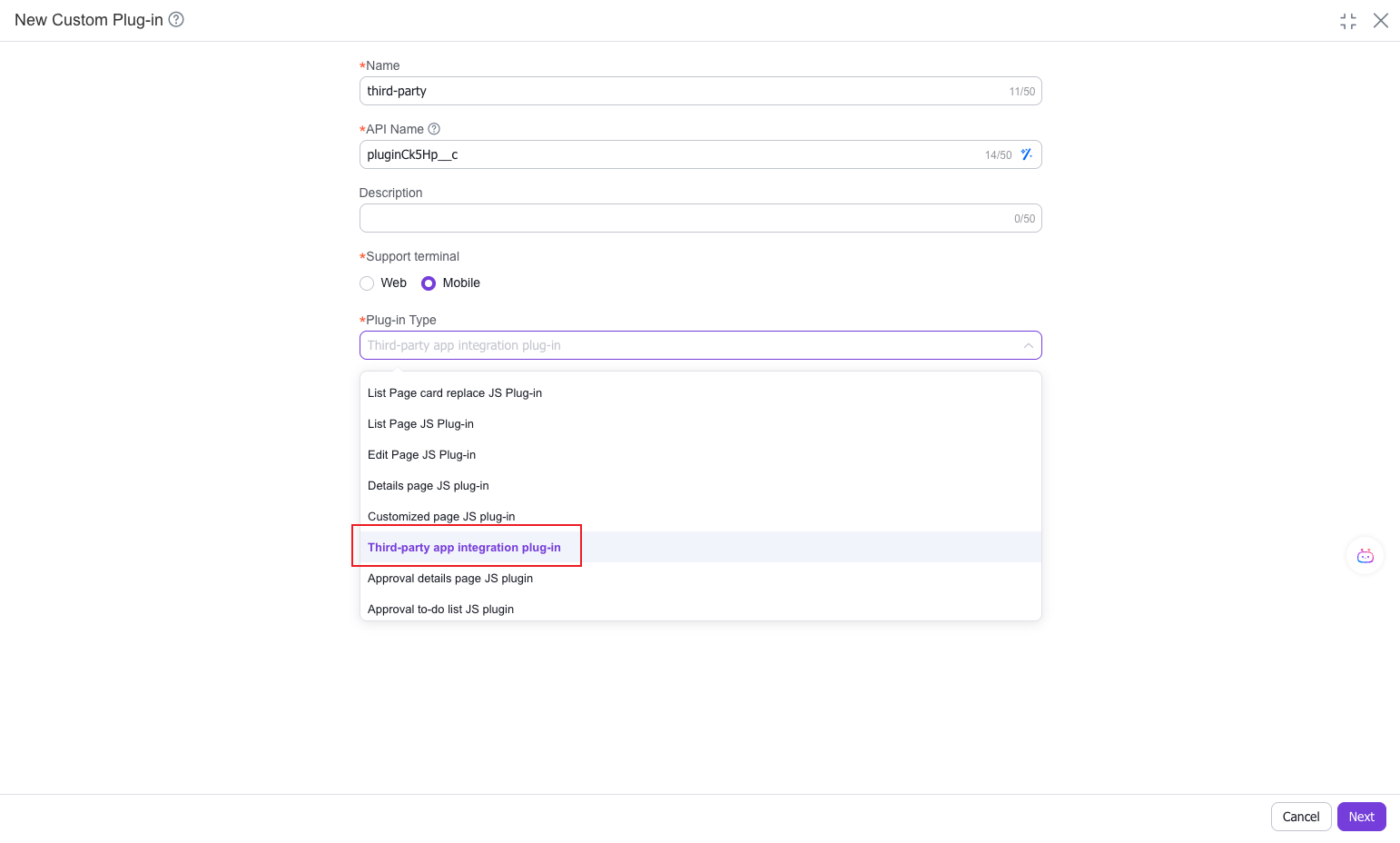
Note: Select Mobile for the terminal and Third-party App Integration Plugin for the plugin type.
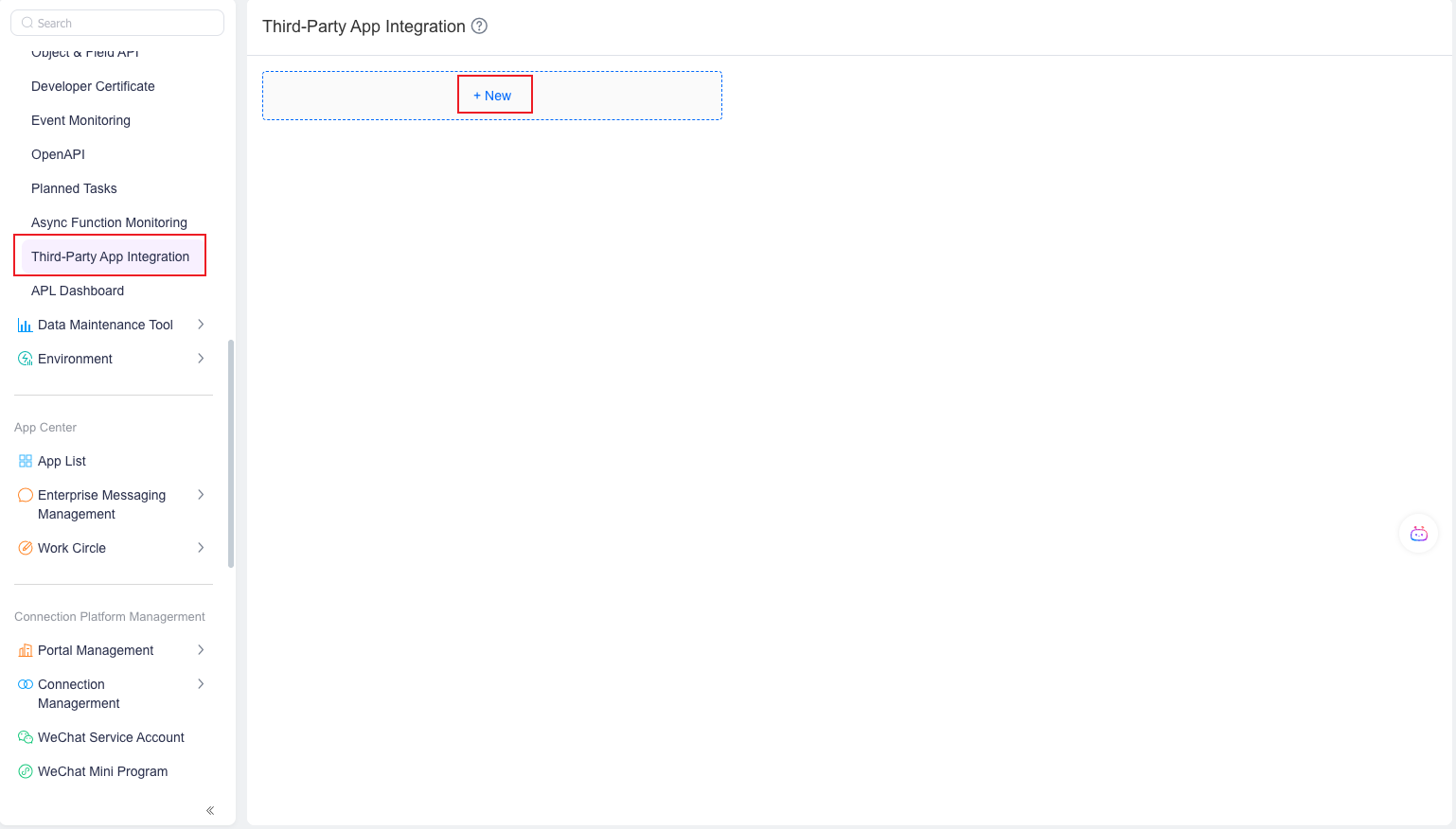
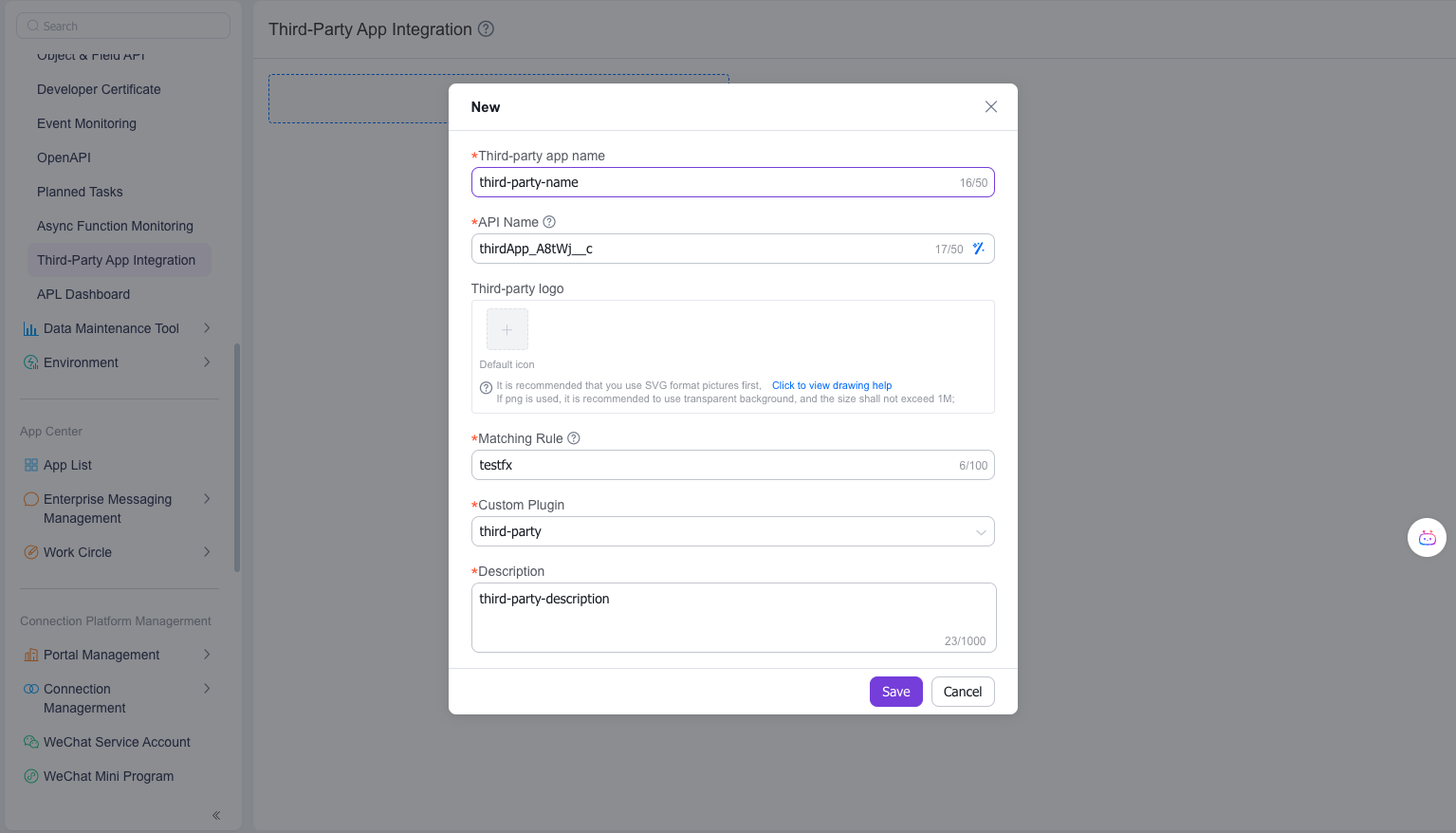
Note: The Matching Rule is used to bind the custom plugin to a specific app. It must follow regex rules (without /). The value should be a key character from the third-party app browser's userAgent. For example: WeCom's UA is Mozilla/5.0 (iPhone; CPU iPhone OS 10_2 like Mac OS X) AppleWebKit/602.3.12 (KHTML, like Gecko) Mobile/14C92 wxwork/2.4.2 MicroMessenger/6.3.22 Language/zh, so the key character wxwork can be used to match WeCom app.
# Supported Features
Currently supports adapting the following capabilities:
- QR Code Scanning (Mandatory): Used in single-line text field scanning functionality.
- Phone Call (Optional): Used on phone number fields in objects. H5 has implementation but cannot trigger callback functions, affecting the "Make call while creating sales record" feature.
- Get Location (Optional): Used in field service and object location fields. H5 implementation may have accuracy issues.
- Image Preview (Optional): Used on image fields. H5 implementation doesn't support image resizing via drag-and-drop.
- Set Homepage Title (Optional): Used for homepage title. Default H5 title is "Fxiaoke CRM".
- Camera Capture (Optional): Used for camera functionality. H5 uses native camera by default. If intercepted/blocked by third-party apps, camera functionality may be affected.
- Image Selection (Optional): Used for image selection. H5 uses native image selection by default. If intercepted/blocked by third-party apps, image selection may be affected.
- Show/Hide Title Bar (Optional): Controls display of page title bar. Hidden by default. Return false to hide.
- Set Title (Optional): Used for setting titles. If third-party apps don't support H5 title setting, use this method instead.
Developers should pay attention to method parameters and success callback parameters.
# Code Example
(function(root) {
    root.jsapiAdapter = {

        /**
         * @desc Get location information
         * Example app implementation: jsBridge.invokie('getLocation', {
         *      onSuccess(res){ // res.lant, res.long, res.address },
         *      onFail(err){},
         * })
         * @param { Function } opts.onSuccess - Success callback
         * @param { Function } opts.onFail - Failure callback
         */
        getLocation(opts) {
            jsBridge.invokie('getLocation', {
                onSuccess(res){
                    opts.onSuccess({
                        errorCode: 0,
                        success: true,
                        address: res.address,
                        title: '',
                        longitude: res.long,
                        latitude: res.lant,
                        country: '',
                        province: '',
                        city: '',
                        district: ''
                    });
                },
                onFail() {
                    options.onFail('Call failed');
                }
            })
        },


        /**
         * @desc QR Code Scanning
         * Example app implementation: window.xx.scan().then((res) => {
         *     // res.text
         * })
         * @param { Function } opts.onSuccess - Success callback
         * @param { Function } opts.onFail - Failure callback
         */
        scanCode(opts) {
            window.xx.scan().then(res => {
                opts.onSuccess({
                    errorCode: 0,
                    success: true,
                    result: res.text
                });
            })
        },


        /**
         * @desc Image Preview
         * @param { Array } opts.imgUrls - Image array
         * @param { Number } opts.index - Default display image index
         */
        previewImage(opts) {
           // Call third-party app's native image preview
        },


        /**
         * @desc Make Phone Call
         * @param { String } opts.phoneNumber - Phone number
         */
        makePhoneCell(opts) {
            // Call third-party app's native dialer
        },

        /**
         * @desc Set Default Title
         */
        getTitle() {
            return 'Custom Title'
        },

        /**
         * @desc Camera Capture
         */
        imageCapture(opts) {
            // Call third-party camera function
            window.xx.imageCapture().then(() => {
                // files in file stream format
                opts.onSuccess([file, file])
            })
        },

        /**
         * @desc Image Selection
         */
        chooseImage(opts) {
            // Call third-party image selection
            window.xx.chooseImage().then(() => {
                // files in file stream format
                opts.onSuccess([file, file])
            })
        },

        /**
         * @desc Close WebView
         */
        closeWebView() {
            // Returns to last page then closes window
            window.xx.closeWebView()
        },

        /**
         * @desc Set Title Bar Visibility (takes effect after re-entering twice)
         */
        isShowTitleBar() {
            return true or false
        }

        /**
         * @desc Set Title
         */
        setWebViewTitle(opts) {
            window.xx.setWebViewTitle('Fixed Title xx')
        },

        /**
        * @desc Get Approval Operation Status
        */
        approvalOperationCompleted(opts) {
            //do something
        },
    }
})(window);
Note: In practice, different apps provide JS APIs with varying usage methods. Please carefully read the documentation of the relevant app before development. Remove any methods that are not required.
# FAQs
# Q: Why is the title bar hidden by default?
A: When integrated into apps or browsers, most applications have system-level title bars that cannot be hidden through any means. Therefore, H5 has adjusted its strategy to hide the H5 title bar by default. Only when the rendering application doesn't have its own title bar can users display the H5 title bar via the isShowTitleBar hook in the JS plugin.
# Q: Why doesn't the title bar appear after I configured the JS plugin?
A: The H5 application enforces hiding the title bar on the homepage. If the issue persists beyond this case, please report it to Fxiaoke developers.
# Q: Why can't I go back/close the page in third-party apps?
A: Third-party apps often restrict certain H5 APIs, such as camera, QR code scanning, history back listening, and page closing operations. If you encounter back/close issues, try using closeWebView as a solution.