
WebIDE Online Development
# Introduction to Fxiaoke WebIDE
Fxiaoke WebIDE is a customized online code development tool based on VSCode Web Edition, designed to provide a more convenient and professional development environment for developers working on the Fxiaoke PaaS platform.
Fxiaoke WebIDE offers the following key advantages:
It serves as a unified online development tool for Fxiaoke PaaS code development scenarios, supporting all backend and frontend low-code development tasks, including APL, JAR package development, custom components, and custom plugins. Users can perform one-stop development directly in any browser without setting up local development environments.
Built on the VSCode architecture, it retains all VSCode productivity tools and plugins while integrating numerous out-of-the-box Fxiaoke PaaS development tools to enhance developer efficiency.
WebIDE supports an engineering-oriented development model, providing more efficient and professional tools for complex scenarios such as cross-code invocation, utility code construction, frontend-backend integration, and package views.
# How to Access WebIDE
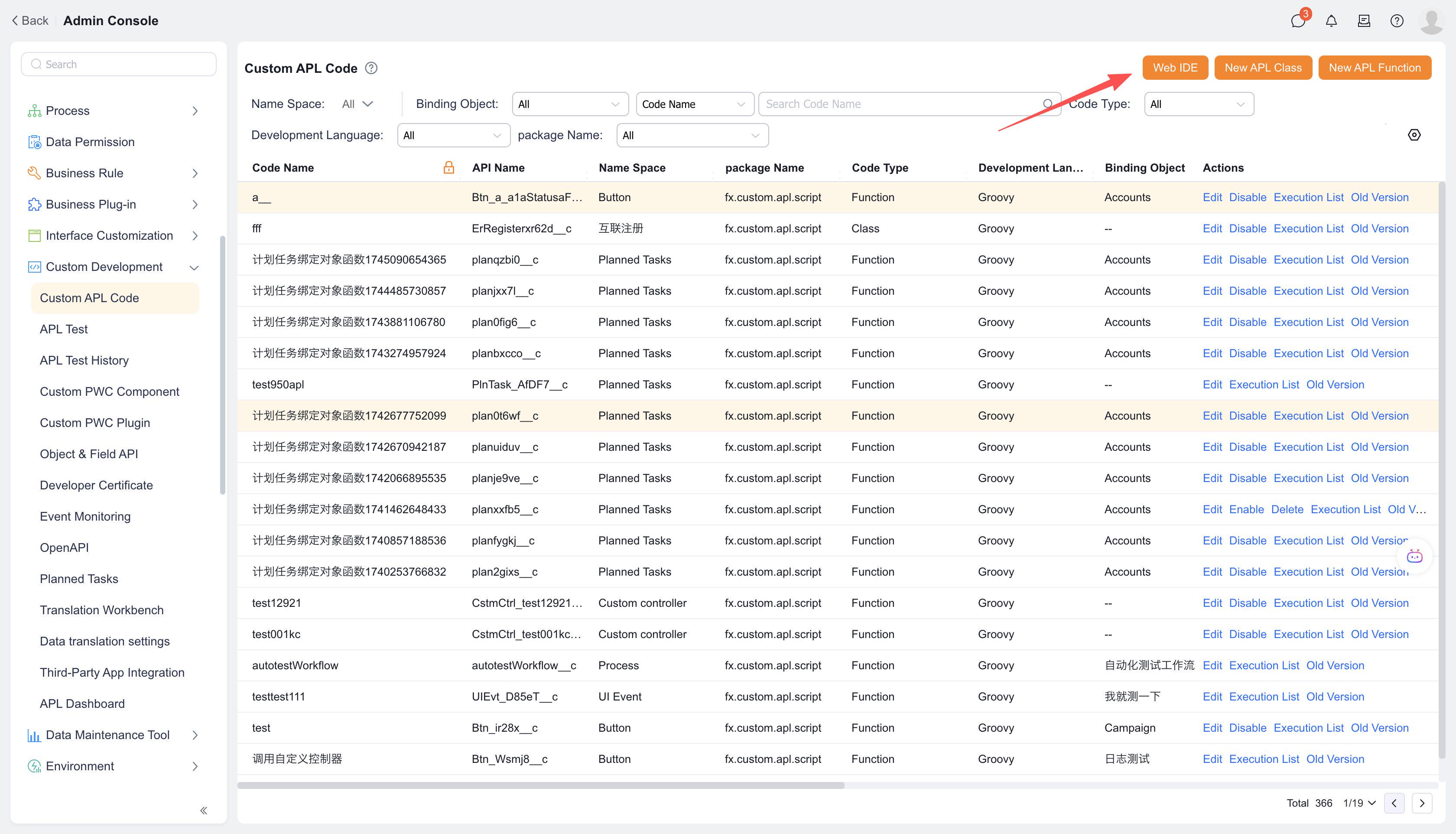
Path 1:
- Navigate to the Custom APL Code menu in the admin console.
- Click the "Web IDE" button in the upper-right corner of the list page to open the IDE in a new browser tab.
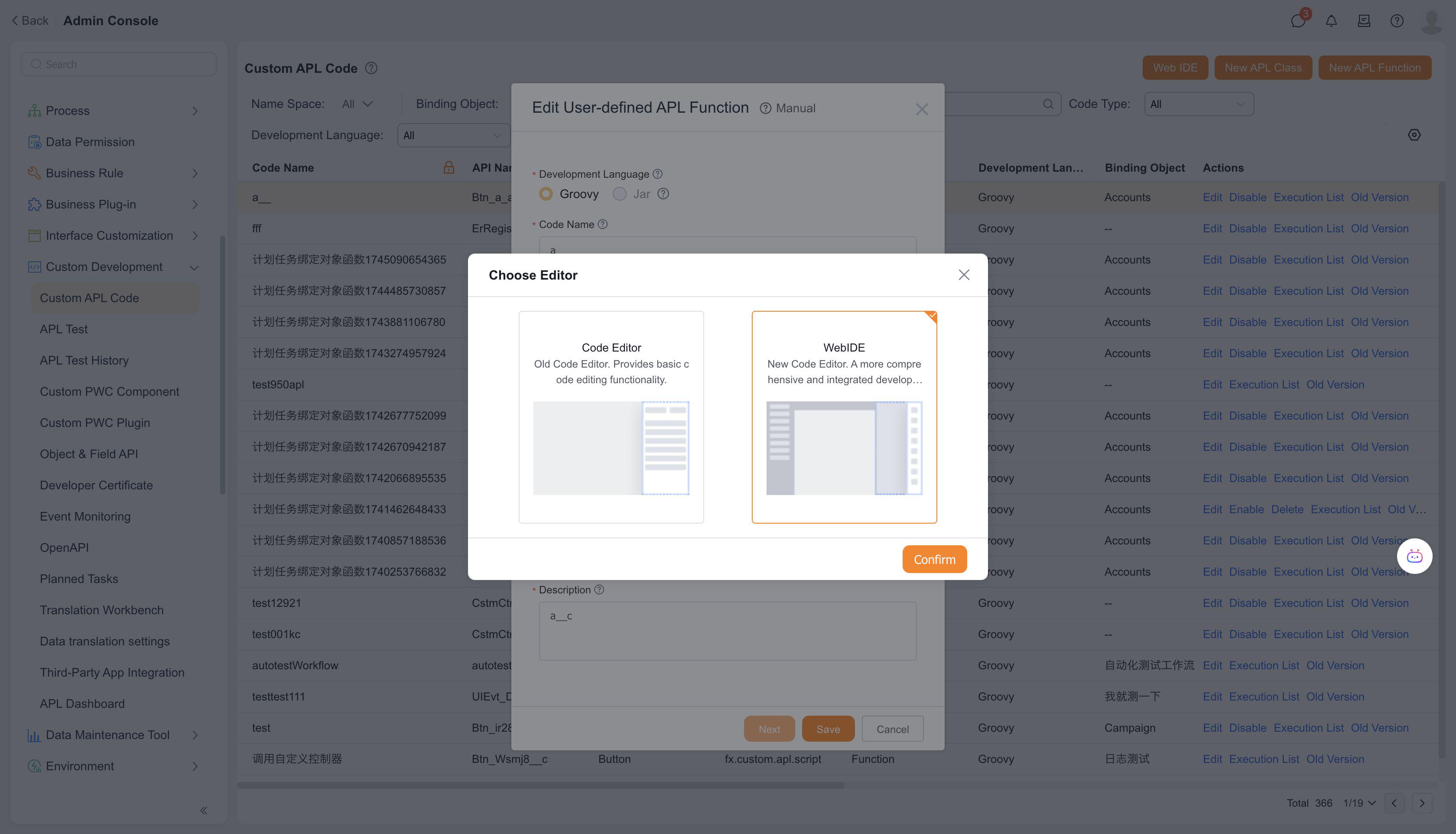
Path 2:
- When editing any function, click
Nextto open a code editor selection dialog. ChooseWeb IDEto launch the IDE in a new browser tab.
# Developing Code in WebIDE
# Creating APL Code in IDE
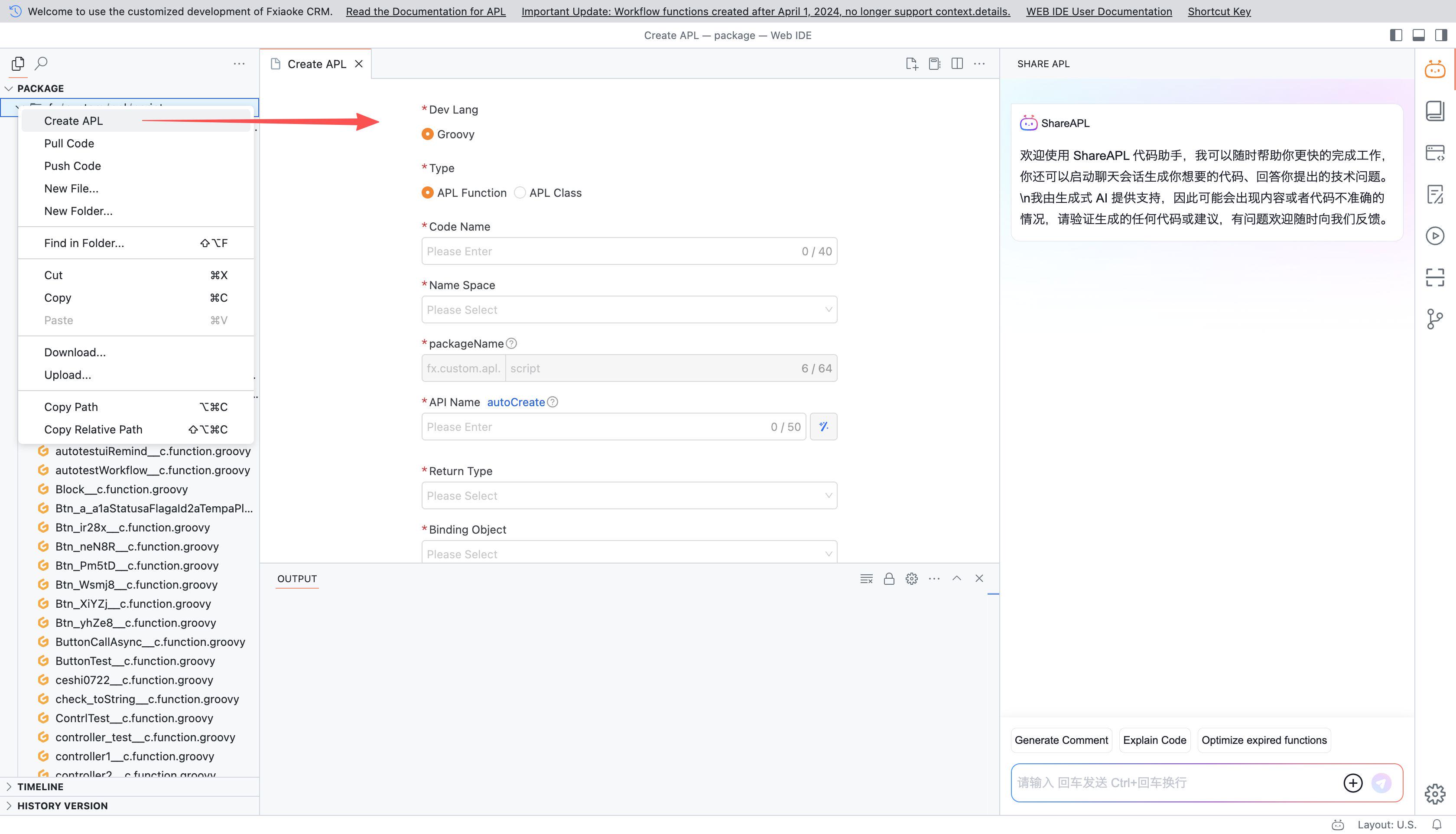
- Right-click in the left-side Resource Manager panel and select
Create APL. The code editor will display a function information input interface. - After entering the function details, click
Next. The IDE will automatically open the newly created code file.
Note: Code created or modified in WebIDE only takes effect in the tenant after being pushed.
# Pulling APL Code in IDE
To synchronize the latest tenant code to WebIDE, perform a pull operation:
Note: Pulling will overwrite local modifications in WebIDE.
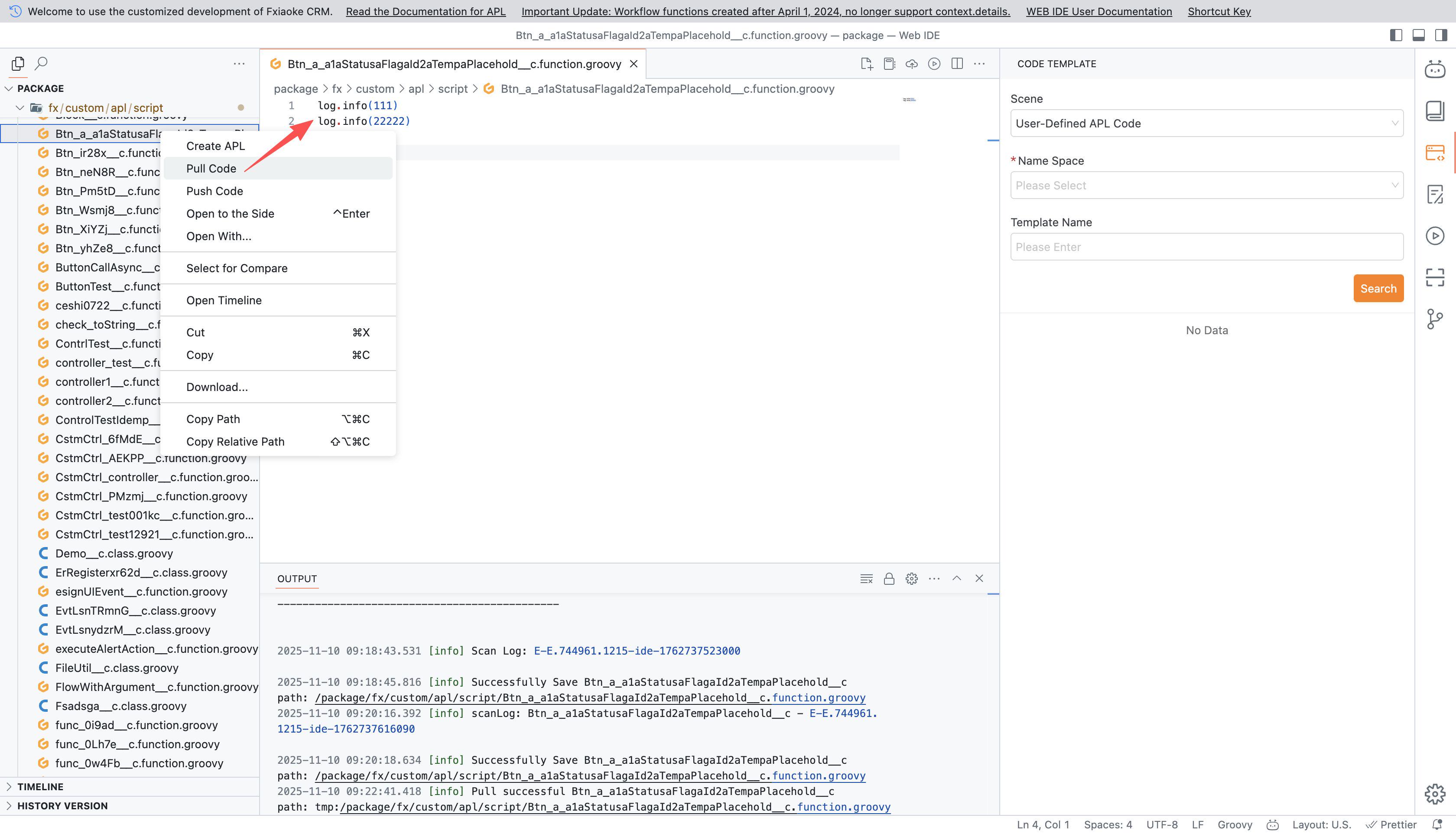
- Right-click the target file in the Resource Manager.
- Select
Pull APLto fetch the latest version from the tenant.
# Pushing APL Code in IDE
To synchronize WebIDE modifications to the tenant:
# Pushing a Single File
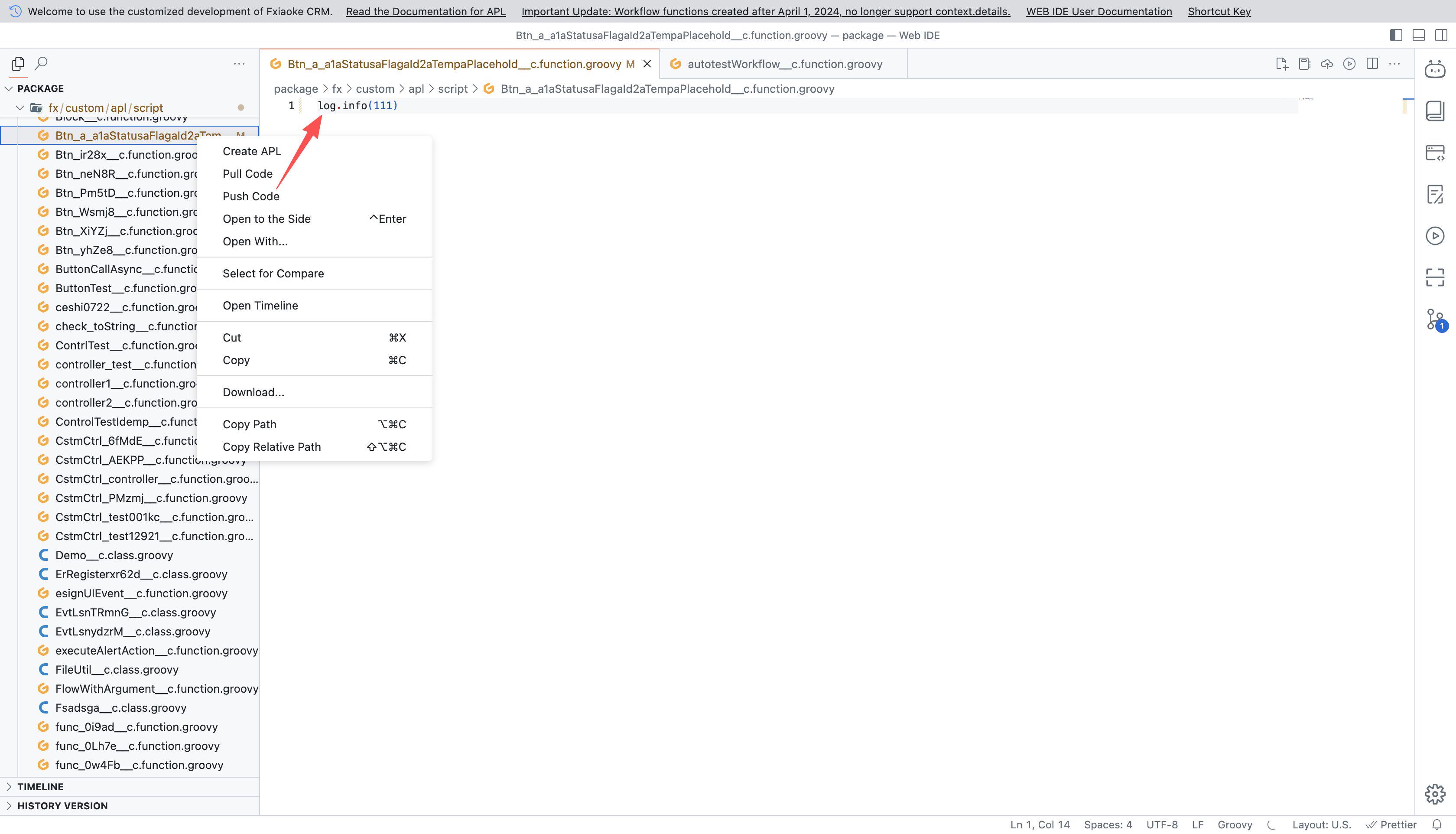
- Right-click the modified file in the Resource Manager.
- Select
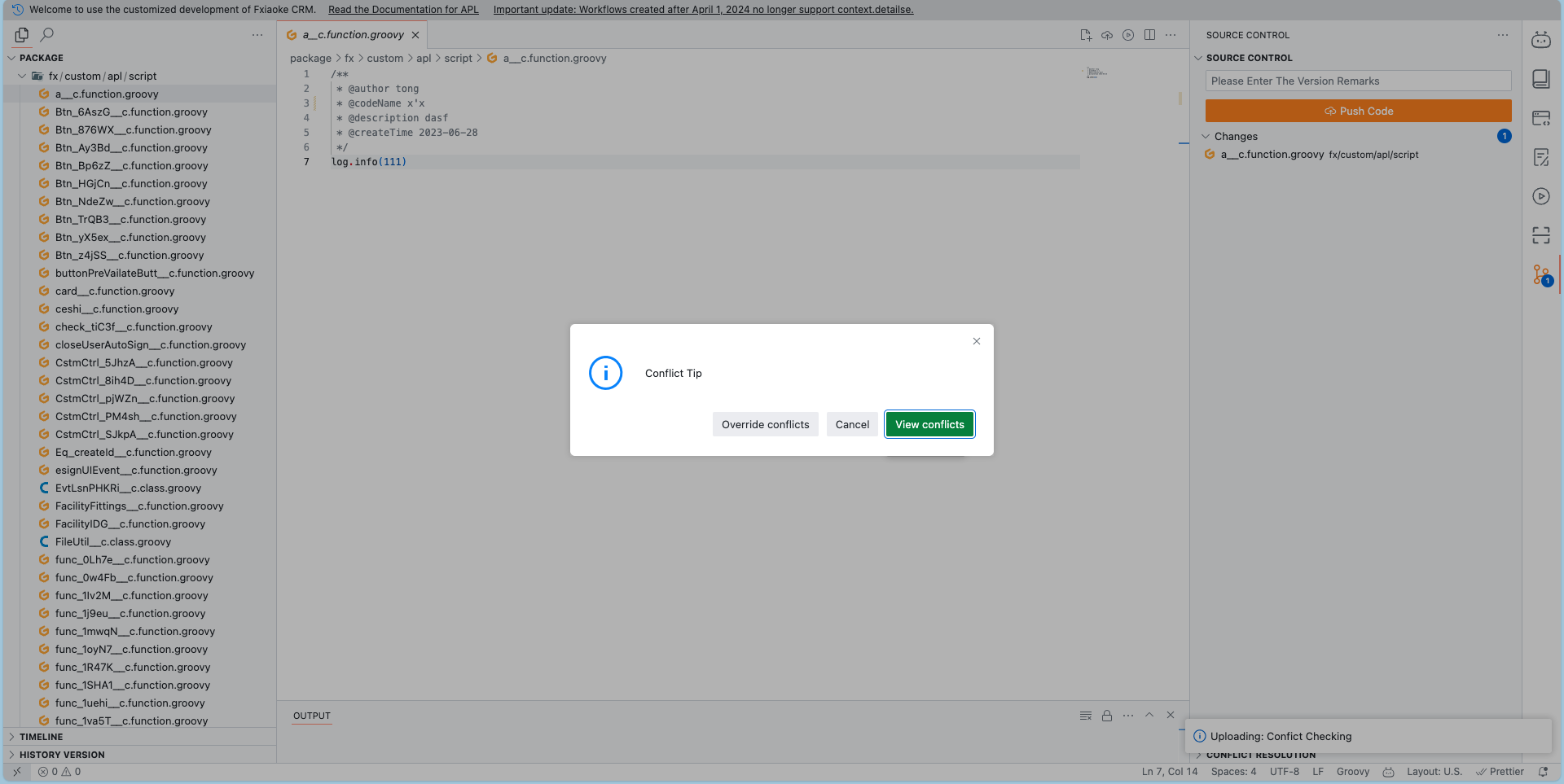
Push APL, enter version information, and confirm. - If conflicts exist (due to newer tenant commits), choose:
Override Conflicts: Force overwrite tenant code (may discard others' changes).View Conflicts: Manually resolve differences via the diff tool before re-pushing withOverride Conflicts.
# Pushing Multiple Files
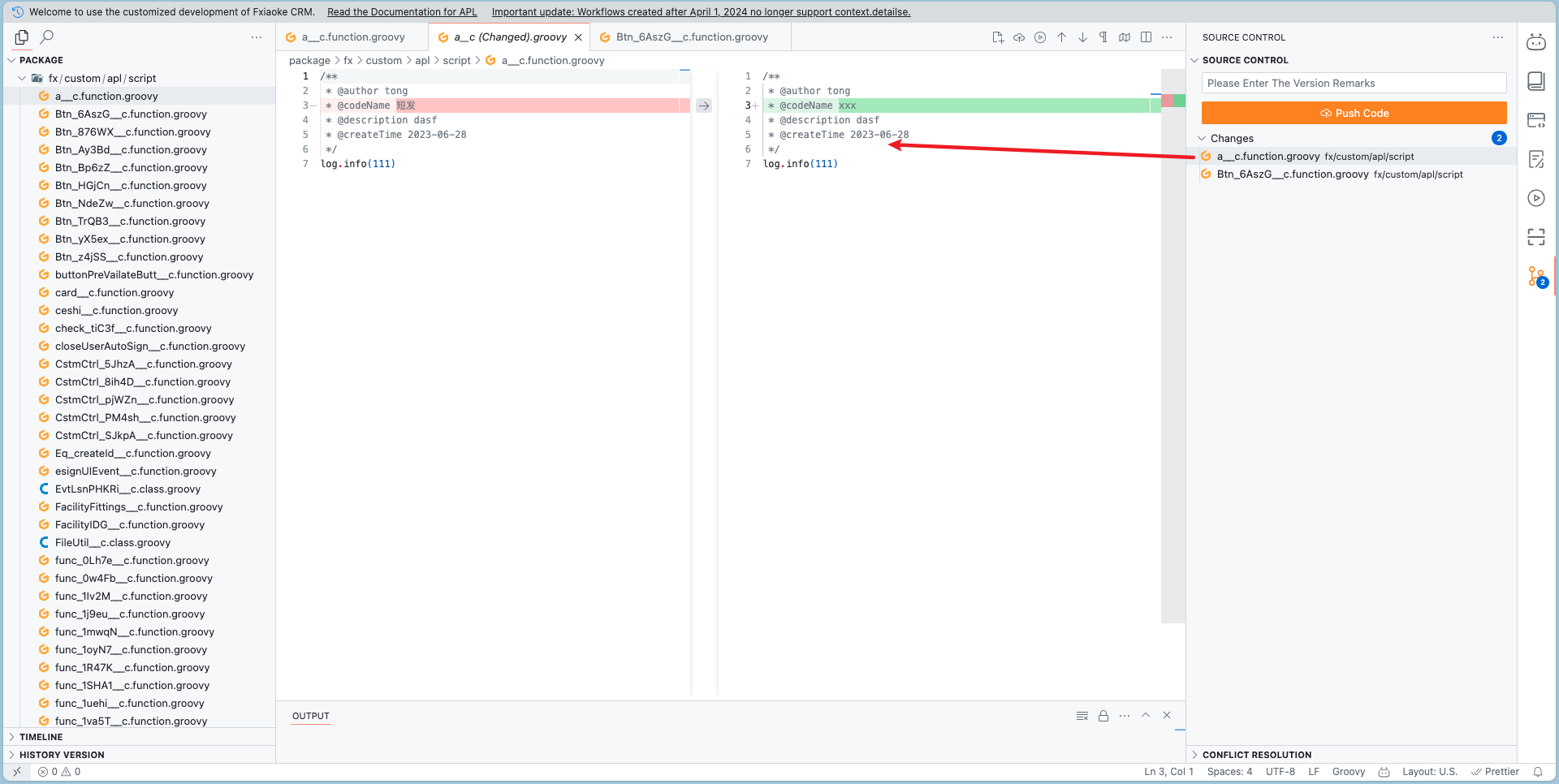
- Click the Source Control icon in the right toolbar.
- Review all modified files and their diffs.
- Enter version notes and click
Push Codefor batch submission. - Handle conflicts as described above if prompted.

# Viewing APL Code History
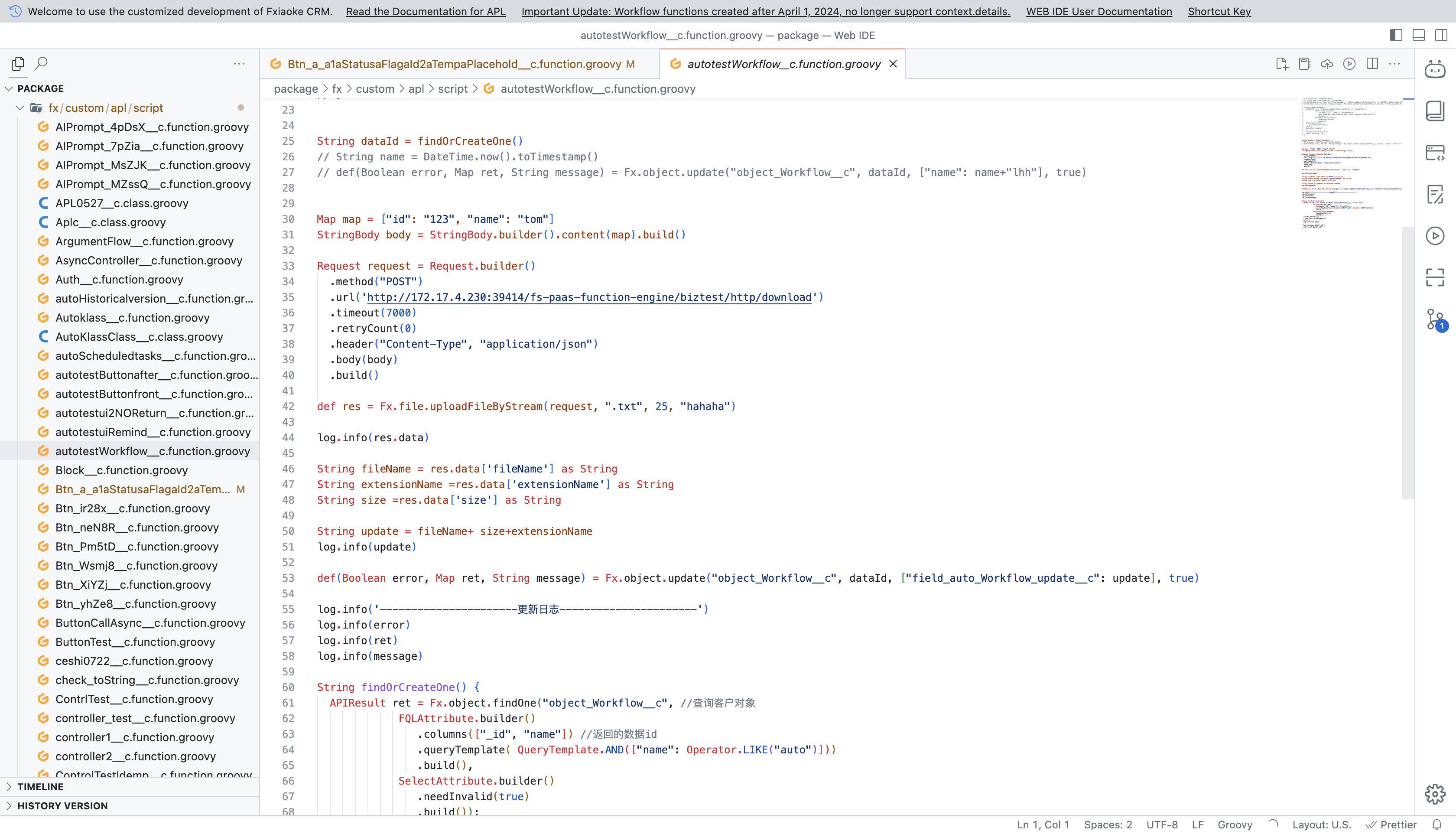
WebIDE tracks two types of history:
- TIMELINE: Shows local edit history (similar to draft versions).
- HISTORY VERSION: Displays all tenant push records.
Access these via the bottom-left toolbar icons.
# Searching APL Files
Use shortcuts:
- Windows:
Ctrl + P - Mac:
Command + P
to quickly locate files within the project.
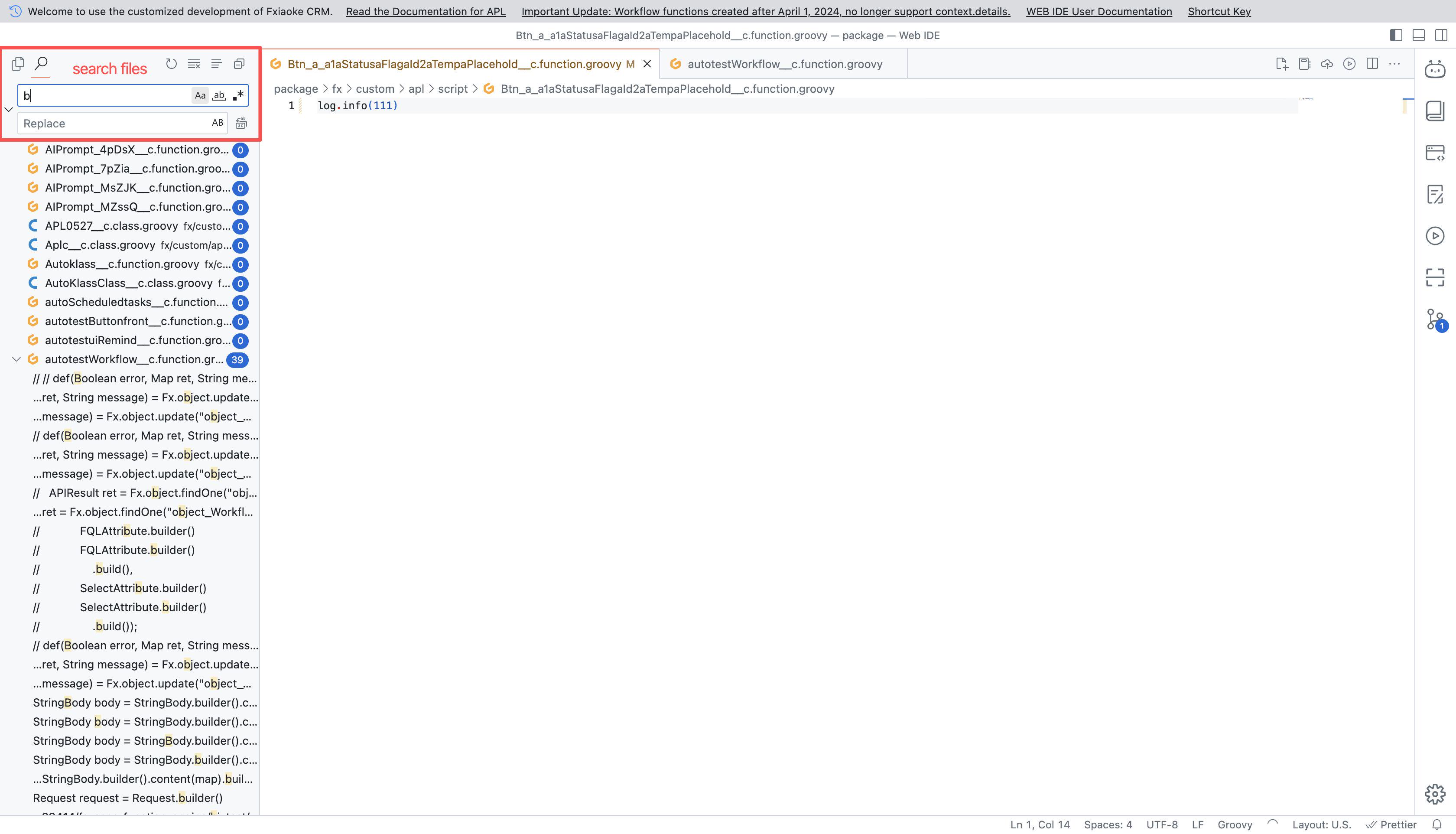
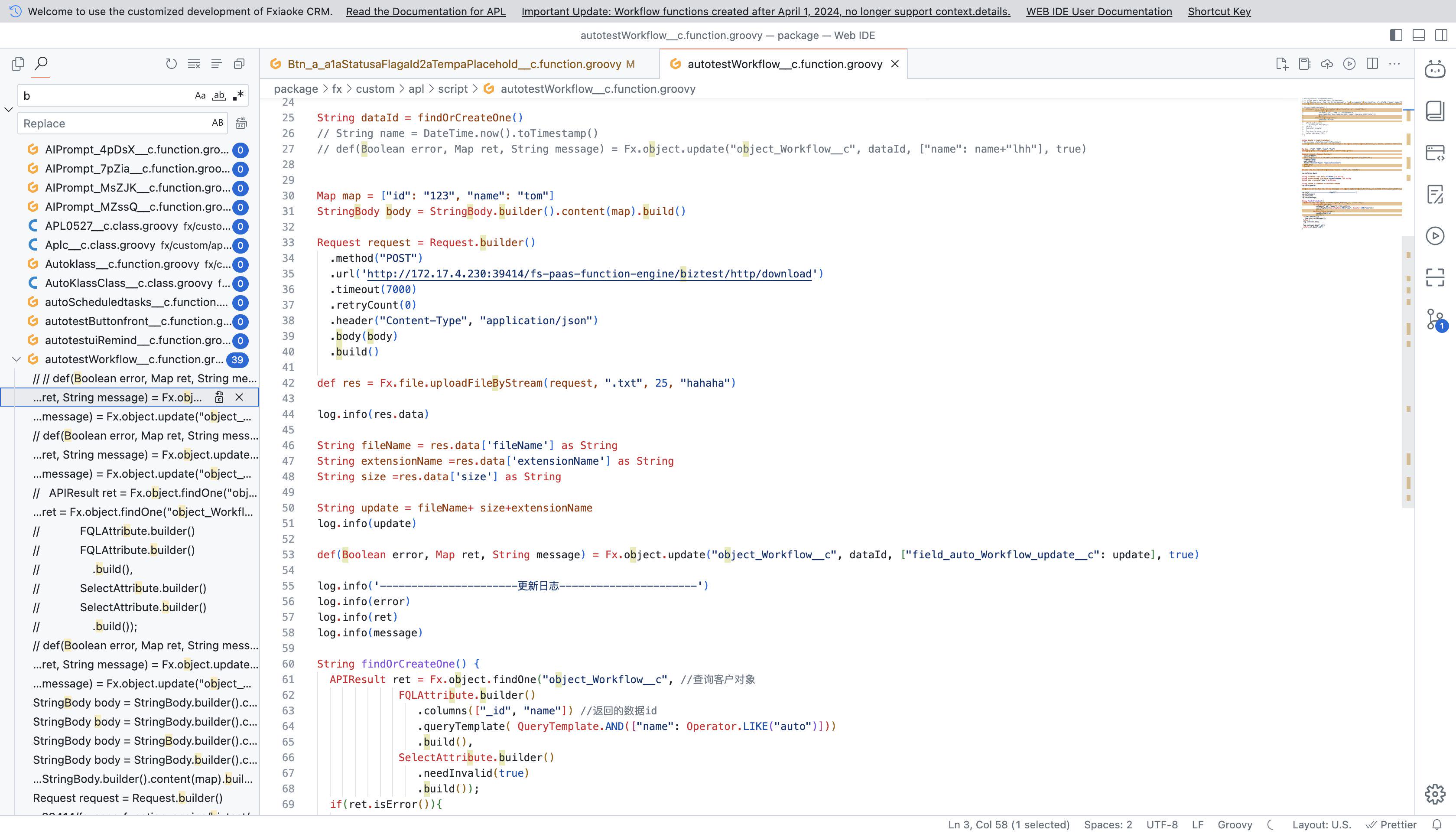
# Searching Code Snippets
- Click the search icon in the left panel.
- Enter keywords to scan all project files for matches.
# Using Fxiaoke Development Tools in WebIDE
The right sidebar integrates all preconfigured Fxiaoke tools. Click any icon to expand its panel.
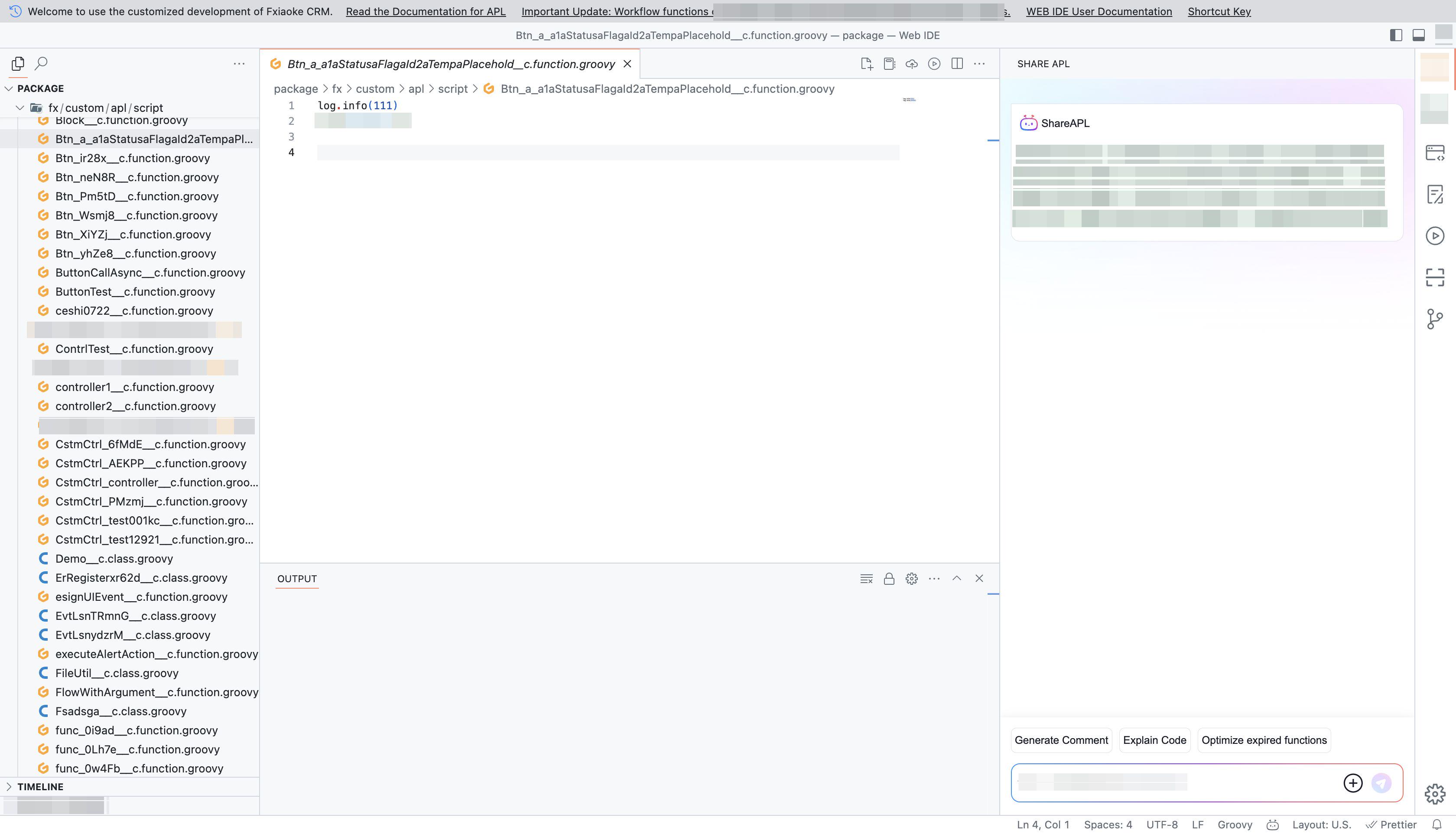
# ShareAPL Code Assistant
An AI-powered coding copilot for development assistance (refer to ShareAPL documentation for details).
# Object Field Mapper
Displays tenant object/field metadata as a reference for data operations.
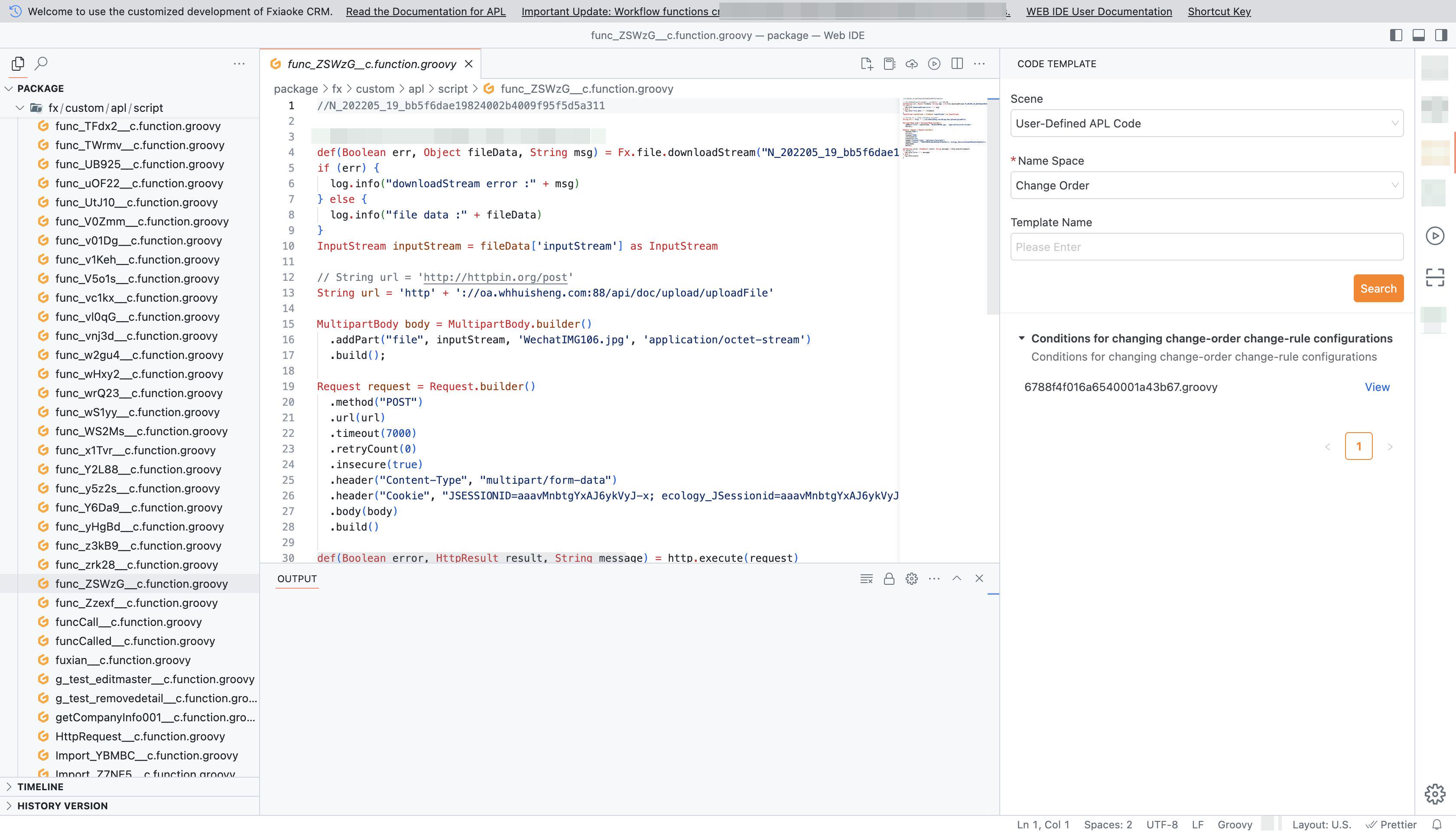
# Code Templates
Quickly access and apply reusable code templates.
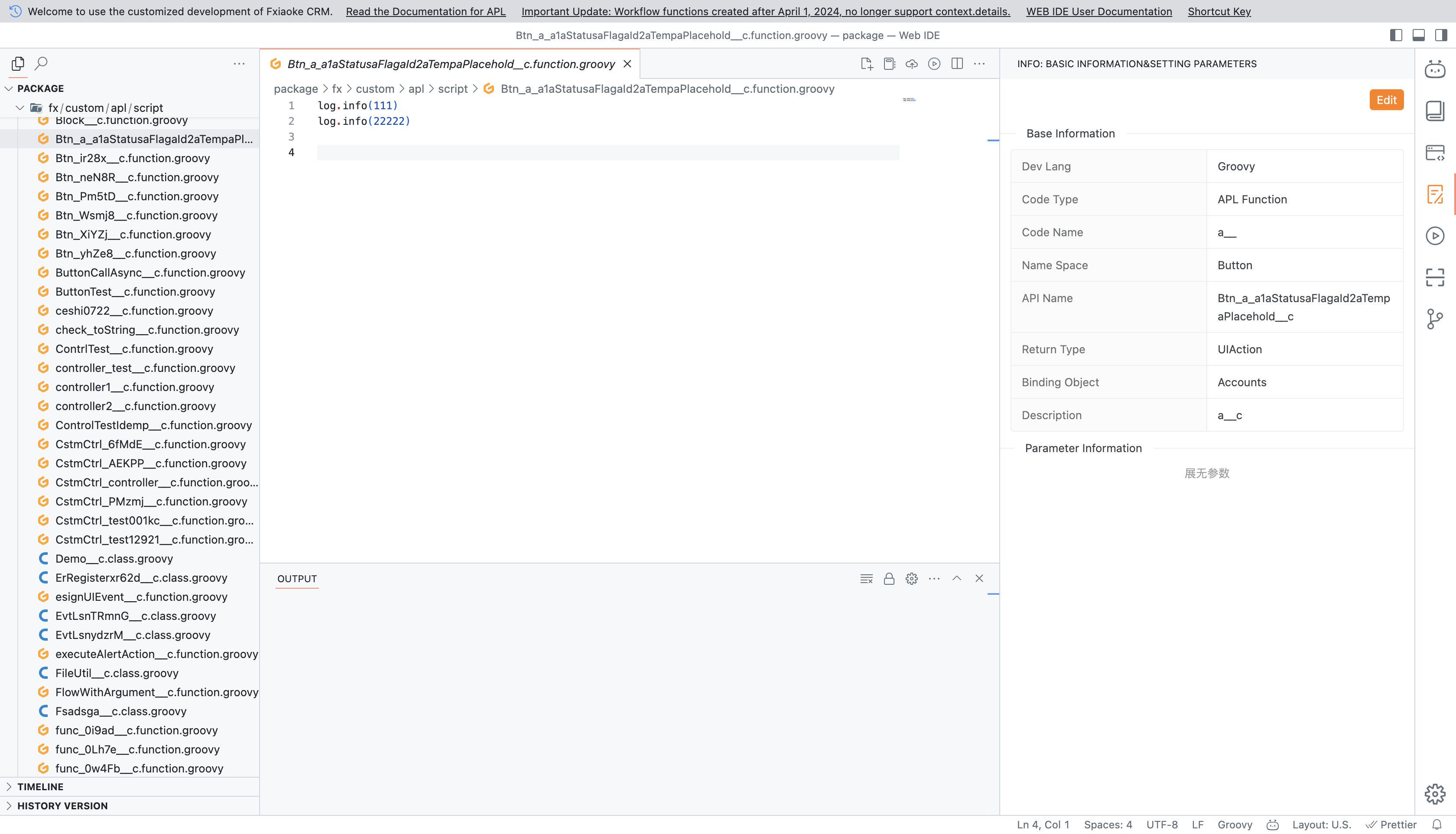
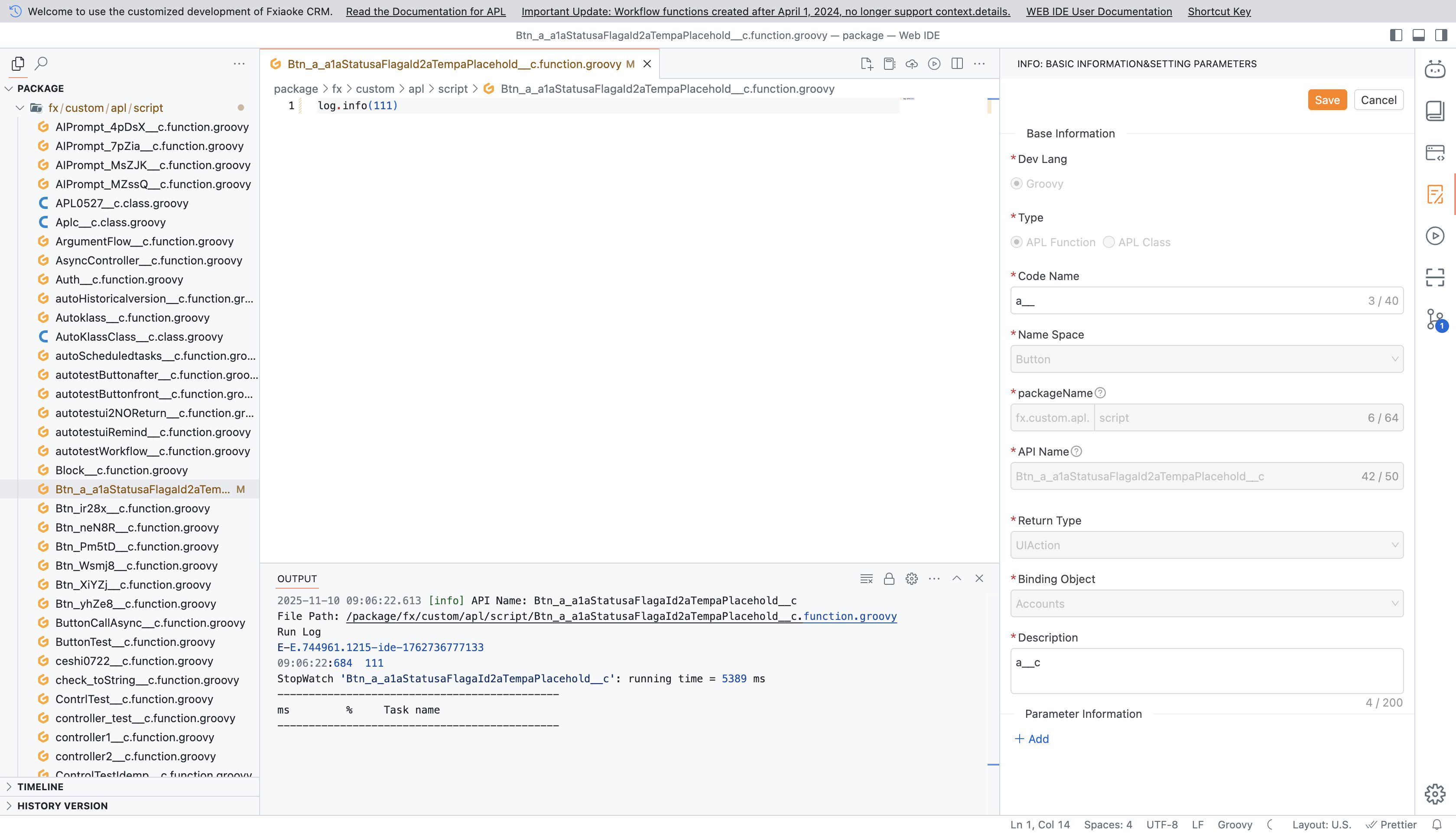
# Editing APL Metadata
Modify APL properties and parameters.
Unlike code edits, metadata changes are immediately pushed to the tenant upon saving.
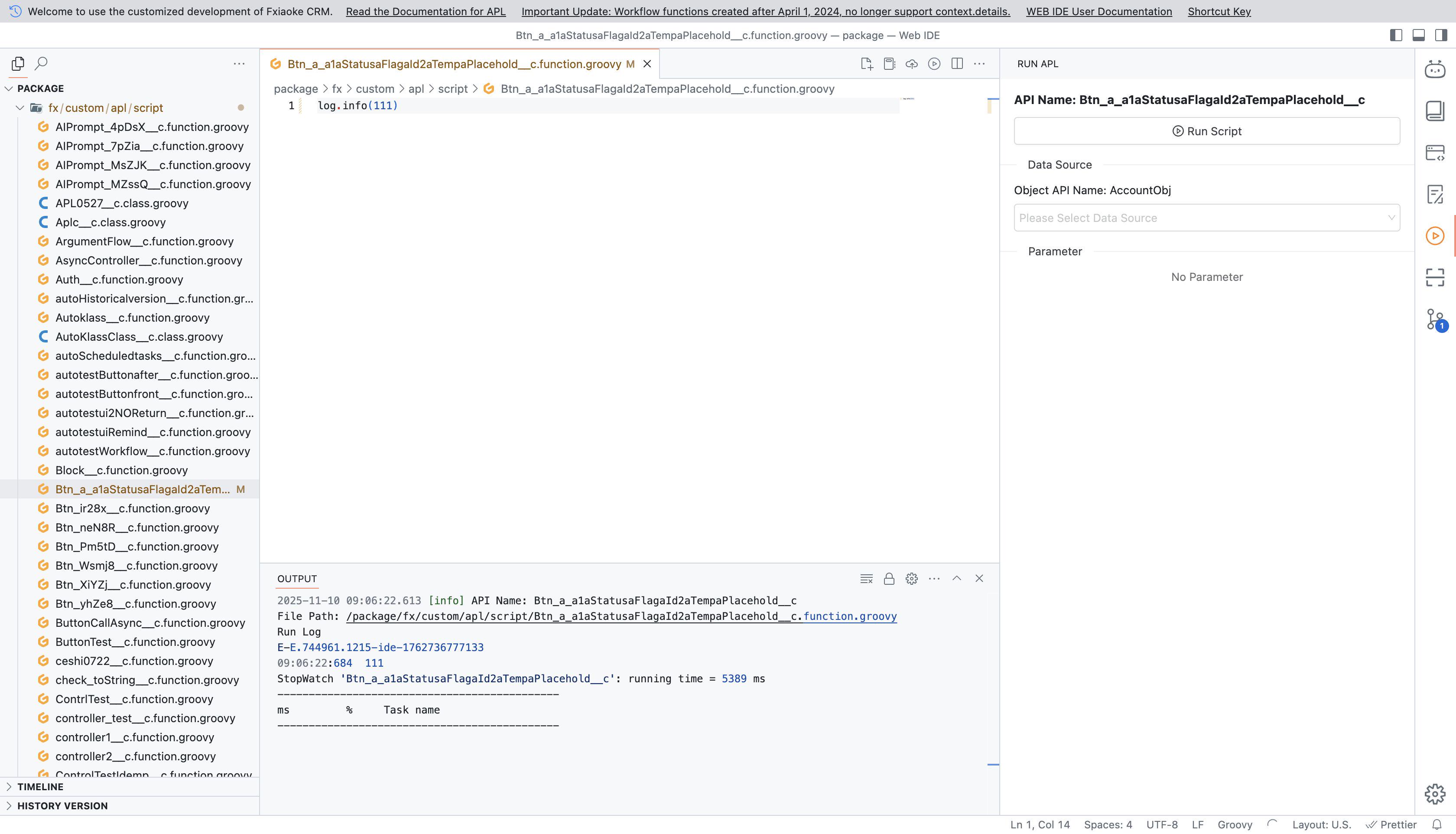
# Debugging APL Code
Test code before tenant submission:
- Click
Run Scriptto execute debugging. - View results in the
Outputpanel.
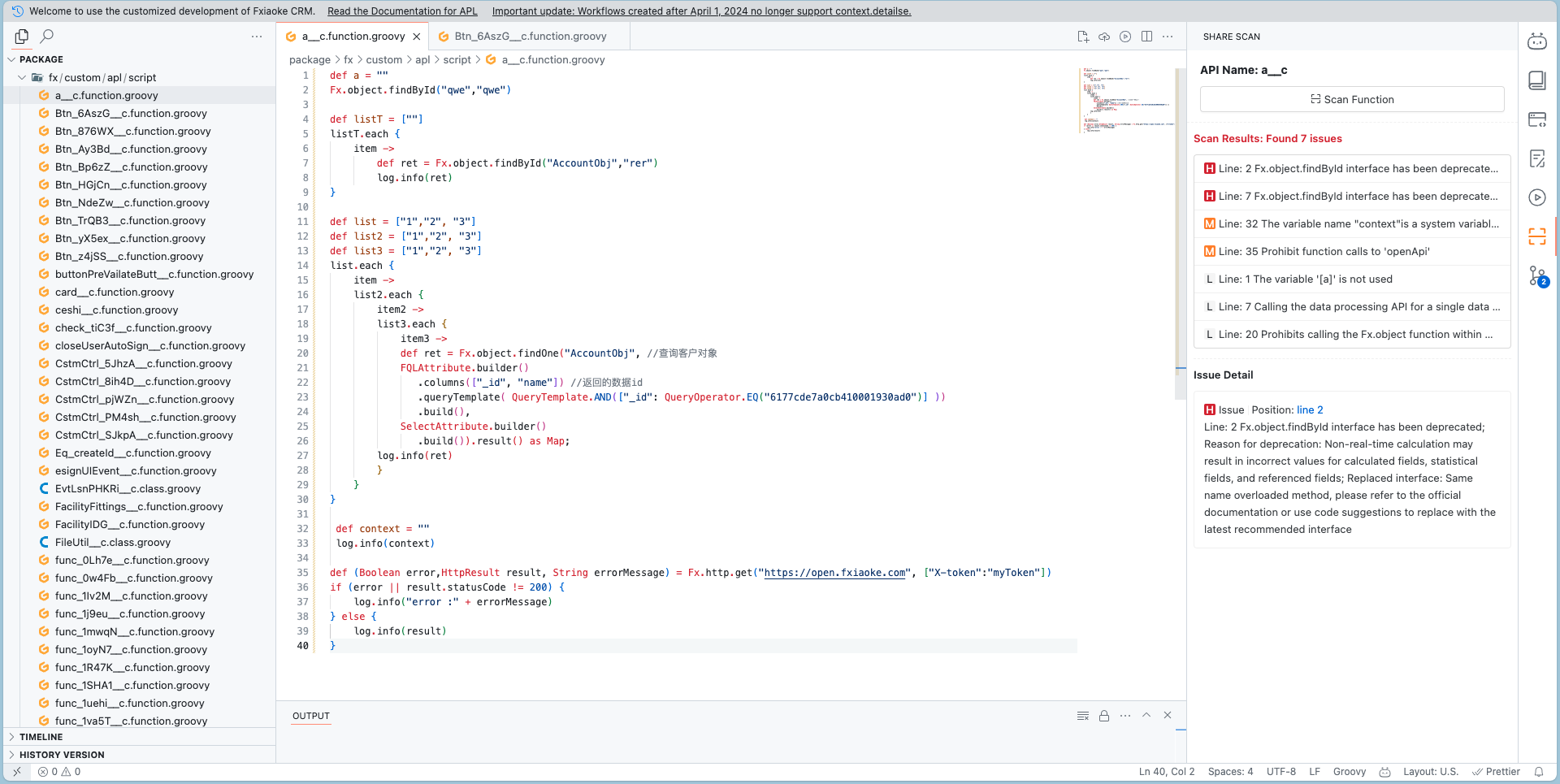
# Scanning APL Code
Detect potential risks:
- Click
Scan Functionto initiate analysis. - Review reported issues and optimization suggestions in the results panel.
# Miscellaneous
# WebIDE Shortcuts
Refer to VSCode documentation:
https://code.visualstudio.com/shortcuts/keyboard-shortcuts-macos.pdf