Configuration Steps
# I. Model Management
# 1. In Admin Console - AI Platform Management - Model Management
Click the "Add Model" button, then click "Bind Function"
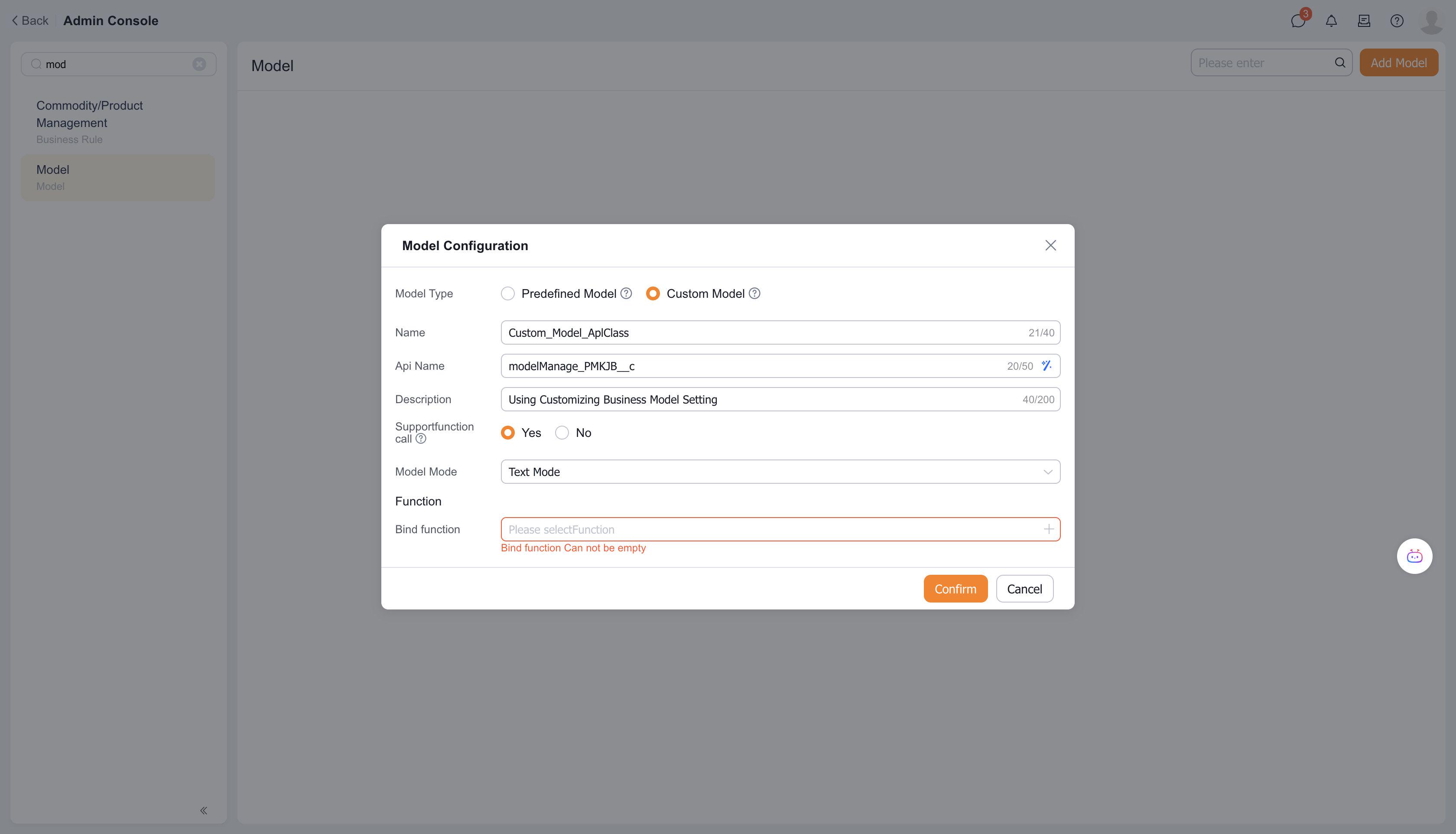
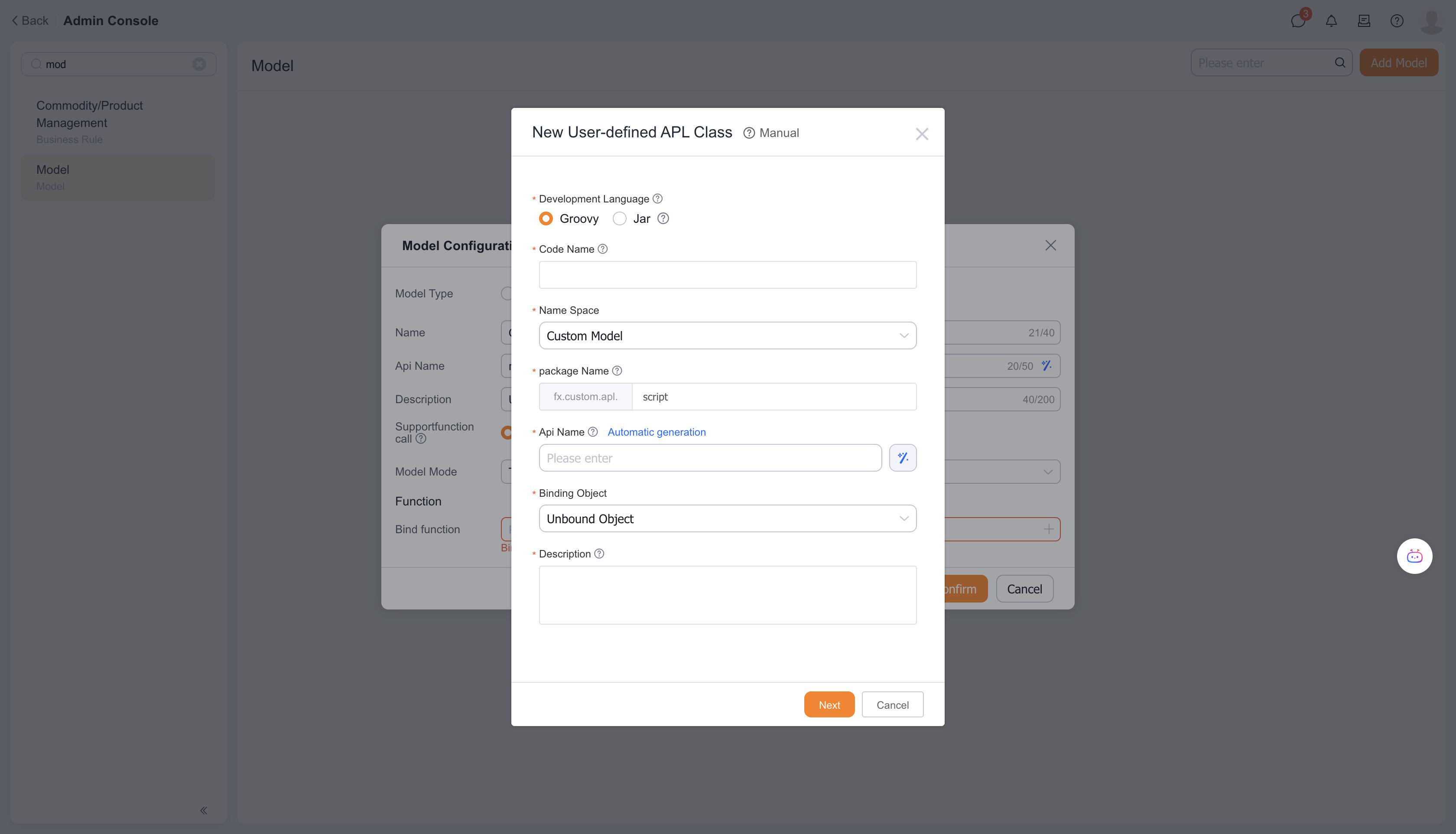
Create New Function - Use Empty Template
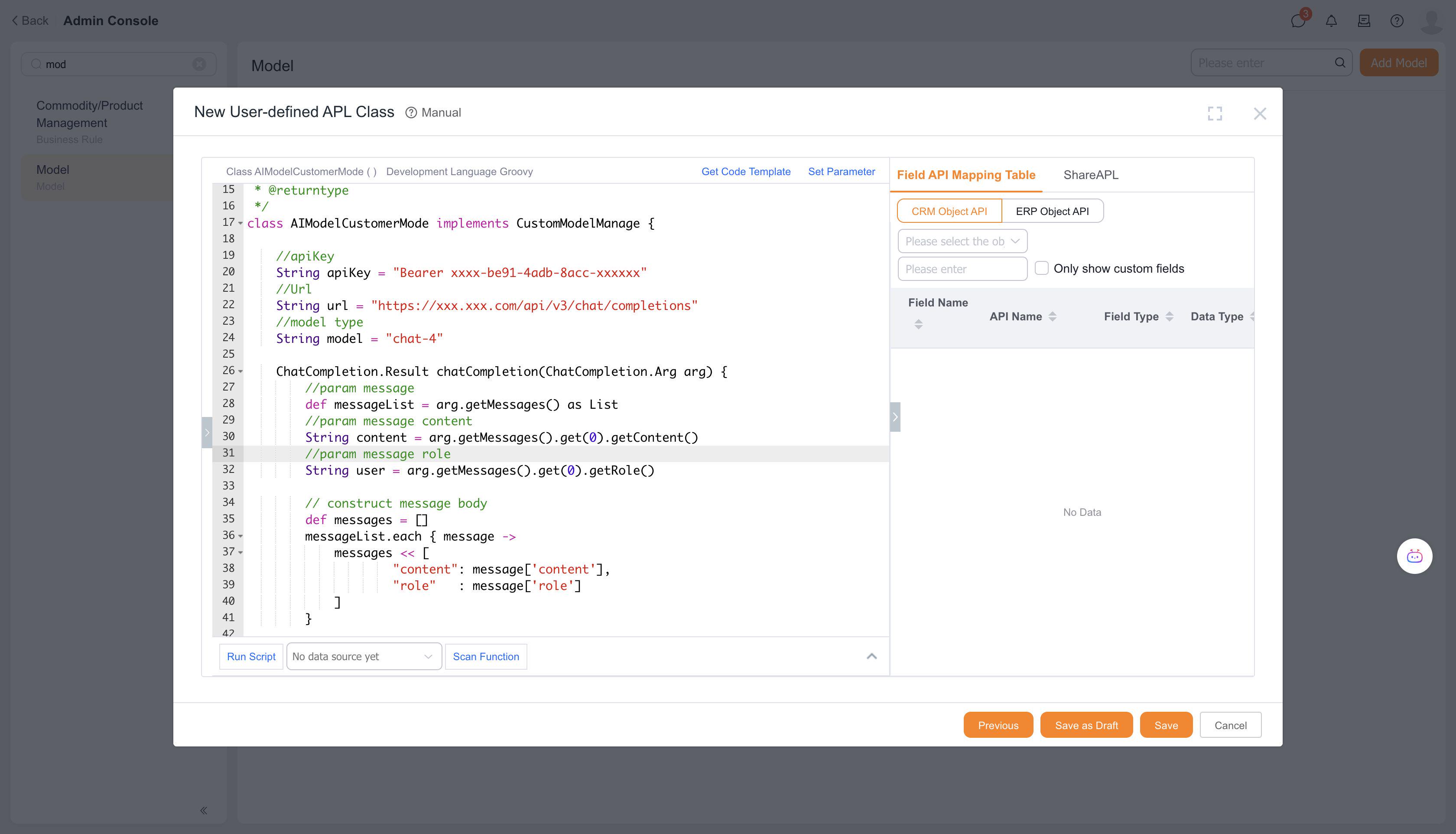
Note: This template uses HTTP requests. For specific parameters, refer to: "Parameter Introduction"
After confirmation, save the model. You can then see the model card in Model Management.
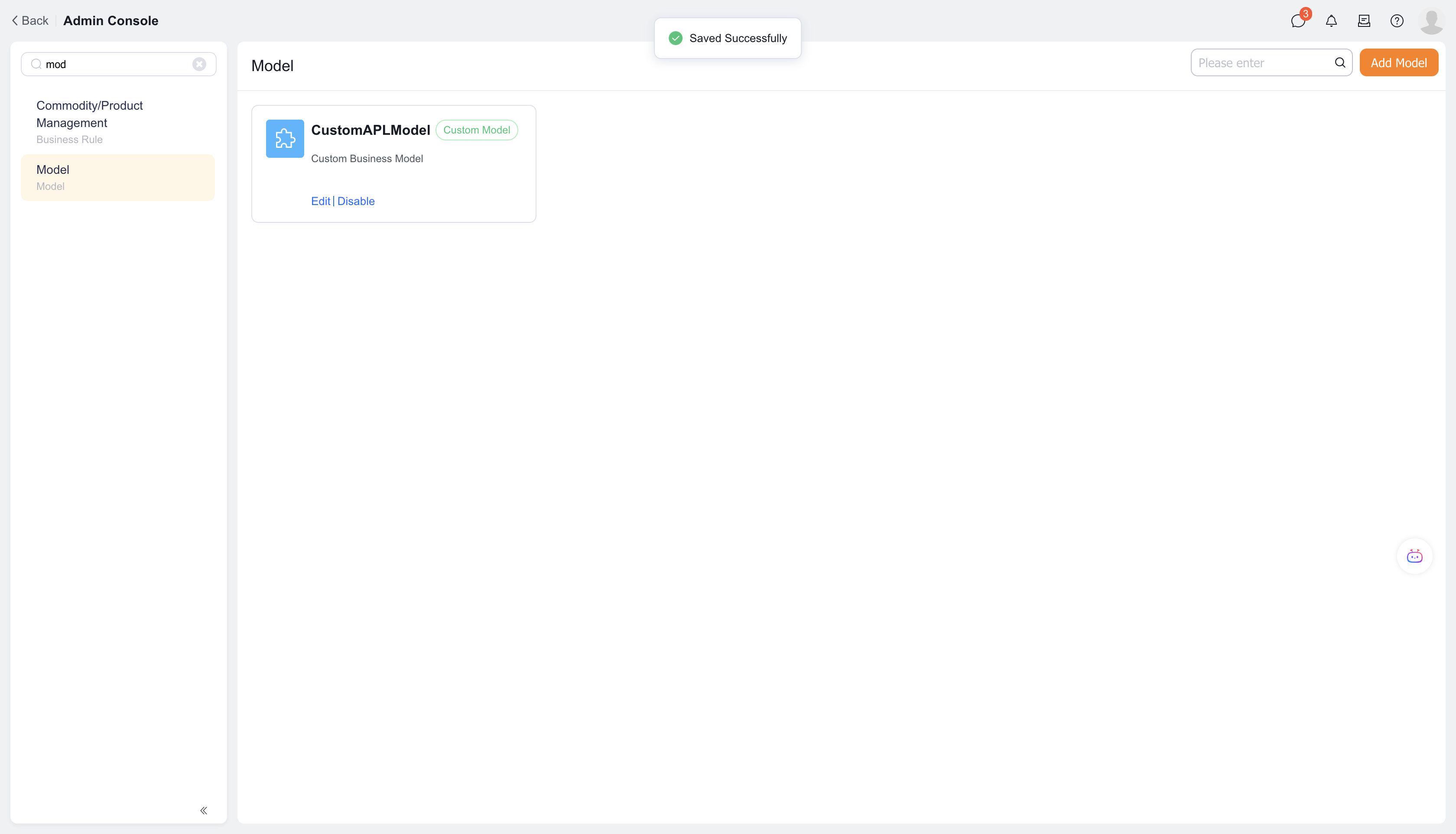
# II. Configuration in Prompt Template Management and Business Assistant Management
# 1. Configure the created model in Prompt Template Management
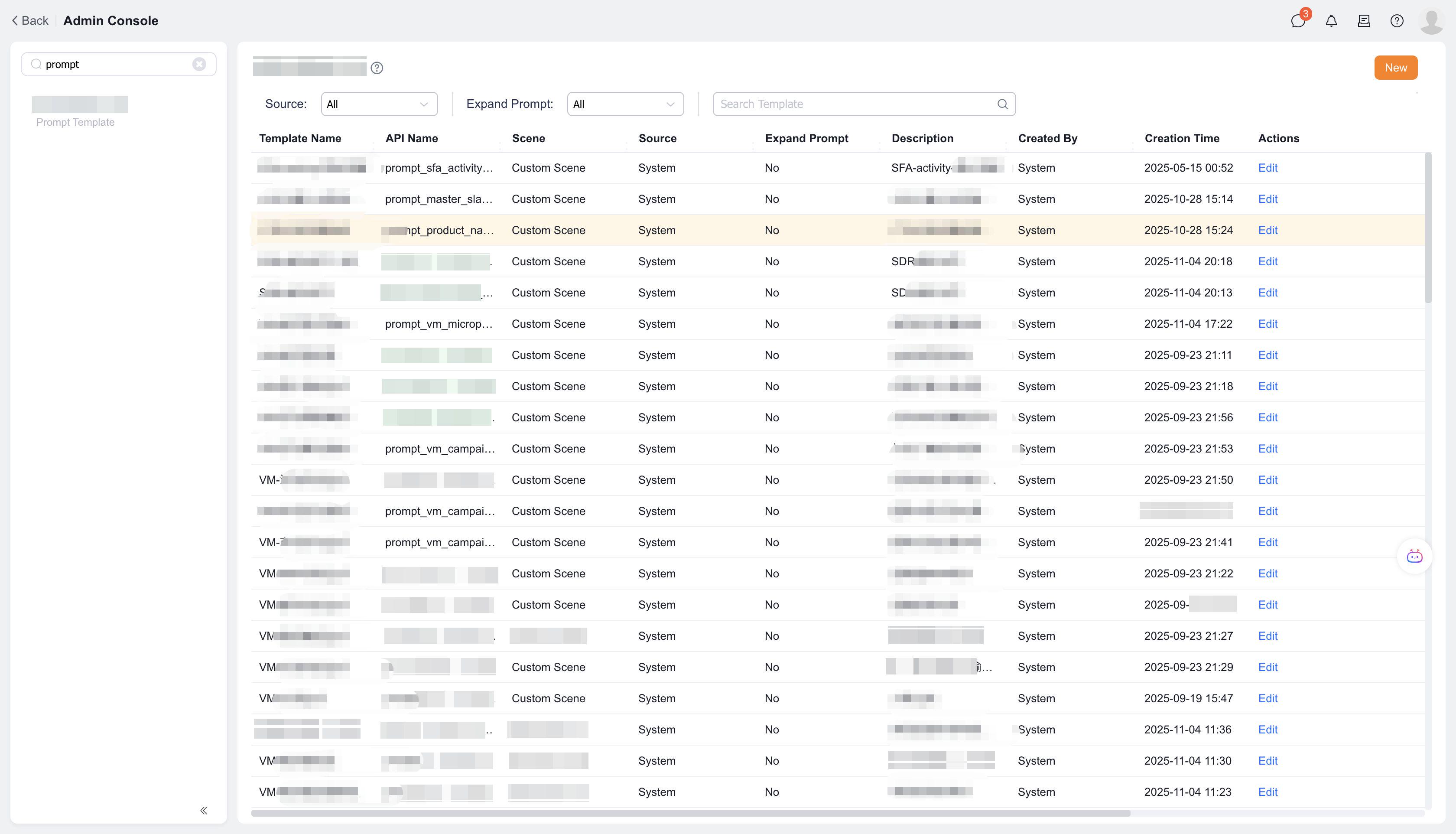
Go to Admin Console - AI Platform Management - Prompt Template Management - Click "New" button
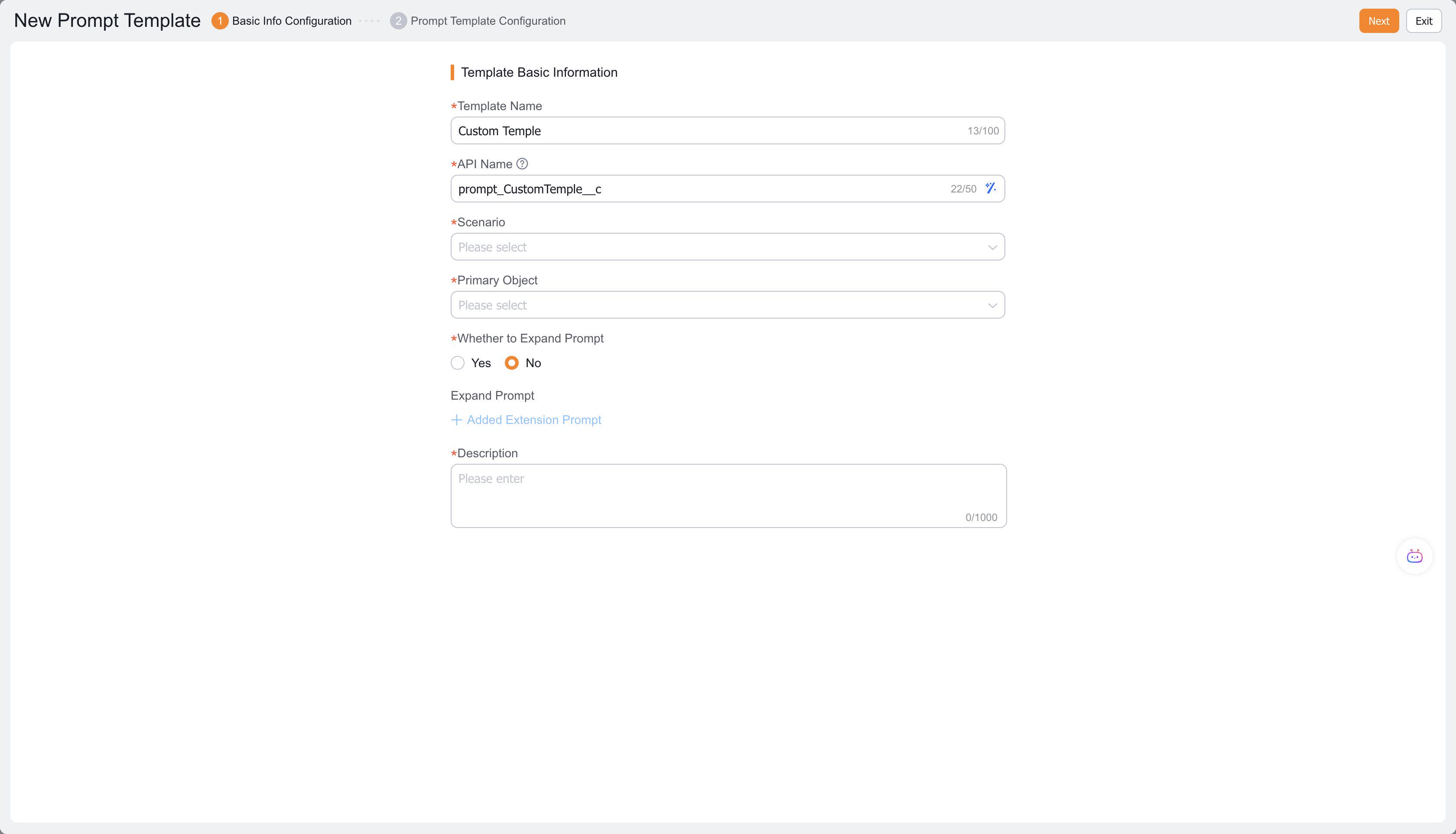
On the New Prompt Template page, configure relevant information and click "Next"
In the detailed prompt template page, select: "Model Vendor" and check the custom model you created: Custom Model - APL Class
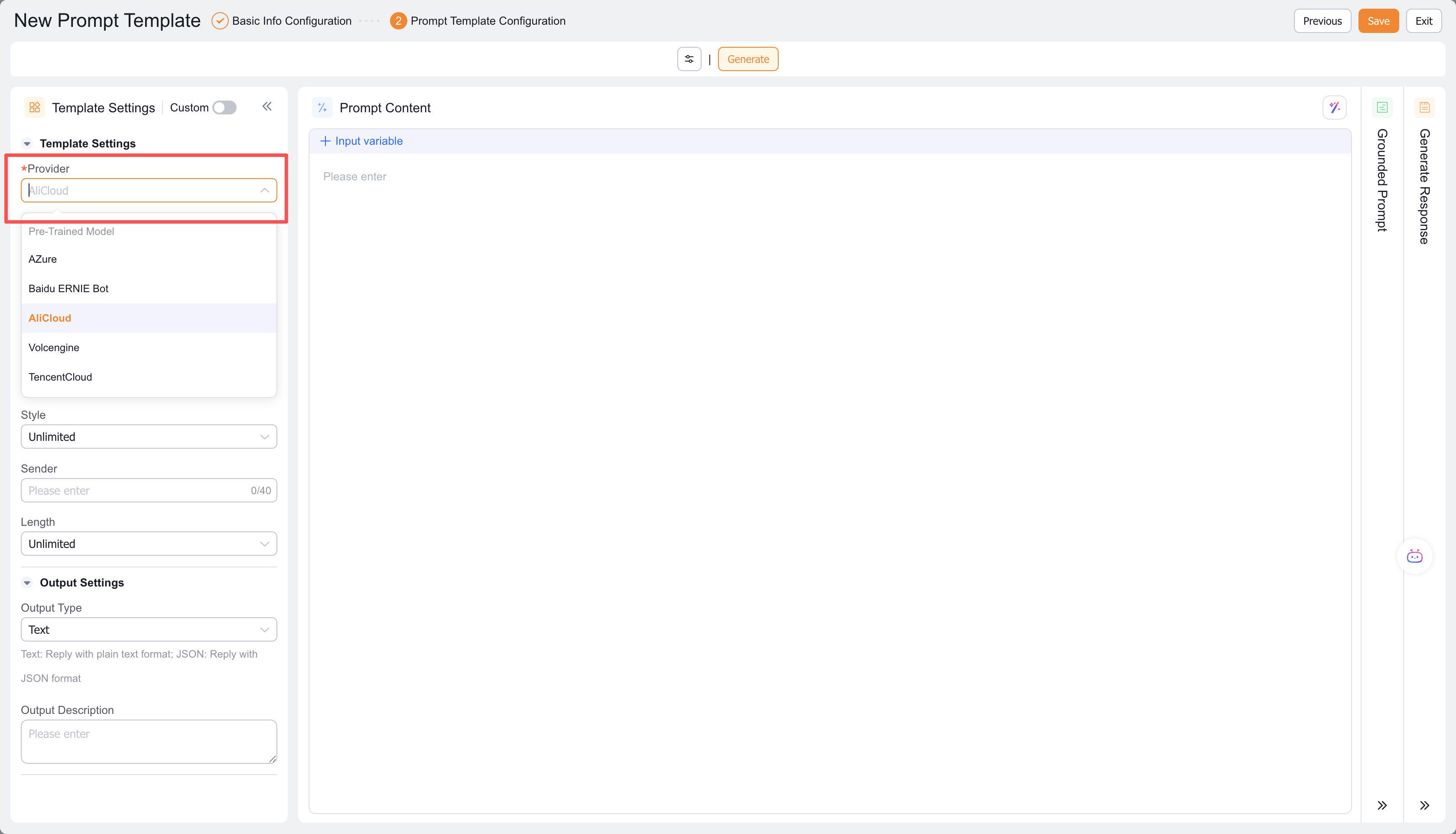
After binding the model vendor, you can use the defined custom model. Click "Generate Preview" to observe the model's text generation.
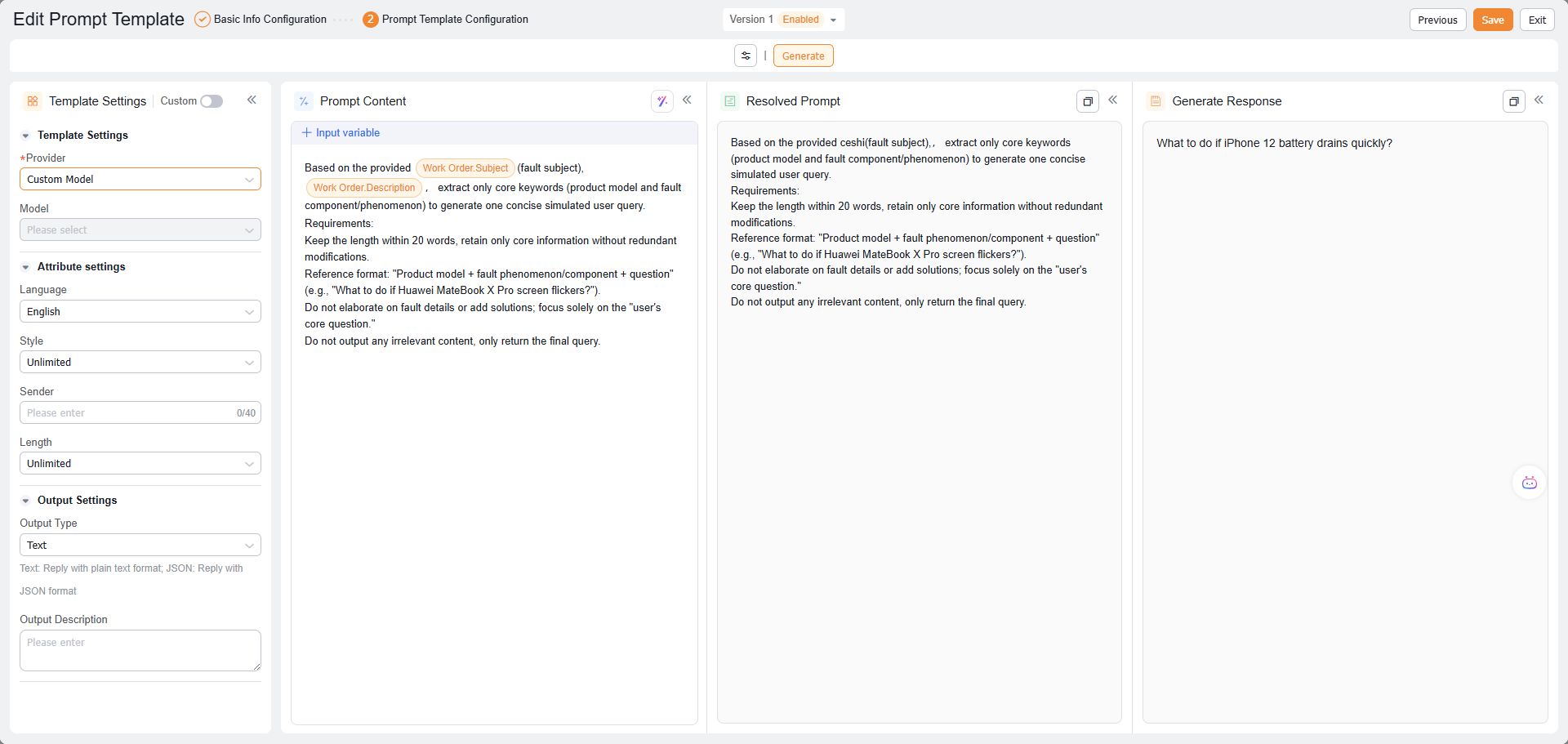
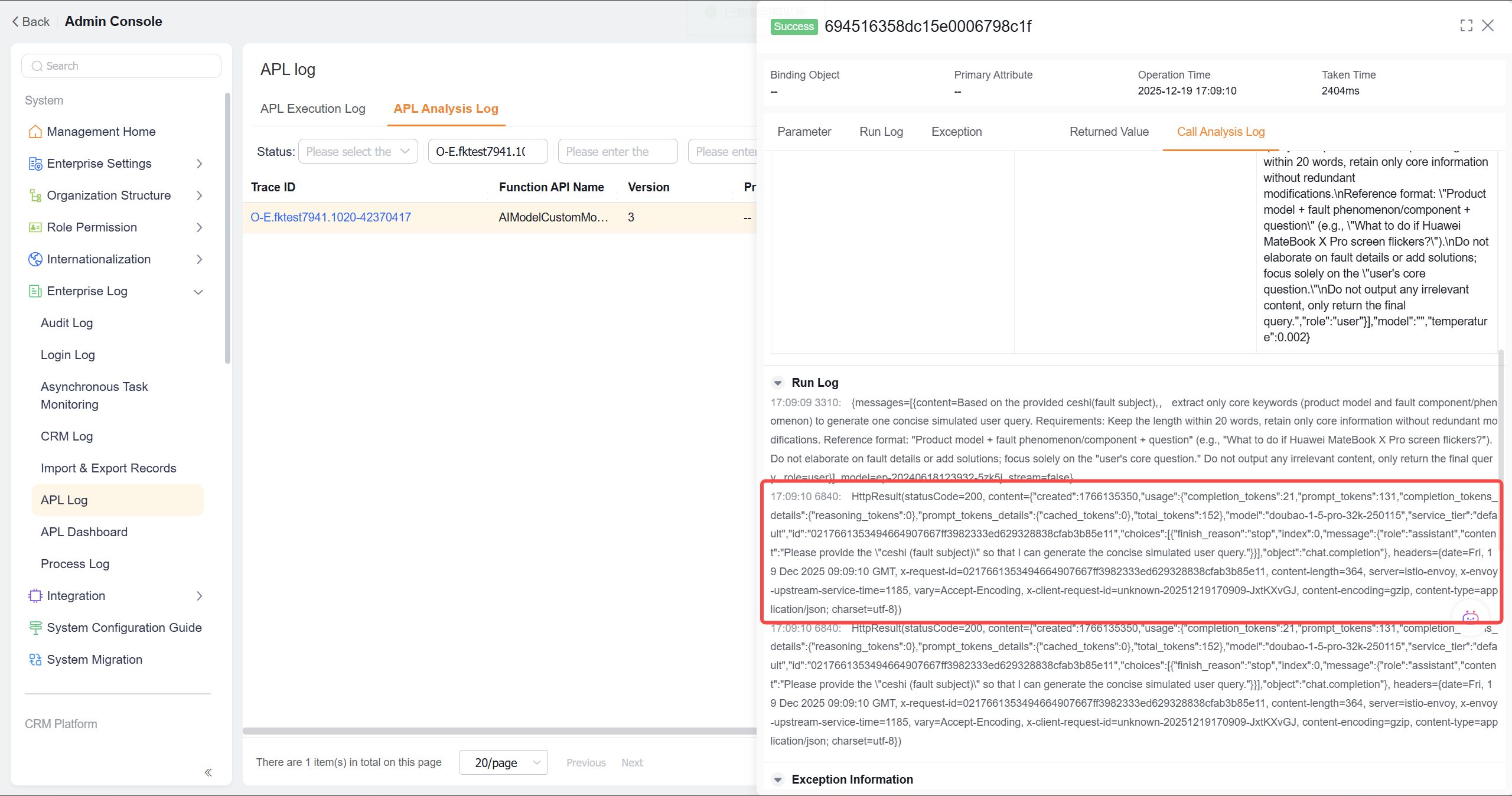
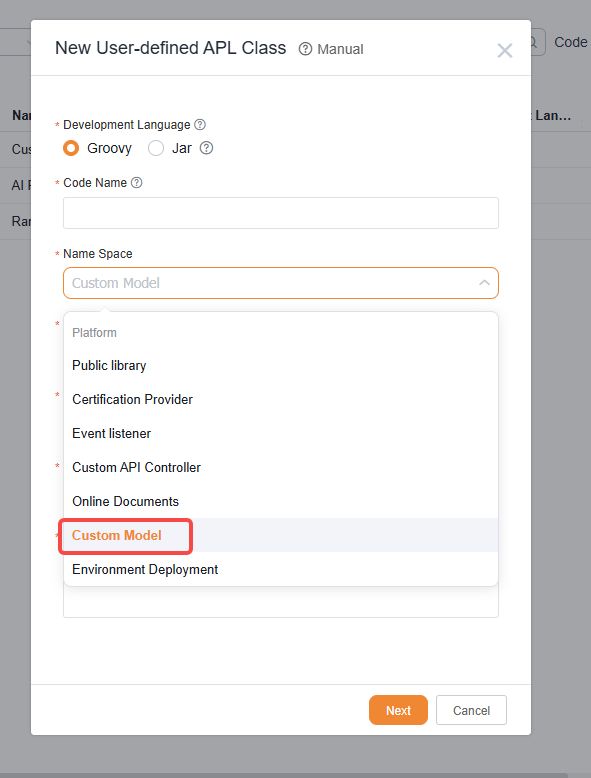
If the display is empty or shows "parse apl function response failed", go to Admin Console - Custom Development Platform - Custom APL Code, select the configured APL class, and view execution logs and error messages in Execution Records for model adjustment.
# 2. Configure the created model in Business Assistant Management
Go to Admin Console - AI Platform Management - Business Assistant Management - Click "New" button
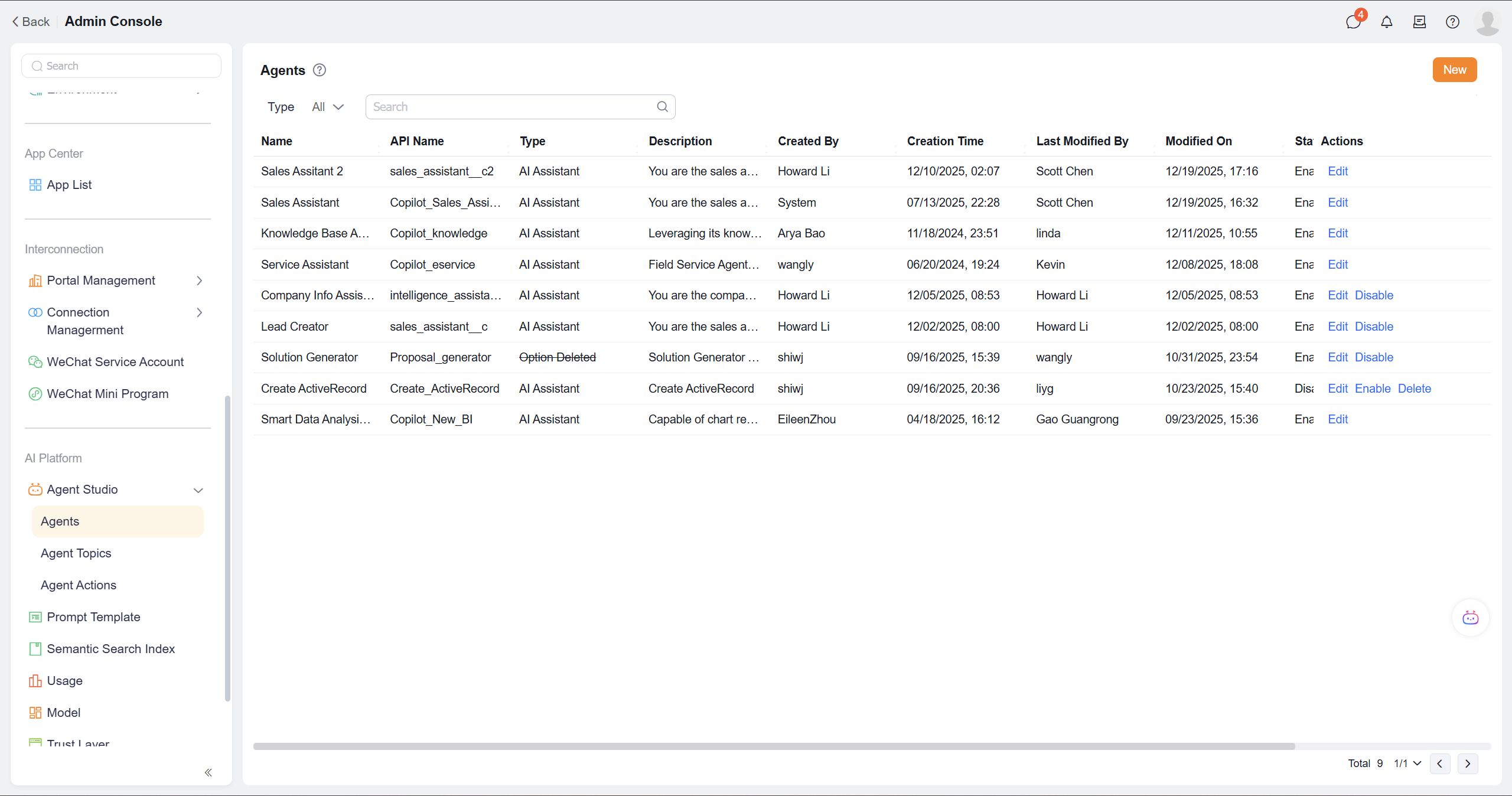
On the New Business Assistant page, configure relevant information, select: "Model Vendor" and check the custom model you created: Custom Model - APL Class, then click "Submit"
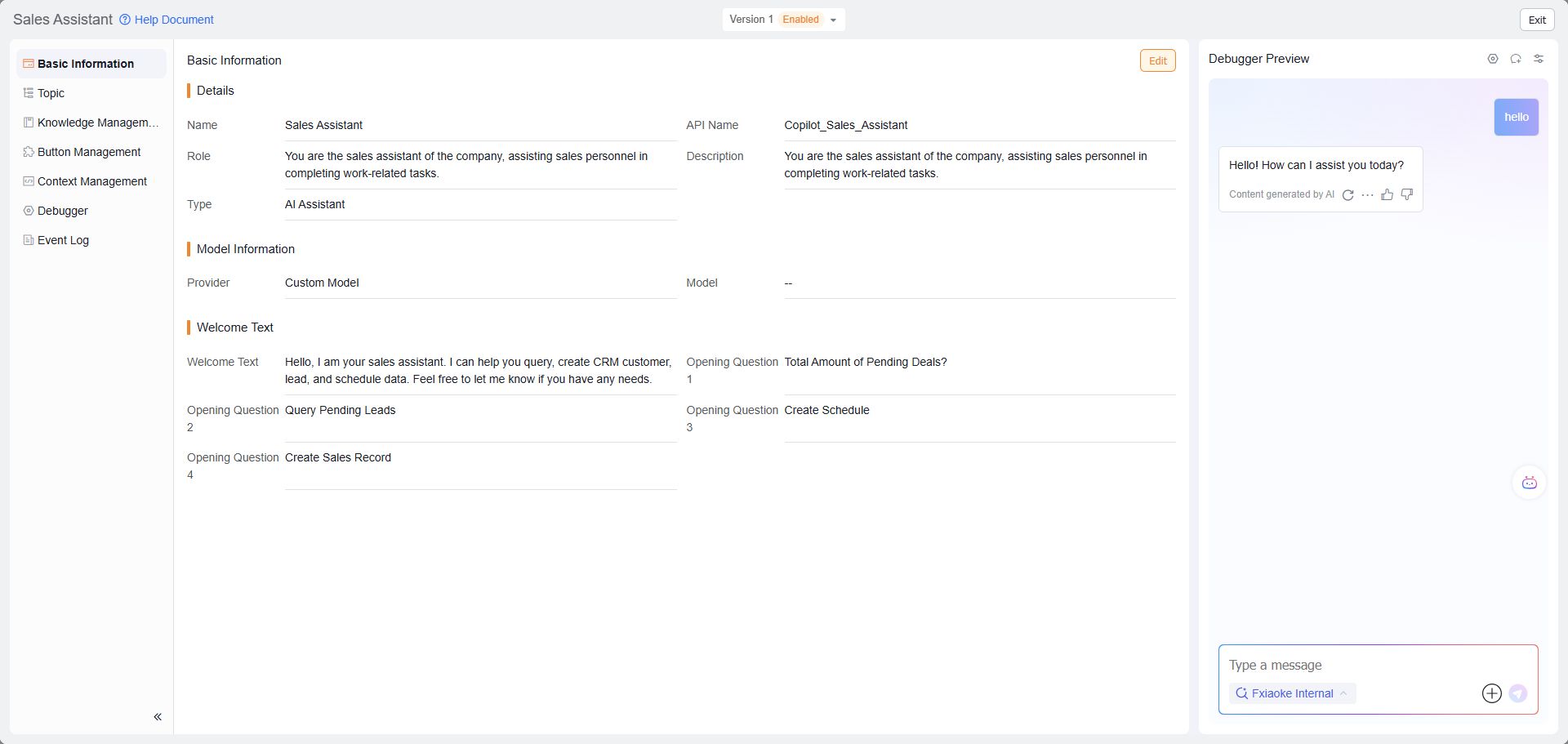
Click the "Edit" button, then select the Preview Test button
Enter your query in ShareGPT. If the response is normal, the configuration is successful. For null returns, follow the error troubleshooting steps mentioned in Prompt Template section and check logs in Custom APL Code execution records.